
How to Make a Barcode Free Online (No Sign Up)
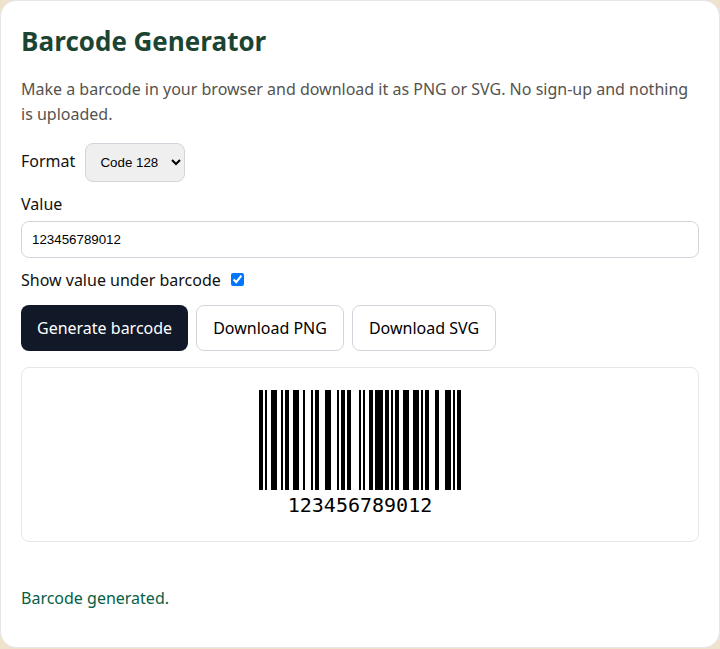
A barcode turns a short string of letters or numbers into a pattern a scanner can read in a second. Shops use them at the till, warehouses use them on shelves, and small sellers use them on labels and price tags. You do not need paid software or a special printer to make one. This guide shows you how to make a barcode free online in under a minute, which format to pick for your job, and the one limit you must know before you print.
How to Make a Barcode Free in 4 Steps
The free Barcode Generator runs in your browser. There is no account to create and no file to upload. Here is the whole process.
- Open the Barcode Generator. When the page first loads, it already shows a Code 128 barcode for the default value 123456789012, so you can see how the tool works right away.
- Pick a format. Code 128 is the best starting point for most jobs. EAN-13 and UPC-A are for retail products, and Code 39 is for simple labels and inventory.
- Type your value. Each format has its own rules for what it accepts, and the table below lists them.
- Press Generate barcode. The tool shows your barcode at once. Tick “Show value under barcode” to print the value below the bars, then press Download PNG or Download SVG to save it.
That is all there is to it. The whole job takes less than a minute, and you can make as many barcodes as you need.
- No sign up, no account, and no payment.
- Nothing is uploaded. The barcode is made in your browser.
- You can download each barcode as a PNG picture file or an SVG vector file.
- There are no size, color, width or height settings to learn. You only pick a format and a value.
Which Barcode Format Should You Use?
The format matters more than most people think. A scanner reads the pattern, not the name of the format, so the value has to fit the rules of the format you pick. Use this table to choose.
| Format | Best for | Value rules | Example value |
|---|---|---|---|
| Code 128 | General labels, inventory, tracking codes | Letters, digits and common symbols | SAVYTOOLS-2026 |
| EAN-13 | Retail products outside North America | 12 or 13 digits only | 5901234123457 |
| UPC-A | Retail products in the USA and Canada | 11 or 12 digits only | 036000291452 |
| Code 39 | Labels, badges, warehouse bins | Capital letters, digits, and the symbols (- . space $ / + %) | SAVY-2026 |
- If you are not sure, start with Code 128. It accepts the widest mix of letters and numbers.
- If you are labelling stock for your own shop or store room, Code 128 or Code 39 will do the job.
- If you are making a barcode for a product to sell in shops, read the GS1 section below before you print anything. A made-up number is not a valid retail barcode.
Worked Examples: One Barcode in Each Format
We tested the live tool on 28 Nov 2026 with one value in each format. “Show value under barcode” was ticked for all four, and the tool showed “Barcode generated.” with no error at any step. We also checked that the downloaded barcodes actually scan by decoding the PNG files back: the Code 128 PNG decoded to SAVYTOOLS-2026 and the EAN-13 PNG decoded to 5901234123457. Here is what came out.
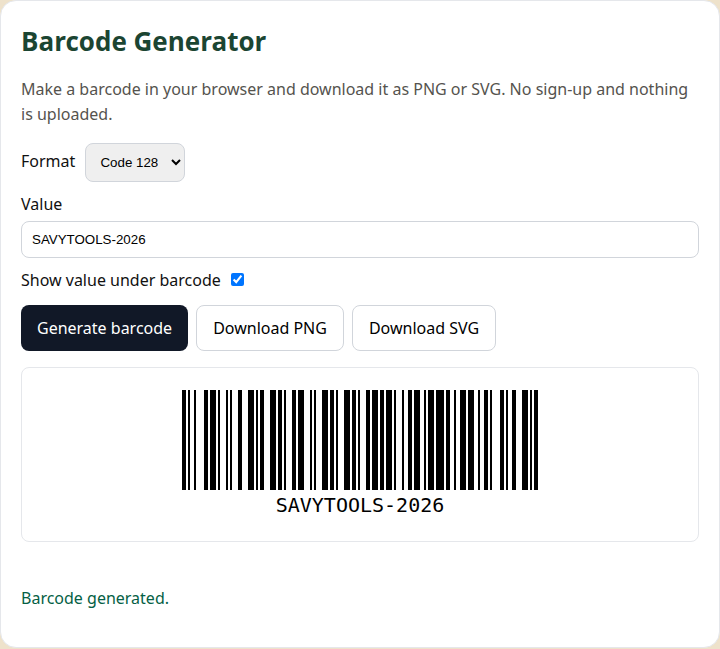
Code 128: SAVYTOOLS-2026
Type the value SAVYTOOLS-2026 with the format set to Code 128, then press Generate barcode. The tool shows the barcode at once with SAVYTOOLS-2026 printed under the bars. The PNG download was 6 KB and the SVG download was 3 KB. Code 128 is the easiest format to start with because it takes letters, digits and common symbols such as a hyphen.
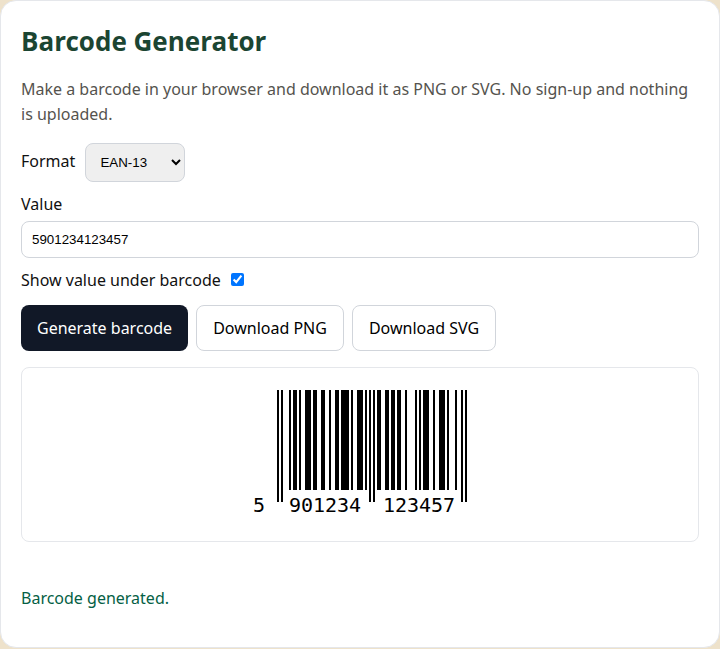
EAN-13: 5901234123457
Type the value 5901234123457 with the format set to EAN-13, then press Generate barcode. The tool shows the barcode with the number spaced out as 5 901234 123457 under the bars. The PNG download was 4 KB and the SVG download was 3 KB. Note that 5901234123457 is an example value we typed for this test. It is not a registered product number, so do not use it on a real product.
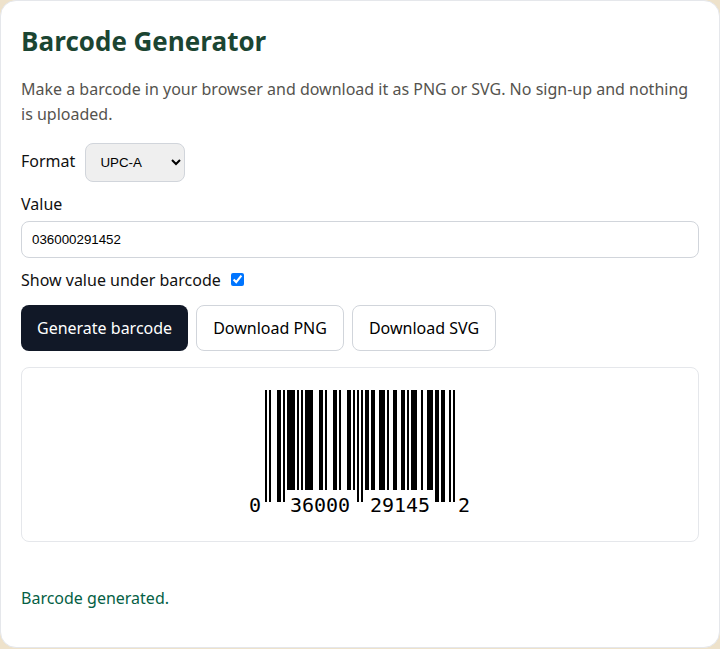
UPC-A: 036000291452
Type the value 036000291452 with the format set to UPC-A, then press Generate barcode. The tool shows the barcode with the number spaced out as 0 36000 29145 2 under the bars. UPC-A is the format most USA and Canadian tills expect, so use it for products sold in North America. As with the EAN-13 example, 036000291452 is a test value only and not a registered product number.
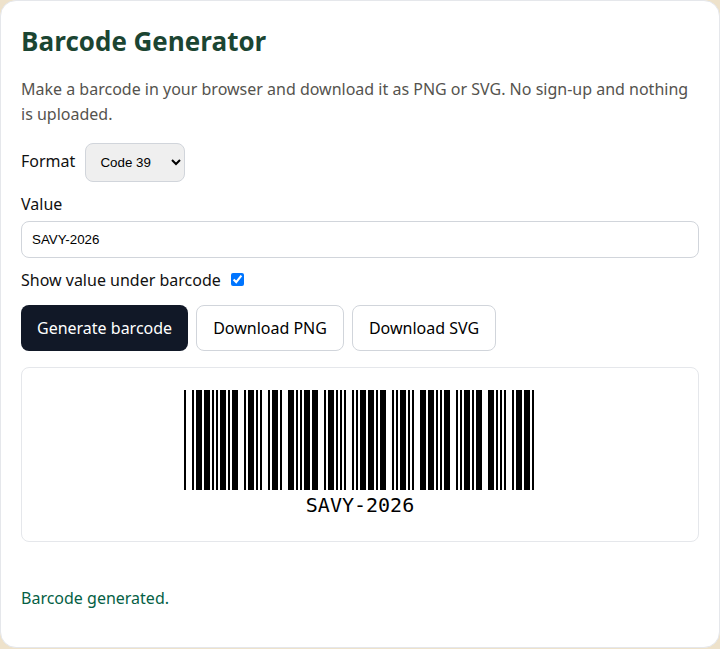
Code 39: SAVY-2026
Type the value SAVY-2026 with the format set to Code 39, then press Generate barcode. The tool shows the barcode with SAVY-2026 printed under the bars. Code 39 only takes capital letters, so type your value in capitals. It is a good pick for simple labels, badges and warehouse bins where the value is short.
PNG or SVG: Which Download Should You Pick?
The tool gives you two download buttons for every barcode. Both save the same barcode, but they suit different jobs.
| Download | Best for | Why |
|---|---|---|
| PNG | Documents, email, web pages, slides | A normal picture file that opens almost anywhere. |
| SVG | Print, large labels, stickers | A vector file that stays sharp at any size. |
- Pick PNG when you need to drop the barcode into a document, an email or a web page.
- Pick SVG when you are printing, because it stays sharp no matter how large you print it.
- If you are printing a full batch of labels, use SVG and test scan one copy first.
Print and Scan Checklist
A barcode that looks fine on screen can still fail at the till if the print is too small or too faint. Run through this checklist before you print a batch.
- Print on white paper with strong contrast. Dark bars on a white background scan best.
- Print the barcode large enough to scan easily. A tiny barcode is the most common reason a scan fails.
- Keep “Show value under barcode” ticked so a person can read the value if a scan fails.
- Test scan one copy with a phone camera or scanner app before you print the full batch.
- Check the value twice. A wrong digit means a wrong barcode, and reprinting a batch costs time.
- Use SVG for print. It stays sharp at any size, while a PNG can blur if you stretch it.
When This Tool Is the Wrong Choice
The free Barcode Generator is right for labels, stock codes, tickets, badges and test barcodes. It is the wrong choice in one common case: a real product for sale in shops.
A generated barcode is only an image of an encoded value. It does not register a product, and it does not give you a number that shops can look up. For real retail sale, EAN and UPC numbers must come from GS1, the organisation that issues them. A made-up 13-digit number is not a valid retail barcode. It can clash with a number that already belongs to another product, and a shop till may reject it.
- Selling a product in a shop or on a marketplace: get your numbers from GS1 first, then use this tool to turn the real number into a barcode image.
- Labelling your own stock, shelves or equipment: this tool is fine, because the barcode only needs to work with your own scanner.
- Making a barcode to test a scanner or a label layout: this tool is fine, and the example values in this guide are a good starting point.
- If you need a code that a phone can read to open a link or join a network, a QR code is the better pick. Our guide on how to make a QR code for WiFi shows how that works.
Frequently Asked Questions
Is it really free to make a barcode online?
Yes. The Barcode Generator on SavyTools is free with no sign up and no payment. You pick a format, type a value, press Generate barcode, and download the PNG or SVG. Nothing is uploaded, and the barcode is made in your browser.
Which barcode format should I use for a product?
It depends on where the product will sell. EAN-13 is the usual pick outside North America, and UPC-A is the usual pick in the USA and Canada. For your own labels and stock codes, Code 128 is the most flexible choice. For a real product for sale, the number itself must come from GS1 first.
Can I use a barcode I made here to sell a product in a shop?
Not unless the number is a real GS1 number. This tool turns a value into a barcode image. It does not register a product or issue a valid retail number. A made-up number can clash with another product and a till may reject it, so get your numbers from GS1 before you print labels for sale.
What is the difference between PNG and SVG?
PNG is a picture file that works almost everywhere, so it is a good pick for documents, email and web pages. SVG is a vector file that stays sharp at any size, so it is the best pick for print and large labels. Both downloads hold the same barcode.
Why does my barcode not scan?
The most common reasons are a value that breaks the format rules, a print that is too small, or weak contrast. Check that your value fits the format, print larger on white paper, and test scan one copy before you print a batch. Also check that “Show value under barcode” is ticked, so the value is there to check by eye.
Is my data uploaded anywhere?
No. The tool runs in your browser and nothing you type is uploaded to a server. Your values stay on your own device.
Bottom Line
Making a barcode free online takes less than a minute. Open the Barcode Generator, pick the format that fits your job, type your value, and download the PNG or SVG. Code 128 covers most labelling jobs, EAN-13 and UPC-A cover retail, and Code 39 covers simple labels. Just remember the one limit that matters: a generated barcode is an image, not a registered product number. For real retail sale, get your numbers from GS1, and always test scan before you print a batch.
If you like free tools that just work, try the Barcode Generator now, and keep your accounts safe with our guide on how to create a strong password.
