
How to Make a QR Code for WiFi (Free, No App Needed)
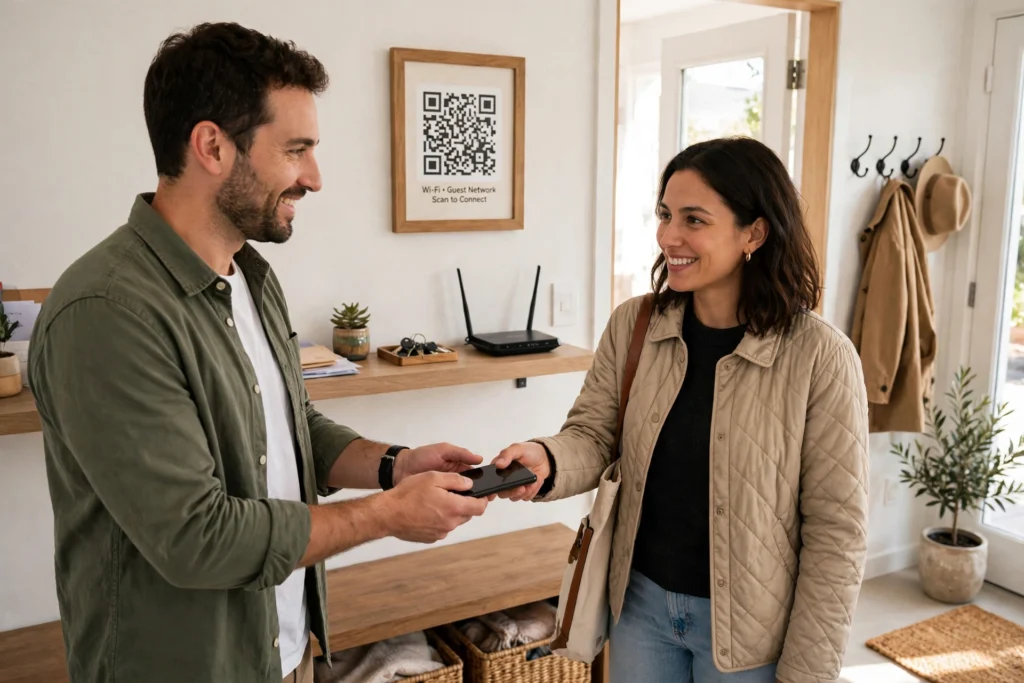
If you have ever tried to read a Wi-Fi password out loud at a dinner party, you know how it goes. Someone mishears a capital I for a lowercase l, someone else types it twice, and five minutes later half the room is still offline. Learning how to make a QR code for WiFi fixes that in about two minutes — and once you have done it, you will wonder why you ever did it any other way.
A Wi-Fi QR code is just a scannable square that carries your network name and password. A guest points their phone camera at it, taps the prompt, and joins. No spelling, no sticky notes, no shouting the password across the kitchen. In this guide, I will walk you through making one for free with SavyTools, testing it properly, and printing it somewhere sensible.
Why a Wi-Fi QR Code Beats Reading Out the Password
Passwords are getting longer for good reason, but long passwords are miserable to share by voice. A QR code removes the typing entirely, which also removes the most common reason guests cannot connect: a single mistyped character.
It is also tidier. Instead of handing your phone to a guest so they can copy the password, or sticking the password on the fridge for anyone to photograph, you share a code that does the joining for them. And if you run a small business, a rental, or an Airbnb, it just looks more professional than a handwritten note taped to the wall.
Best of all, it costs nothing. You do not need an app, an account, or a subscription. The code is generated in your browser, and you can print as many copies as you like.
What You Need Before You Start
Before you generate anything, grab three details. You probably already know the first two, but the third one trips people up.
First, your network name, also called the SSID. That is the name you see when your phone lists nearby networks — something like “HomeWiFi” or “Cafe-Guest”. Second, your Wi-Fi password, exactly as it is, including capitals and symbols. Third, your security type, usually WPA2 or WPA3 on a modern router. If you are not sure, WPA2 is the safe default for most home networks, and your router’s settings page will confirm it.
One tip worth taking seriously: if your router offers a guest network, use that for visitors. A guest network keeps visitors off your main network, where your computers, printers, and smart-home devices live. It takes a few extra minutes to set up, but it is the single smartest safety move in this whole guide, and your QR code will work exactly the same way on it.

How to Make a QR Code for WiFi in 5 Steps
Here is the whole process, using SavyTools’ free QR Code Generator. It runs entirely in your browser, so nothing you type is sent to a server or stored anywhere — a detail that matters when the thing you are encoding is, well, your password.
- Open the QR Code Generator. Go to the QR Code Generator on SavyTools. There is nothing to install and no sign-up.
- Choose the Wi-Fi option. Pick the option for Wi-Fi details rather than a plain link or text. This tells the code to carry network information in the format phones understand.
- Enter your network name, password, and security type. Type the SSID exactly as it appears on your phone, then the password, character for character. Double-check the capitals — this is the one step where a small slip breaks everything.
- Generate the code. Click generate and check that the square pattern looks complete, with the three larger squares in the corners. If it looks cut off or patchy, regenerate it.
- Download it as a PNG. Save the PNG file. SavyTools codes download with no watermark, so the file is ready to print, stick in a frame, or drop into a document.
That is genuinely it. The whole thing takes less time than explaining your password to one guest.
How to Test Your Wi-Fi QR Code Before You Share It
Please do not skip this step. A code that has never been tested is just a pretty square, and there is nothing more awkward than handing a guest a code that does not work.
On an iPhone, open the Camera app and point it at the code — no need to take a photo. A yellow notification should appear offering to join the network. On most Android phones, the same thing happens in the Camera app, or in Google Lens if your camera does not scan codes itself. Tap the prompt, and if the phone joins the network, you are done.
Test it on a phone that is not already connected to that network if you can, and test the printed version too, not just the one on your screen. Print changes things: a code printed too small, or on glossy paper that catches the light, can be harder to read. If your phone struggles, print it bigger — a code the size of a credit card or larger scans far more reliably than a tiny one squeezed into a corner.
Where to Print and Display Your Wi-Fi QR Code
Where you put the code matters almost as much as making it. You want somewhere guests will naturally see it, without broadcasting your password to the whole street.
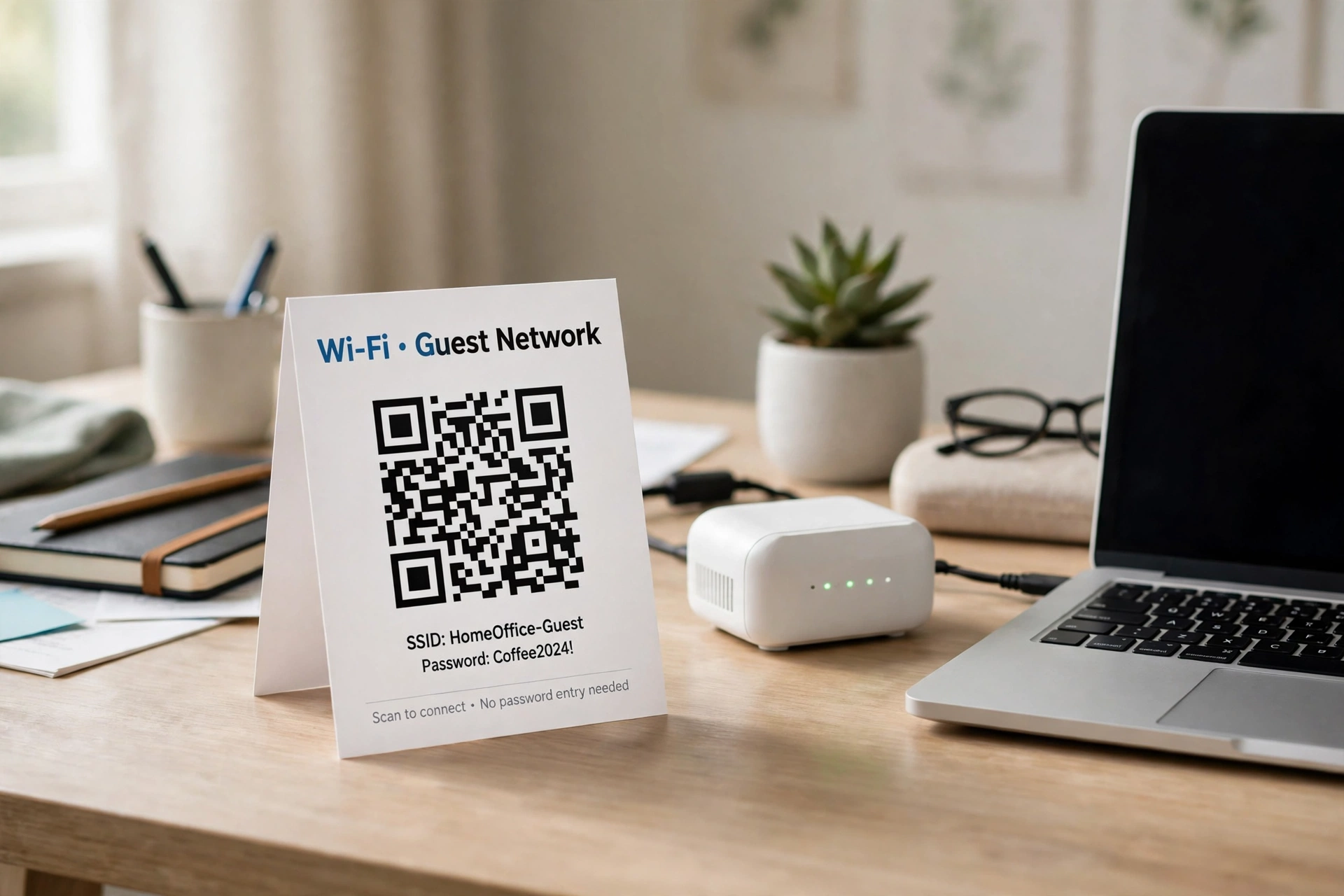
At home, the hallway, the kitchen counter, or a small frame by the guest room works well. For a rental or Airbnb, put it in the welcome book or in a frame near the front door — guests arriving late at night will thank you. Cafes and small offices often do the same thing: a small stand on each table, or one framed code by the counter, saves staff from repeating the password all day.
Whatever spot you choose, leave a clear blank margin around the code. Codes printed right up against other graphics or text can be hard for cameras to read. And if you are putting it on a menu, poster, or business card, go bigger than you think you need. Small codes look neat and scan badly.
Is It Safe to Share a Wi-Fi QR Code?
This is the question people ask me most, and the honest answer is: it is as safe as sharing your password, because that is what you are doing — just in a more convenient form. Anyone who scans the code gets the same access as someone you told the password to. So the usual rules still apply.
Use a guest network for visitors when you can, as I mentioned earlier. Do not put the code in a public photo, a social media post, or anywhere strangers can scan it from outside your home. And if you ever change your Wi-Fi password, remember to generate a fresh code and replace the old printouts — the old code will still carry the old password, which is either useless or, if you ever reuse a password, a quiet security hole.
One more practical point: SavyTools codes are static, which means the code itself never expires. That is good news for a printed frame you plan to keep for a year. It also means you are responsible for updating it when the details behind it change.
What If Scanning Does Not Work?
Most failures come down to one of a handful of causes, and all of them are fixable. Start with the password: retype it slowly and check for lookalike characters, like 0 and O, or 1 and l. Then check the network name, including any spaces or hyphens.
If the details are right but the phone will not scan, the problem is usually physical. Print the code larger, use plain matte paper instead of glossy, and make sure the room is bright enough for the camera to focus. Very old phones sometimes need a dedicated QR scanner app, but any iPhone or Android phone from the last several years should scan from its built-in camera.
Hidden networks are the one real exception. If your network name is hidden, a QR code can still work, but some phones will not join a hidden network from a code alone. If you run into that, unhiding the network name — or just giving guests the details manually — is the simpler path.
Frequently Asked Questions
Does a Wi-Fi QR code work on both iPhone and Android?
Yes. Modern iPhones scan Wi-Fi codes straight from the Camera app, and most Android phones do the same, either in the camera or through Google Lens. If a phone is very old, a free scanner app from its app store will do the job.
Do Wi-Fi QR codes expire?
No — codes made with SavyTools are static, so they never expire on their own. They stop working only if you change the network name or password, in which case you just generate a new one and reprint it.
Can I make a QR code for a hidden Wi-Fi network?
You can generate one, but results are mixed: some phones will not join a hidden network from a QR code. If your network is hidden and guests cannot connect, unhiding the SSID or sharing the details directly is usually quicker than troubleshooting the code.
A Wi-Fi QR code is one of those small upgrades that pays for itself the first time someone visits. It takes two minutes, it is free, and it turns an awkward little ritual — spelling out a password, letter by letter — into a single tap. Make one with the QR Code Generator, test it on your own phone, print it somewhere sensible, and you are set. And while you are tidying up your digital life, the Password Generator is handy if your Wi-Fi password itself could use an upgrade — just remember to update your QR code afterwards. For more free tools in the same spirit, see our roundup of the best free PDF tools online.
