
How to Create a Strong Password (Free, No Sign Up)
Learning how to create a strong password takes about five minutes, and it is one of the highest-impact things you can do for your online life. Most of us reuse the same two or three passwords everywhere — a pet’s name here, a birthday there — and hope for the best. That hope is exactly what attackers count on. The good news? You don’t need a computer science degree or a paid app to fix it. A genuinely strong password follows a few simple rules, and once you know them, you can build one for every account you own.
In this guide, I’ll walk you through what actually makes a password strong in 2026, show you a step-by-step method to build one yourself, and share the easiest way to generate and remember unique passwords for all your accounts — free, with no sign-up.
What Makes a Password Strong?
Forget the old advice about changing your password every 30 days or cramming in a symbol just because a website demands one. Modern security guidance — including the US National Institute of Standards and Technology (NIST) — focuses on two things above everything else: length and uniqueness.
Length beats cleverness. Every extra character multiplies the time it takes a computer to guess your password. A 16-character password is not twice as hard to crack as an 8-character one; it’s billions of times harder. That’s why the single most useful rule is simple: aim for at least 12 characters, and 16 or more for the accounts that matter most, like your email and your bank.
Uniqueness beats strength. Even a brilliant password is useless if you use it in ten places. Data breaches happen constantly — a shopping site you used once in 2019 gets hacked, your password leaks, and suddenly attackers try that same password on your Gmail, your bank, and your Amazon account. Security folks call this “credential stuffing,” and it works because so many of us reuse passwords. A different password for every important account shuts that door completely.
Randomness beats meaning. Your dog’s name plus your birth year feels personal and memorable, but it’s also guessable. Attackers know the tricks: common words, keyboard patterns like “qwerty123,” sports teams, and song lyrics. A password made of random characters — or better, a string of unrelated words — has no pattern to guess.
How to Create a Strong Password in 5 Steps
Here’s the method I actually use, and it’s quick enough to do while your coffee is brewing.
- Pick a base of four random words. Think of four unrelated words — something like “correct horse battery staple” (the famous example) or your own: “purple-guitar-rain-window.” Four random words are easy to picture and brutally hard for a computer to guess.
- Stretch it to at least 16 characters. Four short words already get you there. If your words are short, add a fifth, or slip in a number somewhere in the middle — not at the end, where everyone puts it.
- Add one number and one symbol. A single “7” tucked between two words and one “!” or “#” somewhere unexpected is plenty. You don’t need to replace every letter with a lookalike symbol; that mostly just makes the password harder for you to type.
- Make it unique to the account. Never copy a password from one site to another. If remembering dozens of unique passwords sounds impossible, keep reading — the tool below solves exactly that problem.
- Test it before you save it. Say it out loud once, type it twice, and make sure you can log in with it before you close the tab. A password you can’t type is a password you’ll reset tomorrow.
That five-step recipe works for any account. But honestly? Doing it by hand for every site gets old fast. That’s where a generator comes in.
The Easiest Way: Use a Free Password Generator
If you want a strong password without thinking about it, SavyTools’ free Password Generator does the whole job in one click. Set the length — I recommend 16 characters or more — tick the boxes for uppercase letters, numbers, and symbols, and hit generate. You get a random, high-entropy password instantly, with no sign-up, no account, and nothing stored on a server. Everything runs right in your browser, so your password never leaves your device.
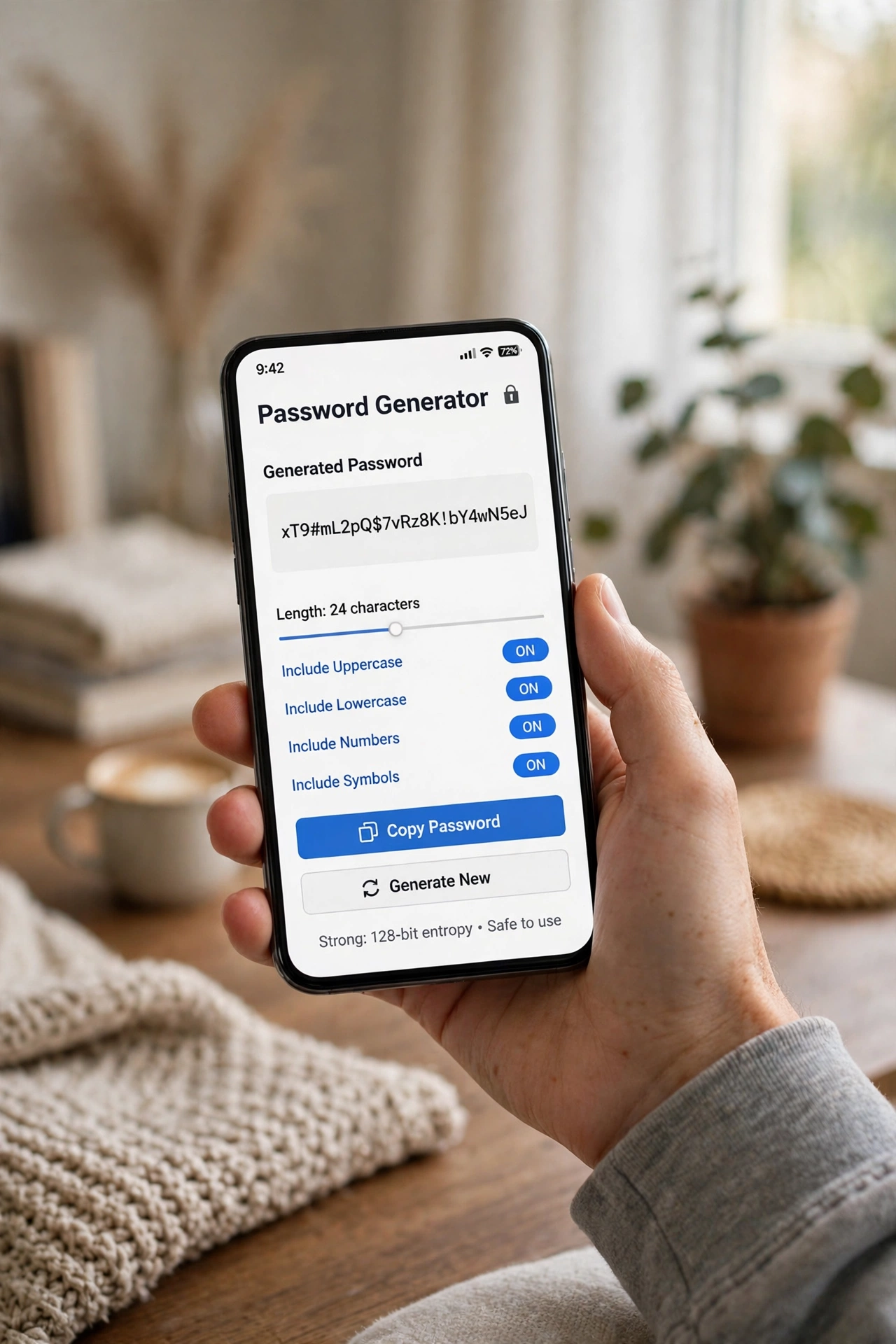
The generator is also great for the accounts where a passphrase feels clumsy — Wi-Fi passwords, app-specific passwords, or a PIN for a shared device. Generate it, copy it, paste it where it belongs, and you’re done in ten seconds. And if you share Wi-Fi with guests, you can pair it with a scannable code using our guide to making a QR code for Wi-Fi, so nobody has to type that long password by hand.
How Long Should a Password Be?
Short answer: as long as the site allows, with 16 characters as a sensible floor for important accounts.
Here’s the reasoning. A 12-character password made of random letters, numbers, and symbols has roughly 95^12 possible combinations — a number so large that even a fast cracking rig would need centuries to try them all. At 8 characters, that same rig might finish the job in hours. Length is the cheapest security upgrade there is, and it’s free.
That said, don’t panic about the password on your local pizza-ordering account. Match the effort to the risk: 16+ characters with a generator for your email, bank, and password manager; a solid 12 for shopping and social media; and a memorable passphrase for the Wi-Fi or the family tablet. Your email deserves the strongest password of all, by the way — because “reset my password” emails flow through it, your inbox is effectively the master key to everything else.
How to Remember Strong Passwords (Without Writing Them on a Sticky Note)
A password you can’t remember is a password you’ll reset — or worse, simplify. Here are three methods that actually work in real life.
Use a password manager. This is the honest answer for most people. A password manager remembers every unique password for you, so you only need to memorise one strong master password. Your browser has one built in — Chrome, Safari, and Firefox all offer to save and fill passwords — and there are good free standalone managers too. Pick one, turn it on, and let it generate a fresh password every time you sign up somewhere new.
Use passphrases for the few you must memorise. Your master password and your laptop login are the two or three passwords you’ll actually type by hand. Make those passphrases: four or five random words with a number tucked in. “Guitar-7-Window-Rain-Purple” is far easier to recall than “G7!wR9$pL2” — and just as hard to crack.
Never store passwords in plain text. Not in a notes app, not in a spreadsheet called “passwords.xlsx,” and definitely not on a sticky note under the keyboard. If a password manager isn’t your thing, at least keep the list in an encrypted note or a locked document — and never email passwords to yourself.
Common Password Mistakes to Avoid
Most hacked accounts aren’t beaten by genius hackers; they’re beaten by predictable habits. Run through this list and fix anything that sounds familiar:
- Reusing one password everywhere. The single biggest risk. One breach exposes every account that shares it.
- Using personal details. Names, birthdays, anniversaries, and pet names are the first things an attacker tries — and they’re often public on your social media.
- Keyboard patterns. “Qwerty123,” “123456789,” and “asdfgh” top every leaked-password list, every single year.
- Swapping letters for symbols. “P@ssw0rd!” looks clever, but password crackers have known that trick for twenty years. Length and randomness matter far more.
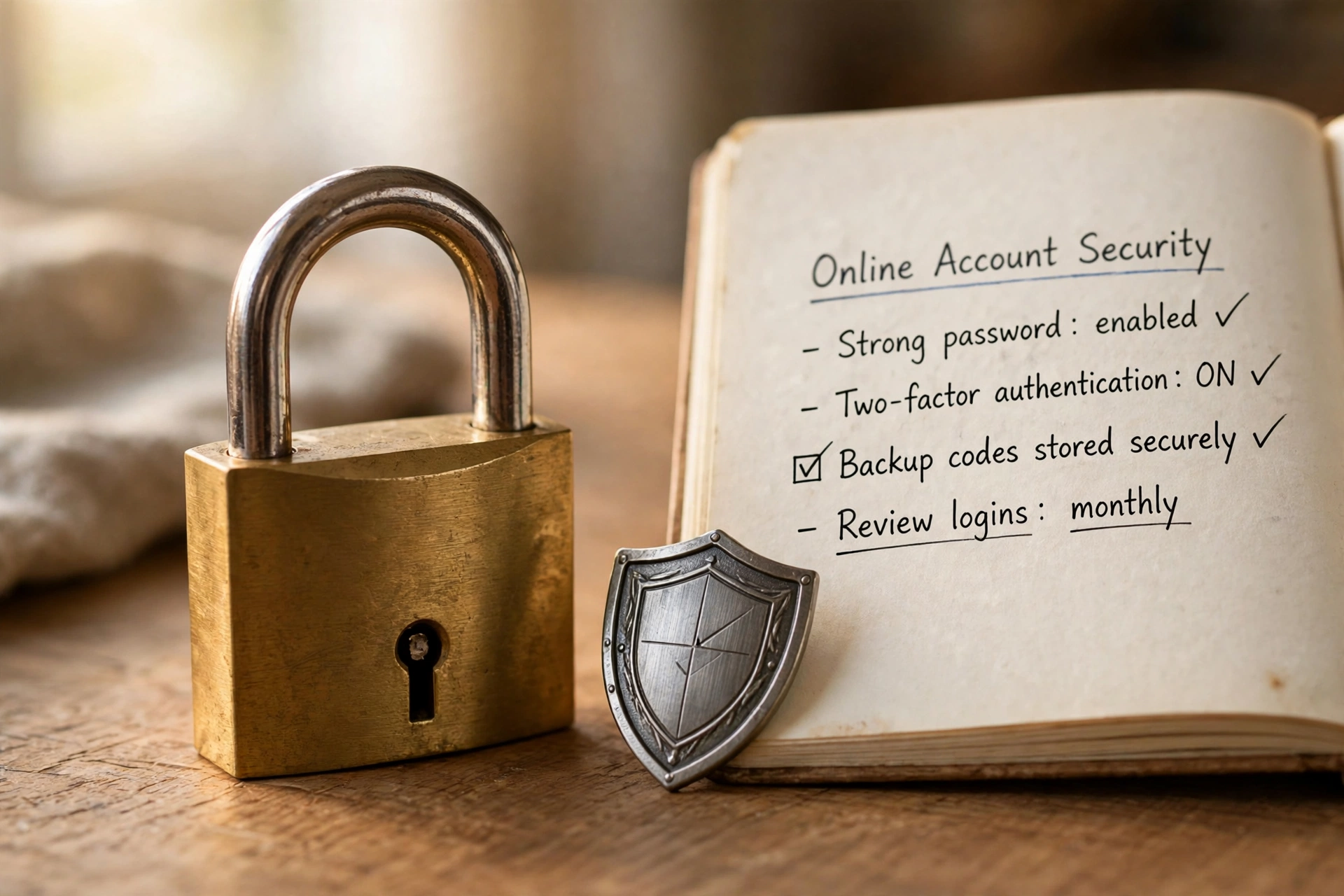
- Skipping two-factor authentication. A strong password is the lock; two-factor authentication (2FA) is the deadbolt. Turn it on for your email, bank, and social accounts — it blocks most attacks even if your password leaks.
What If Your Password Has Already Leaked?
It probably has, at least once — most of us have an old password floating around in some breach. Don’t panic; just act. First, change the password on that account (and anywhere else you reused it). Then check whether your email appears in known breaches at Have I Been Pwned — it’s a free, reputable service run by security researcher Troy Hunt. If your email shows up, work through the list: update each affected account, starting with email and banking, and switch on 2FA wherever it’s offered.
And if you’re the kind of person who likes a checklist, pair this with your phone’s built-in security check — both iPhone and Android will now warn you about reused or compromised passwords saved in your browser.
FAQ: Creating Strong Passwords
How long should a password be in 2026?
Aim for at least 12 characters, and 16 or more for important accounts like your email and bank. Length matters more than complexity — a long passphrase of random words is both stronger and easier to remember than a short jumble of symbols.
What makes a password strong?
Three things: length (12–16+ characters), randomness (no dictionary words, names, or keyboard patterns), and uniqueness (a different password for every account). A password manager or a free generator like SavyTools’ Password Generator handles all three for you.
How do I remember strong passwords?
Use a password manager for the dozens you never need to type, and memorise just two or three passphrases — four or five random words — for your master password and laptop. Never write passwords on paper or store them in an unencrypted note.
The Bottom Line
Creating a strong password isn’t a chore you need a security expert for. Make it long, make it random, make it unique — and let a tool do the heavy lifting. Generate a fresh 16-character password with SavyTools’ free Password Generator, save it in your browser or password manager, switch on two-factor authentication, and you’re already ahead of most people on the internet. Your future self — the one who never has to recover a hacked account — will thank you.
