
How to Make a QR Code for a Website (Free, No App Needed)
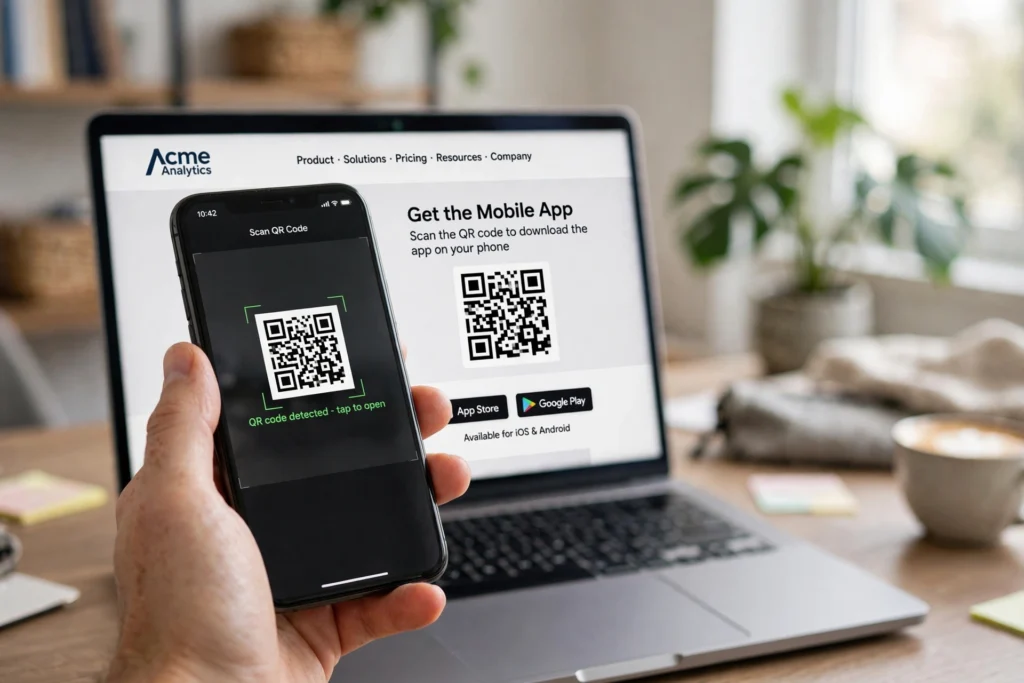
Learning how to make a QR code for a website takes about a minute, and once you’ve done it once you’ll wonder why you ever typed out a long URL by hand. A QR code turns any web address into a little square pattern that any phone camera can read — no app, no sign-up, no cost. I’ve made them for everything from a friend’s bakery menu to the link on my own business card, and the process is always the same. Here’s the whole thing, start to finish, plus the mistakes that make codes unscannable.
The short version: copy your link, paste it into a free QR code generator, download the PNG, and test it with your own phone before you print or share it. That’s genuinely it. The rest of this guide is the detail that makes the difference between a code that works everywhere and one that only works when the light is perfect.
What You Need Before You Start
Almost nothing, which is the beauty of it. You need the full web address you want the code to open — including the https:// at the start — and a minute of your time. One tip from experience: open the link in your own browser first and check it actually goes where you think it goes. I’ve seen people print a hundred flyers with a QR code pointing at a page that had moved the week before, and there’s no fixing that after the ink dries.
If the link is very long, don’t worry about it. A QR code can hold a long URL just fine, though shorter links make simpler, easier-to-scan patterns. If your site has a short link option, use it — but never use a random link shortener you don’t trust, because if that service ever goes down, your code points at nothing.
How to Make a QR Code for a Website in 4 Steps
This is the whole method. It works on a laptop, a tablet, or your phone’s browser.
- Copy your link. Open the page in your browser and copy the full address from the address bar. Double-check for typos — one wrong character and the code leads somewhere else entirely.
- Paste it into a QR code generator. Open SavyTools’ free QR Code Generator, paste the link, and the code updates live right on the page. There’s nothing to install and no account to create.
- Pick a size and download the PNG. For screens, the smaller sizes are fine. For anything you’re printing — a poster, a flyer, a menu — choose the largest size (1024 × 1024) so the code stays crisp on paper. The download has no watermark.
- Test it with your own phone. Point your phone’s camera at the code before you use it anywhere. If it opens the right page in a couple of seconds, you’re done. If it doesn’t, something’s off — check the link first.
That test step is the one people skip, and it’s the one that saves you. A code that looks fine on screen can still fail if the link was pasted wrong or the image got compressed somewhere along the way.
How to Make a QR Code for a Restaurant Menu
Menus are probably the most common real-world use for a website QR code in the US right now. The idea is the same as above, but the details matter more because the code has to survive in the wild — on a table tent, in dim restaurant light, with a phone camera that’s seen better days.
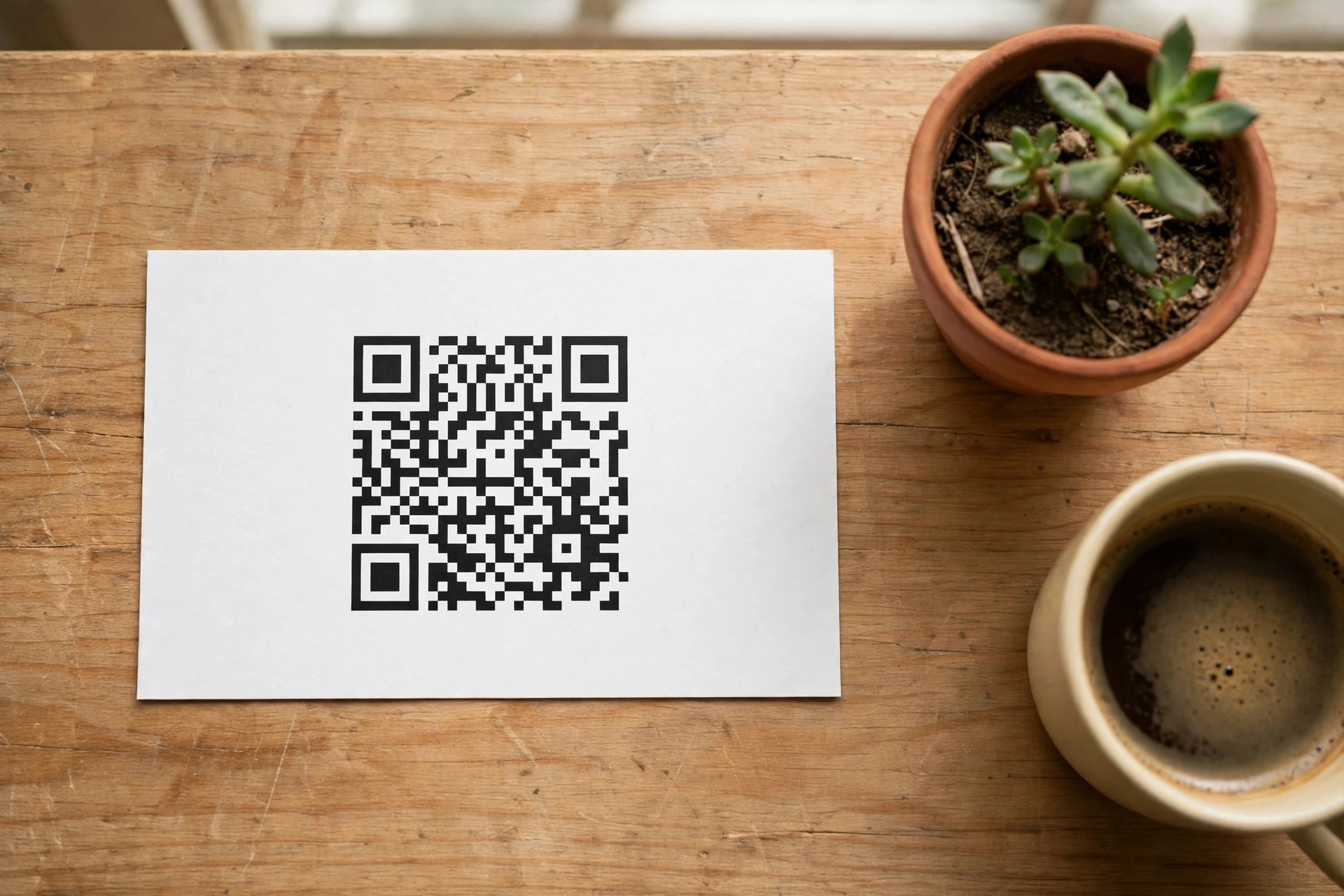
First, the page the code points to should be a proper mobile-friendly menu page, not a PDF that takes ten seconds to load on a phone. A slow page kills the whole point. Second, print the code at least an inch and a half wide — small codes are the number one reason scans fail in restaurants. And third, leave a clear blank margin around the code. Cameras need that quiet zone to find the edges of the pattern, so don’t crowd it with text or logos.
The same thinking applies to business cards, real estate signs, and event posters. The code is only useful if a stranger can scan it in two seconds, in bad light, while holding a coffee in their other hand. If you can do that, the code works.
How to Scan a QR Code on iPhone and Android
It helps to know what the other end of this looks like, especially if you’re making a code for customers or clients who might be less tech-confident than you are.
On an iPhone, just open the Camera app and point it at the code — no extra app needed. A small banner appears at the top of the screen; tap it and the link opens in Safari. The same works on most Android phones: open the camera, point, and tap the pop-up. On older Android phones, the camera might not do this on its own, in which case Google Lens (built into the Google app) does the job.
One thing worth knowing: if someone’s phone doesn’t react, the problem is usually light or distance, not the code. Hold the phone steady, move a little closer or further away, and make sure the code isn’t glaring under a bright light or hidden in shadow.
Do QR Codes Expire?
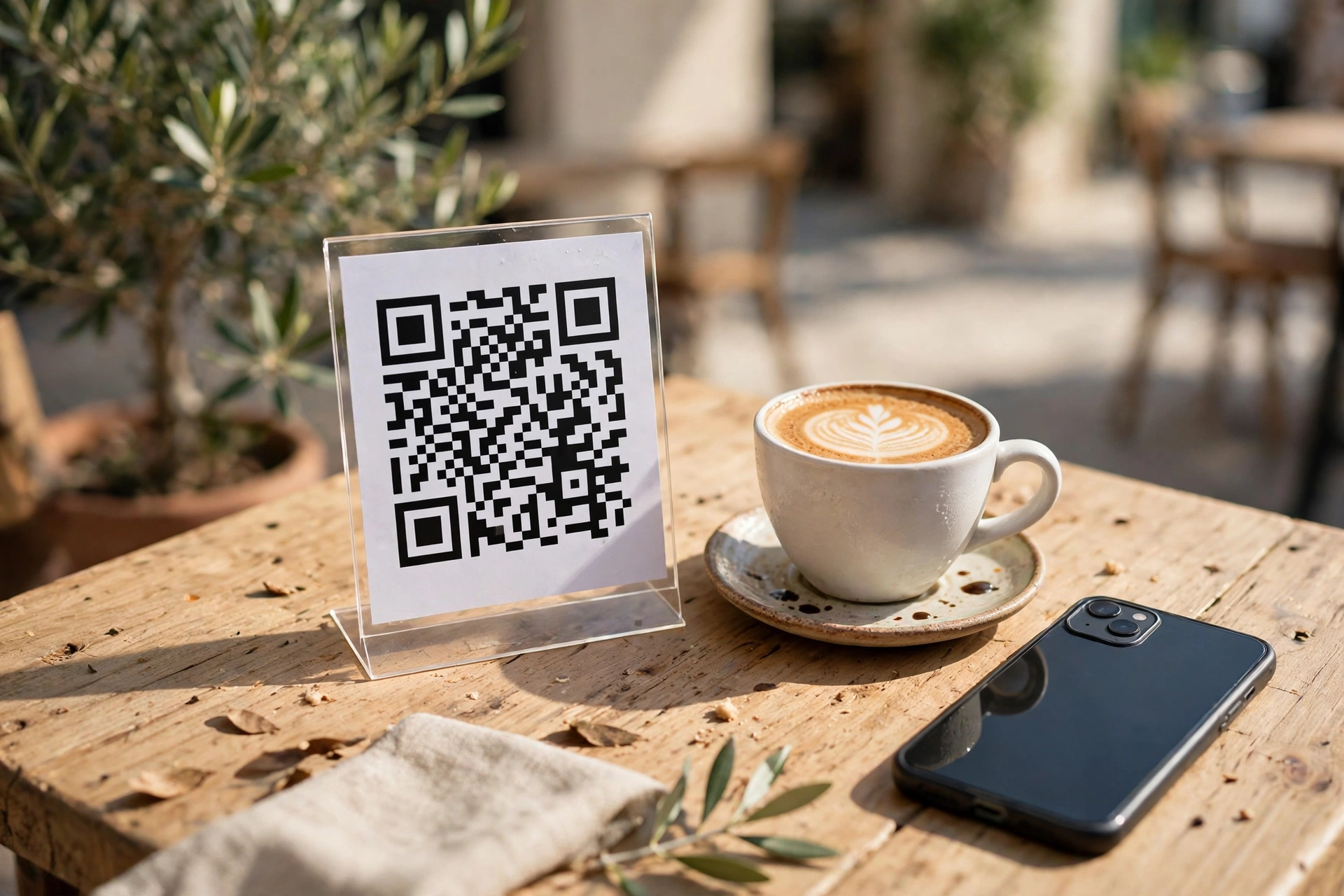
This is the question I get asked most, and the answer is refreshingly simple: a static QR code never expires. The pattern itself is just your link written in a scannable form, so as long as the link works, the code works. Codes made with SavyTools are static, so there’s no subscription quietly ticking away in the background and no date after which they stop working.
The catch — and it’s worth saying plainly — is that the code is only as permanent as the page it points to. If you move your website, delete the page, or let the domain lapse, the code will still scan, but it’ll lead to a dead end. So the real rule is: only put a QR code on something permanent, like a printed menu or a business card, if the link behind it is one you control and plan to keep.
There’s also a second kind of code out there called a dynamic QR code, sold by paid services, which lets you change the destination later. That’s useful for big marketing campaigns, but for most people — a menu, a portfolio link, a wedding website — a free static code is all you need, and it costs nothing.
Common Mistakes That Make QR Codes Unscannable
I’ve made most of these myself, so here’s the honest list:
- Printing too small. A code the size of a postage stamp might scan on your desk but won’t scan on a poster across a room. Bigger is almost always better in print.
- Low contrast. The classic black-on-white code scans best. Light colors on a light background, or a code dropped on top of a busy photo, will fail in real conditions.
- No quiet zone. That blank border around the code isn’t decoration — cameras use it to find the pattern. Give it breathing room.
- Over-compressing the image. If you save the PNG, send it through a chat app, screenshot it, and then print the screenshot, the pattern degrades. Always work from the original download. If you do need a smaller file, use a proper image format converter rather than screenshotting it.
- Linking to the wrong page. Test the code. Then test it again after printing. It takes five seconds and saves real embarrassment.
Frequently Asked Questions
How do I make a QR code for free?
Use a free generator that works in your browser — SavyTools’ QR Code Generator is free, with no sign-up and no watermark. Paste your link, download the PNG, and you’re done. You don’t need an app, and you don’t need to pay anyone.
Can I make a QR code for a Wi-Fi network too?
Yes — a QR code can hold Wi-Fi login details so guests join your network just by scanning it, without typing a long password. We have a separate step-by-step guide on how to make a QR code for Wi-Fi if that’s what you need.
Can I put a QR code on a business card?
Absolutely — it’s one of the best uses for one. Point it at your website, your portfolio, or your LinkedIn profile, print it at a decent size with a clear margin, and test it from a normal reading distance before you order a full batch. A card with a working QR code turns a quick handshake into a website visit.
The Bottom Line
Making a QR code for a website is one of those small tasks that looks technical and turns out to be trivially easy. Copy the link, paste it into a free generator, download the PNG, test it with your phone. Four steps, one minute, and you’ve got a code that works forever — as long as the link behind it stays alive. So go make one. Your future self, standing at a networking event with a stack of business cards, will be glad you did.
