How to Convert PDF to JPG Free (No Sign Up)
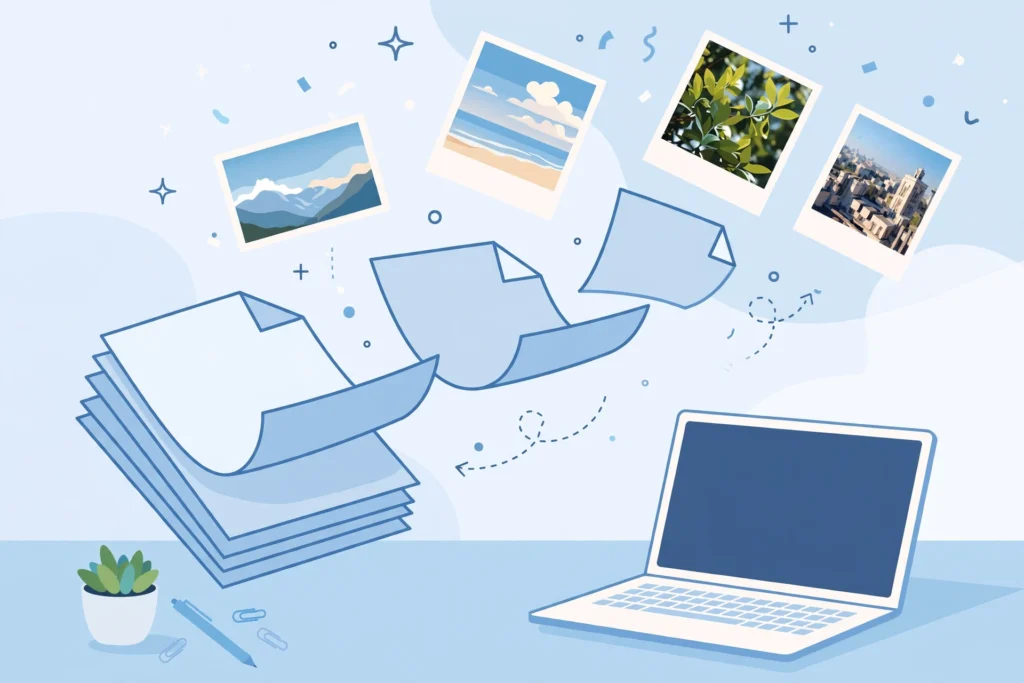
Quick answer: Yes. Open the free SavyTools PDF to JPG tool in your browser, drop in your PDF, pick a quality setting, and click Convert and download JPGs. Every page becomes its own JPG image, page-1.jpg, page-2.jpg, and so on. Your file never leaves your device, there is no sign-up, and there is no watermark. Best for documents up to about 50 pages.
A PDF is great for keeping a document exactly as it is. But sometimes you need the opposite: a page as a picture. To share one page in a chat, to post a flyer on social media, to drop a scanned form into a presentation, or to print a single page without the whole file. That is when you convert PDF to JPG. This guide shows how to do it free, what the quality settings mean, and when to keep the PDF instead.
What converting a PDF to JPG actually does
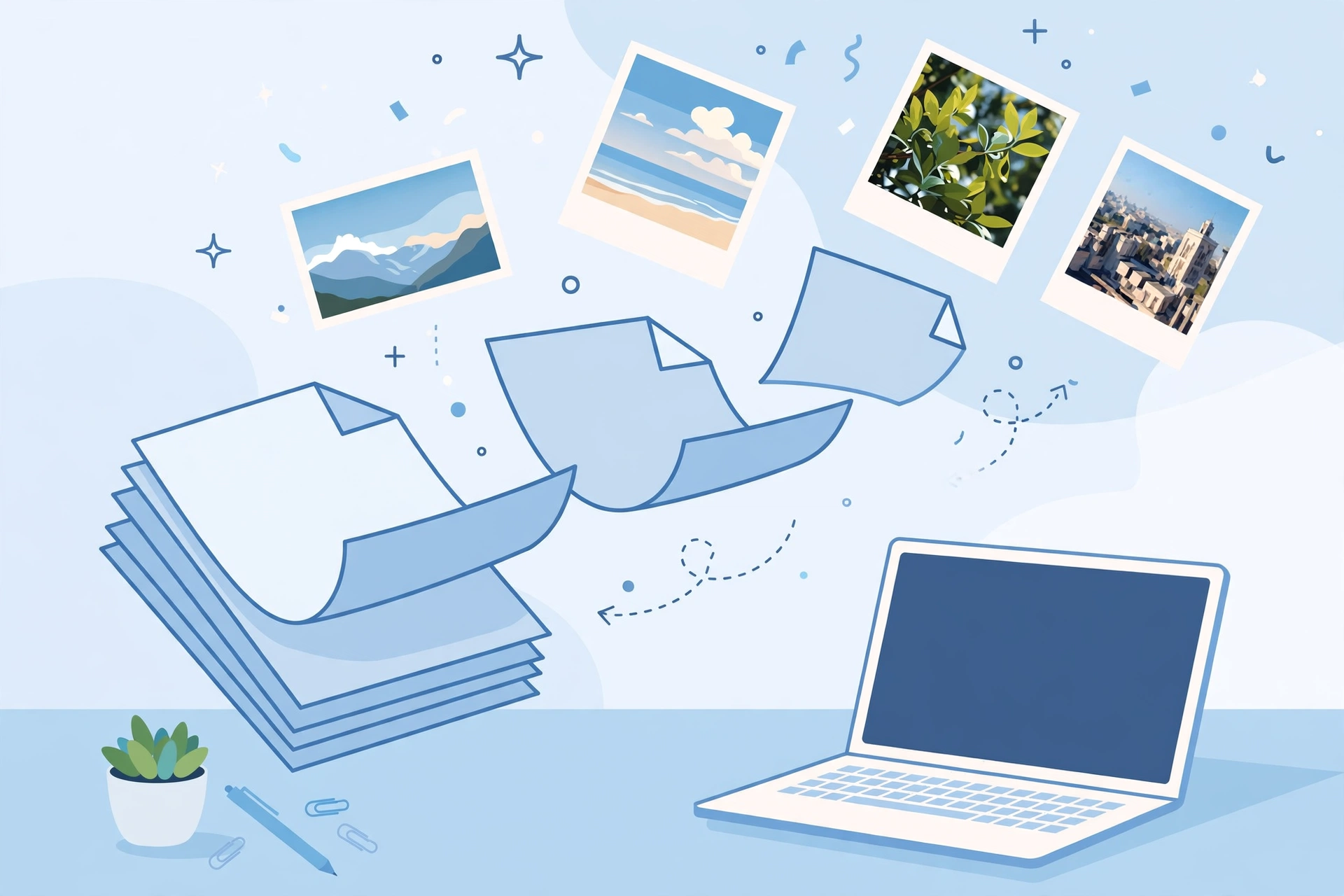
A PDF is a document. A JPG is an image. Converting turns each page of the PDF into a separate picture file. A 10-page PDF becomes 10 JPG files, one per page, named page-1.jpg, page-2.jpg, and so on. The text on the page becomes part of the image, so it can no longer be selected or searched. The layout, the fonts and the pictures stay exactly as they looked on the page.
That trade is the whole point of the format. JPGs open anywhere, in any chat app, on any phone, in any presentation, without a PDF reader. They are also smaller and easier to share than a full document. What you lose is the text itself. If you need to copy words out of a file, or search inside it, keep the PDF. If you need a page as a picture, convert it.
Bullet summary
- One PDF page becomes one JPG image. A 10-page PDF becomes 10 JPGs.
- Text becomes part of the image. It cannot be copied or searched afterwards.
- JPGs open anywhere, with no PDF reader needed.
- Convert when you need a picture. Keep the PDF when you need the text.
How to convert PDF to JPG free in 4 steps
You can do this entirely in your browser with the free PDF to JPG tool on SavyTools. Your file never leaves your device, so a sensitive document is not uploaded to a server first. Here is how it goes:
- Open the PDF to JPG tool and add your PDF. Drop the file into the tool, or choose it from your device. It works with any PDF, a scanned form, a report, a flyer, or a multi-page document.
- Pick a quality setting from the dropdown. The tool offers Standard, High, and Print (largest). It comes set to High, which is the right choice for most files. See the next section if you are not sure which one to pick.
- Click Convert and download JPGs. The tool renders every page of your PDF as a JPG image, in one run. The whole document converts at once, every page its own JPG.
- Download the pages you need and check them. The files download one by one, page-1.jpg, page-2.jpg, and so on. Open one and zoom in to check the text is sharp before you share or print it.
That is the whole workflow. No account, no email, and no software to install.
Bullet summary
- Drop in the PDF, pick a quality, convert, and download.
- The whole document converts in one run, every page its own JPG.
- Files download one by one, named page-1.jpg, page-2.jpg.
- Always check sharpness before you share or print a page.
Which quality setting should you pick?
The tool gives you three choices in the quality dropdown. There is no single best one. It depends on what the JPG is for.
| Setting | Pick it when | What to expect |
|---|---|---|
| Standard | Sharing in a chat or a quick preview | Smaller files that send fast. Fine for on-screen viewing |
| High | Posting, presenting, or printing | Sharp text and clear detail. This is the default, and the right choice for most files |
| Print (largest) | Printing at full size or keeping the best detail | The biggest files. Use it when quality matters more than file size |
Start with High, which is what the tool shows by default. If the files feel too big to send, drop to Standard and check the result. If a printed page looks soft, go up to Print and check again. The page itself gives no DPI number, and this guide does not invent one. Judge by looking at the result, not by a number on a label.
Bullet summary
- High is the default and fits most files.
- Standard for fast sharing, Print (largest) for the best detail.
- No DPI number is published. Check the image with your own eyes.
When to convert, and when to keep the PDF
| You need | Do this | Why |
|---|---|---|
| One page in a chat or a post | Convert that page to JPG | Pictures share anywhere, PDFs do not |
| A page in a presentation | Convert to JPG | It drops straight into a slide |
| A single page printed | Convert to JPG | Print just the page, not the whole file |
| Text you can copy or search | Keep the PDF | Converting turns text into an image |
| A form someone must fill in | Keep the PDF | A JPG cannot be filled in |
| The smallest file to email | Keep the PDF, or compress it | A JPG per page can add up to more than the PDF |
The rule is simple. Pictures are for showing. PDFs are for reading, searching, and filling in. Convert when the job is showing, keep the PDF when the job is reading.
Only need one or two pages?
Convert the whole file anyway, then download just the pages you need. That is the tip on the tool page itself, and it is the fastest way to work. Picking pages out of a PDF first takes longer than converting everything and keeping page-3.jpg and page-4.jpg.
This works best when the document is long and only a page or two matters, a single invoice from a monthly pack, one chapter from a report, or the one form buried in the middle of a file. Convert the whole document in one run, download the pages you need, and ignore the rest. The original PDF stays untouched, so nothing is lost.
Bullet summary
- Convert the whole file, then keep only the pages you need.
- Faster than pulling pages out first.
- The original PDF is never changed.
Free PDF to JPG tools compared
Most tools that turn images into JPGs cannot help here, because the job is different. You need a tool that opens a PDF and renders each page as an image. A few free options do that, and the honest difference between them is where your file goes.
| Tool | PDF pages to JPG | Sign-up | Where your file goes |
|---|---|---|---|
| SavyTools PDF to JPG | Yes, every page its own JPG | No | Stays in your browser |
| img2go | Yes, PDF upload to JPG | Free, no sign-up stated | Uploaded to its servers |
| CoolUtils | Yes, PDF upload to JPG | Free, no sign-up stated | Uploaded to its servers |
SavyTools is the only one of the three that never uploads your file. The others need the upload because the conversion happens on their servers. For a public flyer or a school handout, any of them will do the job. For a private or work document, a browser tool is the safer choice, because the file never leaves your device.
What to do with the JPGs after converting
Once the pages are JPGs, they behave like any photo. Share one in a chat, post it, drop it into a presentation, or print it. A few habits make the result better:
- Check sharpness first. Open the JPG and zoom in. If the small text looks fuzzy, convert again at a higher quality setting. A low resolution page cannot gain detail by converting it, so catch the problem before you post it.
- Rename the files. Page-1.jpg means nothing a week later. Rename the ones you keep, so you can find them again.
- Keep the PDF. The JPG is a copy for sharing. The PDF is the original. Keep it until you are sure the JPGs are right, because you cannot turn a JPG back into searchable text.
Bullet summary
- Check sharpness before you share or print.
- Rename the pages you keep.
- Keep the original PDF. A JPG cannot turn back into text.
Frequently asked questions
Can I convert PDF to JPG free without signing up?
Yes. The SavyTools PDF to JPG tool is free and asks for no sign-up. Open the tool, drop in your PDF, pick a quality, and download the JPGs. No account and no email are needed.
Does converting a PDF to JPG lose quality?
It can, a little. A JPG is a compressed image, so very fine detail can soften, especially at the Standard setting. Use High for most files, and Print (largest) when the printed result matters. Always zoom in and check the text before you share a page.
Can I convert only one page of a PDF?
Yes, in effect. Convert the whole file in one run, then download just the page you need. The tool renders every page, and you keep the ones that matter.
How many pages can I convert at once?
The tool page says it is best for documents up to about 50 pages, and that it sets no fixed limit of its own. Very long documents just take longer to render.
Do I need to upload my PDF to convert it?
Not with SavyTools. The conversion runs in your browser, so your file never leaves your device. Other free tools upload the file to their servers first.
What is the difference between JPG and PNG for PDF pages?
JPG files are smaller and better for sharing, posting, and photos of pages. PNG keeps sharper edges on text and diagrams but makes bigger files. For most sharing, JPG is the right choice. For a page that must stay razor sharp, PNG is worth the extra size.
Related guides
