
How to Merge PDF Files Online Free (2026 Guide)
Quick answer: Use the free SavyTools Merge PDF tool in your browser. Add two or more PDFs, drag them into the order you want, click merge, and download one combined PDF. There is no sign-up and no watermark. Your files never leave your device, because the whole merge happens in your browser.
You have three PDFs and one email to send. A resume, a cover letter, and a certificate. Or a school form, a permission slip, and a report. Sending three separate attachments works, but it looks messy, and the person on the other end has to open each one. One combined PDF is cleaner, easier to read, and much harder to lose track of.
This guide shows the whole job from start to finish. How to merge PDF files online free, how to get the order right, what to do on a phone, and what to do when the merged file comes out too big to email. It also says plainly when you should not merge a PDF online at all.
Summary
- Best result: a few PDFs, in the right order, merged in your browser in under a minute.
- Good result: a large set of PDFs merged the same way, with a quick check of the page order before you send it.
- Weak result: a merged file that is too big to email, or a merge done on a tool that uploads your files to a server.
- Always keep your original PDFs until you have checked the merged copy.
- Never upload a sensitive document to a tool that sends your files to a server. Use a browser tool instead.
1. Merge PDF files online free with the SavyTools tool
This is the method the rest of the guide uses. It runs in any modern browser, on a computer or a phone, with nothing to install.
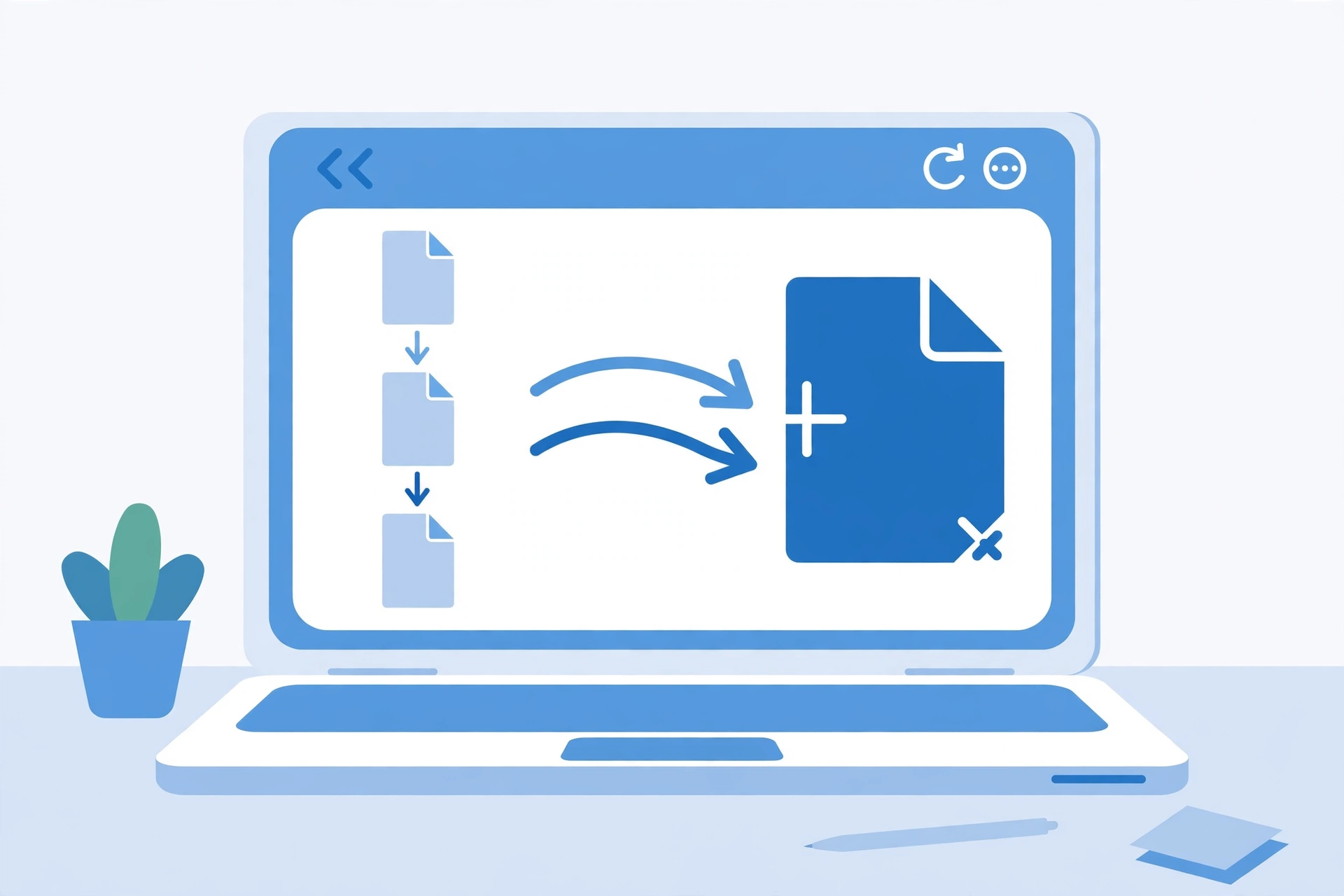
Open the Merge PDF tool at https://savytools.com/merge-pdf/.
Drop your PDFs into the upload area, or choose them from your files. Pick two or more. The order you select them is the order they will appear in the merged file.
If the order comes out wrong, drag the files into the right order before you merge.
Click merge and wait a few seconds while the tool joins the files together.
Download the single merged PDF to your device.
Open it once and flip through it before you send it anywhere. Check the order and confirm no file was missed.
| Step | What to do | Why it matters |
|---|---|---|
| Add files | Add two or more PDFs | One file cannot be merged. Two is the minimum. |
| Order them | Drag files into the right order | The merged file keeps the order you set. |
| Merge | Click merge and wait a few seconds | The tool joins the files in your browser. |
| Download | Save the single PDF | This is your combined document. |
| Check | Open it and flip through it | A thirty-second check catches a wrong order before anyone else sees it. |
Bullet summary
- No sign-up, and no watermark is added to the merged file.
- There is no fixed number of files set by the tool. In practice the limit is your device memory, so a very large set of files may take longer to process.
- There is no artificial file size limit set by the tool. An extremely large file may slow your browser down while processing, but your files are never sent anywhere.
- Your files are processed entirely in your browser. Nothing is uploaded to a server, and nothing is stored after you close the page.
- Keep your original files until you have checked the merged copy, so you can redo the merge quickly if a file needs replacing.
2. Get the order right before you merge
Merging is easy. Getting the order right is the actual skill. A resume after its cover letter reads fine. A cover letter after the resume reads like a mistake.
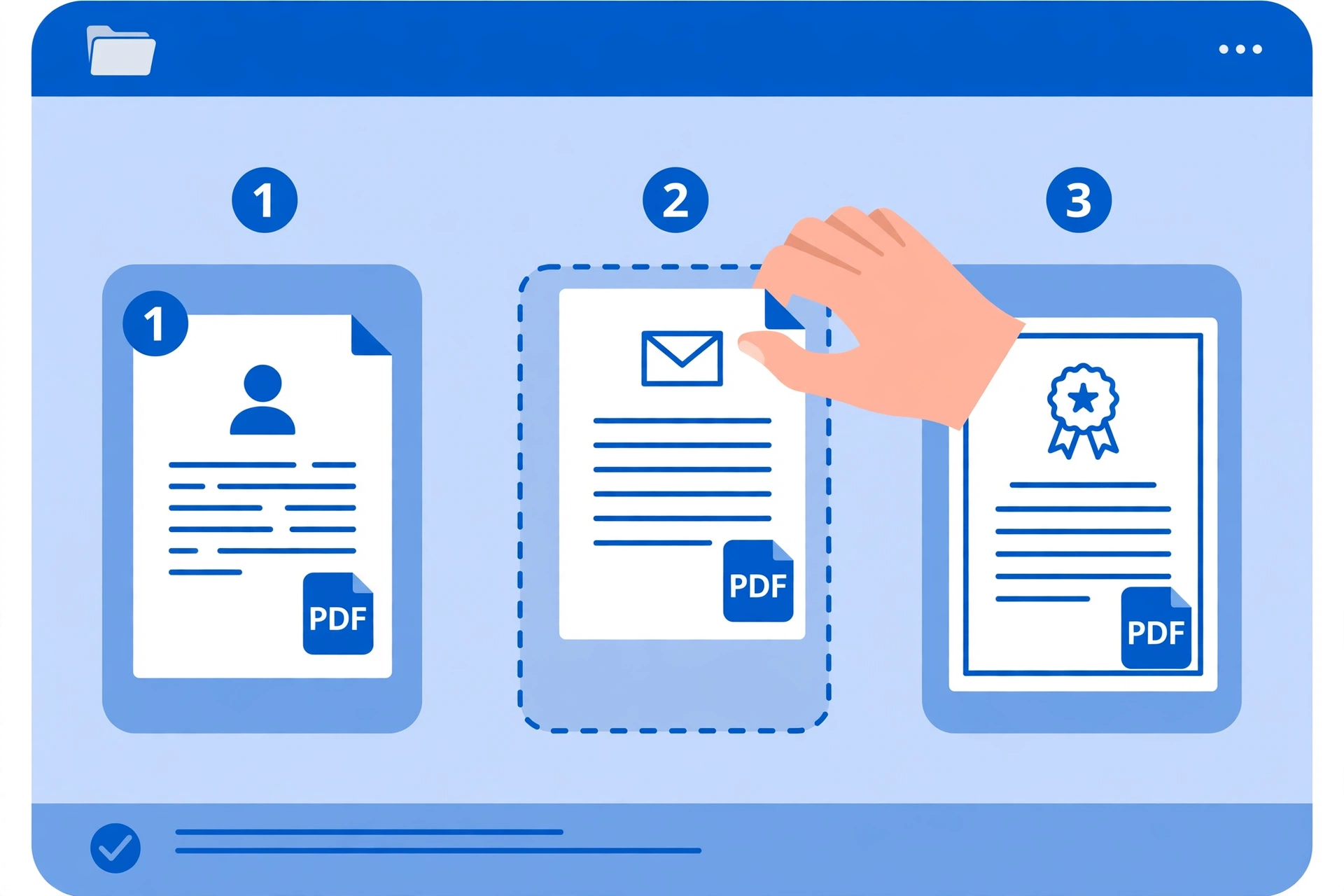
The simplest fix costs nothing. Before you add the files, name them in the order you want them, or number them: 01 cover letter, 02 resume, 03 certificate. Then add them in that order and check the list before you click merge.
| Job | Best order | Why |
|---|---|---|
| Job application | Cover letter, resume, certificate | The reader meets you first, then sees the proof. |
| School submission | Form, permission slip, report | The form tells the school what the rest is. |
| Report chapters | Chapter 1, chapter 2, chapter 3 | Page numbers and headings only make sense in order. |
| Scanned pages | Page 1, page 2, page 3 | Scanned pages have no text order to fall back on. |
Bullet summary
- Name or number your files before you add them, so the order is obvious.
- Drag the files into the right order in the tool before you merge. After merging, the order is fixed.
- Each file’s pages stay in their original order inside the merged document. The tool reorders files, not pages inside a file.
- If a single file has its pages in the wrong order, fix that file first, then merge.
3. Merge PDF files on iPhone and Android
The same method works on a phone. You do not need an app, and you do not need a computer.
On iPhone, open Safari and go to the same Merge PDF tool. Tap to add files and pick your PDFs from the Files app, iCloud Drive, or Google Drive. Drag them into order, merge, and download the combined PDF, or share it straight to Mail or Messages. Our guide to merging PDF files on iPhone at https://savytools.com/merge-pdf-files-on-iphone/ walks through the phone steps in detail, including how to pull PDFs out of the Files app and what to do if a scanned page came from the Notes app.
On Android, open Chrome and go to the same Merge PDF page. Add your files from Google Drive or your phone storage. There is nothing Apple-specific about the process, so everyone in a household or office can use the same free tool, on any phone.
| Device | Browser | Where your PDFs come from |
|---|---|---|
| iPhone | Safari | Files app, iCloud Drive, Google Drive |
| Android | Chrome | Google Drive, phone storage |
| Windows or Mac | Any modern browser | Any folder on your computer |
Bullet summary
- No app is needed on any device. The tool is a web page.
- The iPhone guide covers the phone-specific steps. This guide covers the general method that works everywhere.
- If a PDF is actually a photo of a document, convert it to PDF first, then merge. Mixing photos and PDFs in one merge never looks as clean, and the page sizes tend to come out inconsistent.
4. Check the merged file before you send it
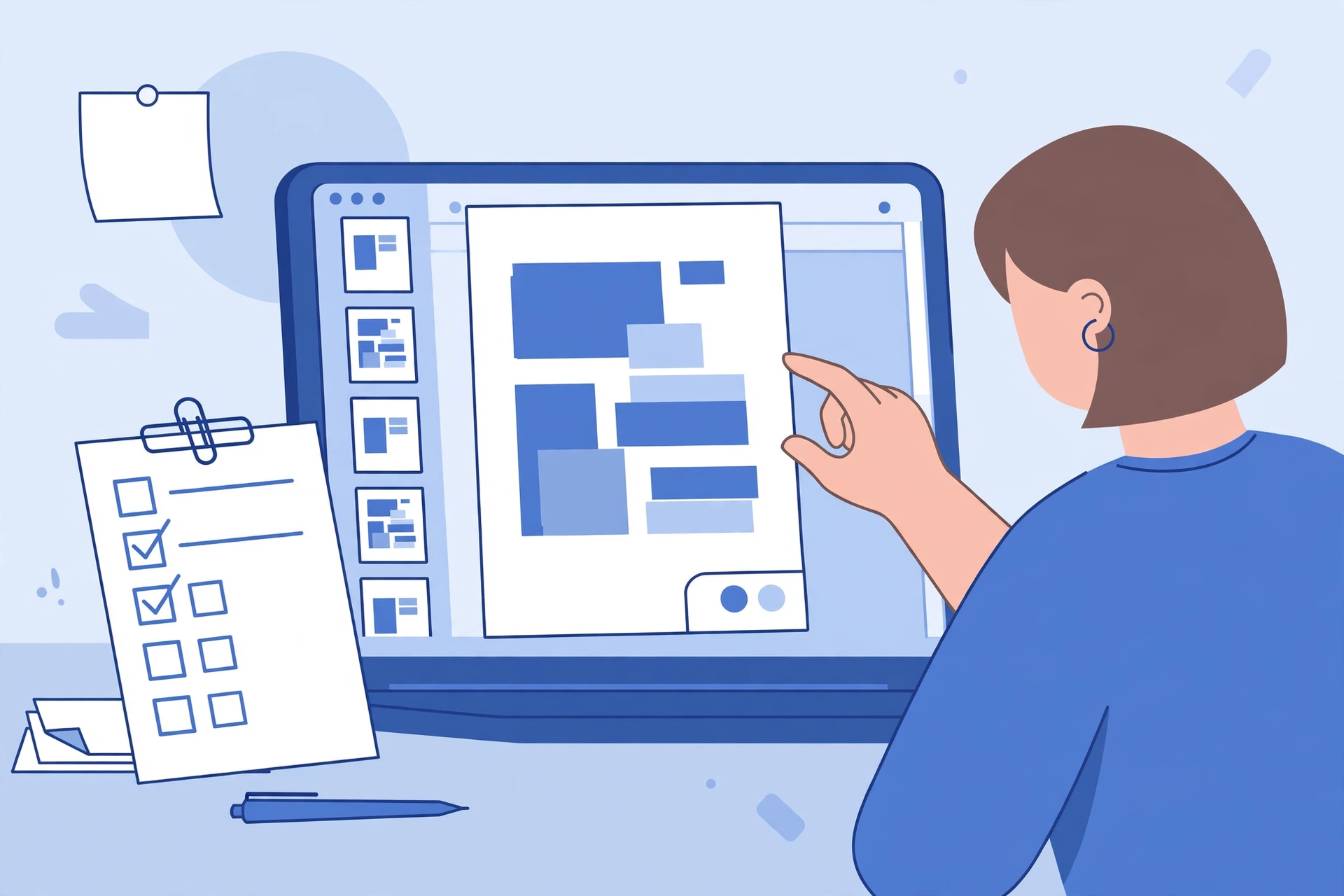
This is the step most guides skip, and it is the step that saves you from an awkward follow-up email. Open the merged PDF once, top to bottom, and check four things.
| What to check | What to look for | Quick fix |
|---|---|---|
| Page order | Files appear in the order you intended | Re-merge with the files in the right order. |
| Missing files | Every PDF you added is in the result | Add the missing file and merge again. |
| Upside down pages | A scanned page rotated the wrong way | Fix that page in the original file, then re-merge. |
| Blank pages | A blank page slipped in from a scan | Remove it from the original file, then re-merge. |
Bullet summary
- Check the first page and the last page first. Those are where a wrong order shows up fastest.
- Keep your original PDFs until the check is done. Merging again takes seconds when the originals are still there.
- Never send a merged file you have not opened. Thirty seconds of checking beats an apology email every time.
5. When the merged file is too big to email
Merging does not shrink your files. It joins them. The merged file is roughly the size of the original files added together, so two 5 MB PDFs become a 10 MB PDF, more or less. That is normal, and it catches people out when an email attachment limit blocks the send.
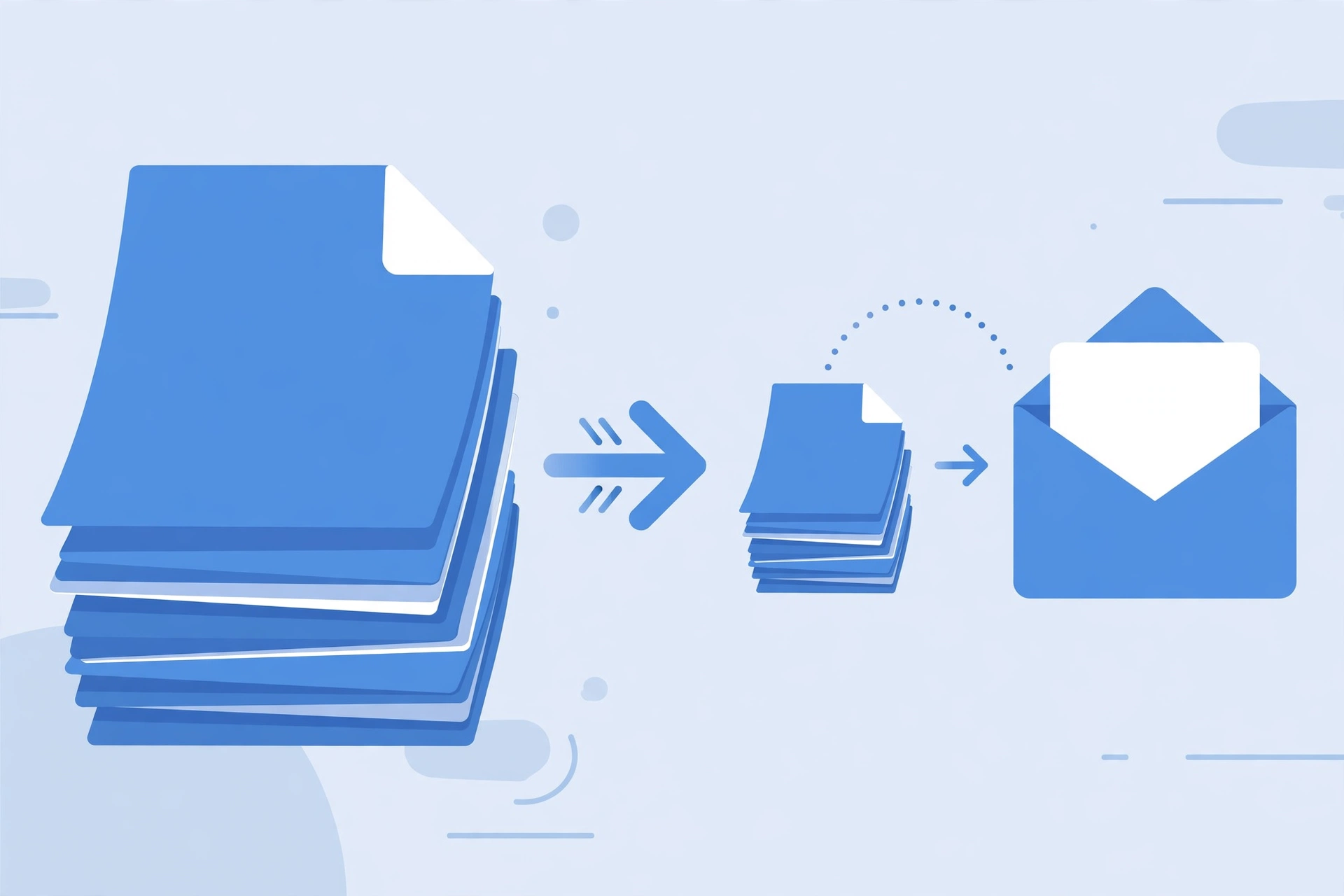
The fix is a two-step workflow: merge first, then compress.
- Merge your PDFs into one file, using the method in section 1.
- Check the merged file, as in section 4.
- Run the finished PDF through the Compress PDF tool at https://savytools.com/compress-pdf/ to shrink it.
- Open the compressed file once and confirm the text is still readable before you send it.
| Merged file size | What to do | Why |
|---|---|---|
| Under 10 MB | Send it as it is | Most email services accept this. |
| 10 to 25 MB | Compress it first | Many inboxes reject larger attachments. |
| Over 25 MB | Compress it, or share a link instead | Email is the wrong tool for a file this size. |
Bullet summary
- Merging joins files. It does not make them smaller.
- Compress after merging, not before. Compressing first and then merging works too, but it is easier to check one finished file than several.
- If the compressed file is still too big, the problem is usually scanned pages. Scanned pages are images, and images are heavy.
- For a file that must stay at full quality, send it as a shared link instead of an email attachment.
6. Free PDF mergers compared
Free does not mean the same thing on every site. Some tools are free with limits, some are free with an account, and some are free only until you hit a daily cap. This table compares the free options as stated on their own pages on 6 Nov 2026. Free limits can change, so treat the numbers as a snapshot, not a promise.
| Tool | Free limit | Account needed | Uploads your files |
|---|---|---|---|
| SavyTools Merge PDF | No fixed file count or size limit set. Limit is device memory. | No | No. Everything happens in your browser. |
| Adobe Acrobat online | Up to 100 files, 1,500 pages in total. | Yes, to save, download, and share. | Yes. |
| Sejda | Up to 50 pages or 50 MB, 3 tasks per hour. | No | Yes. Files deleted after 2 hours. |
| Docs.Zone | 2 files at a time, and trial pages are added at the end. | No | Yes. |
| PDF Joiner | Up to 20 PDFs at a time. | No | Yes. Uploads discarded after 60 minutes. |
| 2join | Up to 25 files at a time. | No | No. Everything happens in your browser. |
The pattern is easy to see. The big names cap how much you can merge for free, or ask you to sign in. The small upload tools delete your files after an hour or two, which is good, but your files still travel to their server first. The two browser tools in the table, SavyTools and 2join, never upload your files at all. That is the difference that matters most for a resume, a contract, or a school record.
Bullet summary
- If you merge often, a daily task cap will slow you down. Pick a tool without one.
- If you merge sensitive documents, pick a browser tool. Upload tools are fine for public documents, but your files still leave your device.
- If you only merge once, any free tool on the list will do the job. The choice matters when you do it every week.
7. When not to merge PDFs online
Merging is a simple job, but a few cases need a different approach. Saying this plainly saves you time.
- A password-protected or locked PDF may not merge at all. The SavyTools tool page does not say locked files are supported, so unlock the file first, with the password you already have, and then merge it. Do not expect a locked file to work.
- A signed contract should not be merged and re-sent as if it were the original. Merging a signed document can break the signature. Ask the sender for an editable copy instead, or send the signed pages separately.
- A document with sensitive personal information should not go to an upload tool. If the tool sends your files to a server, your data leaves your device. Use a browser tool like SavyTools Merge PDF, where the files never leave your device, or merge offline instead.
- A PDF you only need to split, not combine, does not need merging at all. Use the Split PDF tool to pull out the pages you need.
Bullet summary
- Locked PDF: unlock it first. Do not assume it will merge.
- Signed contract: send it as it is, or ask for an editable copy.
- Sensitive document: use a browser tool, or merge offline.
- Wrong job: if you need fewer pages, split the PDF instead of merging it.
Frequently asked questions
Is merging PDF files online really free?
Yes. The SavyTools Merge PDF tool is free to use, with no sign-up and no watermark added to your document. Other free tools on the list have limits, like a daily task cap or a file count cap, so check the table in section 6 before you pick one.
Do I need to create an account to merge PDFs?
No, not with SavyTools Merge PDF, and not with most of the free tools in the table. Adobe is the exception: its free online merger asks you to sign in or create a free Adobe account to save, download, and share the merged file.
Are my files safe when I merge PDFs online?
It depends on the tool. With browser tools like SavyTools Merge PDF, your files are processed on your own device and never uploaded to a server, which is the safest setup. With upload tools, your files travel to a server and are deleted after a set time, usually one or two hours. Avoid upload tools for sensitive documents.
How many PDFs can I merge at once?
With SavyTools Merge PDF, there is no fixed number set by the tool. The practical limit is your device memory, so a very large set of files may take longer to process. Other free tools set their own caps: Adobe allows up to 100 files, Sejda allows 3 tasks per hour, PDF Joiner allows up to 20 PDFs at a time, and 2join allows up to 25 files at a time.
Will the merged PDF keep its quality?
Yes. Merging does not re-compress or rewrite your pages. It joins them in order, so the text stays sharp and the layout stays exactly as it was. Nothing gets re-rendered or downgraded along the way. The merged file is roughly the size of the original files added together, so if it is too big to email, compress it afterwards.
Can I merge PDFs on my phone without an app?
Yes. Open the SavyTools Merge PDF tool in Safari on iPhone or Chrome on Android, add your PDFs, drag them into order, merge, and download the result. No app, no account, and no subscription is required. The iPhone steps are covered in detail in our guide to merging PDF files on iPhone at https://savytools.com/merge-pdf-files-on-iphone/.
The short version
Merging PDF files online free is a one-minute job once you know the trick: add your PDFs to a free browser tool, drag them into the right order, merge, and download one combined file. Check the page order before you send it, keep your originals until the check is done, and compress the result if it is too big to email. Use a browser tool for sensitive documents, so your files never leave your device.
Related PDF guides and tools
- Merge PDF (pillar tool): https://savytools.com/merge-pdf/
- PDF to Word Converter (pillar tool): https://savytools.com/pdf-to-word/
- How to Convert PDF to Word Free Without Losing Formatting: https://savytools.com/how-to-convert-pdf-to-word-free-without-losing-formatting/
- How to Convert JPG to PDF on iPhone (Free, No App Needed): https://savytools.com/how-to-convert-jpg-to-pdf-on-iphone-free-no-app-needed/
- How to Merge PDF Files on iPhone (Free, No App Needed): https://savytools.com/merge-pdf-files-on-iphone/
- Compress PDF tool (for a merged file that is too big to email): https://savytools.com/compress-pdf/
