
How to Convert JPG to PDF on iPhone (Free, No App Needed)
You have a photo on your iPhone, and someone wants it as a PDF. A job application, a receipt, a school form, a signed page — whatever it is, the file has to be a PDF, and you do not want to download an app, pay for one, or hand your photo to a random website just to get it done.
Good news: you can convert JPG to PDF on iPhone free, with nothing to install. In fact, you have three good ways to do it, and they suit different jobs. This guide walks through all three — the built-in Files app, the hidden Print to PDF trick, and a free browser tool — so you can pick the one that fits the photo in front of you, in under a minute.
Method 1: Use the Files app (best for a quick, private job)
This is the simplest route, and it never leaves your phone. If you only need one photo turned into a PDF, or a few photos in one document, start here.
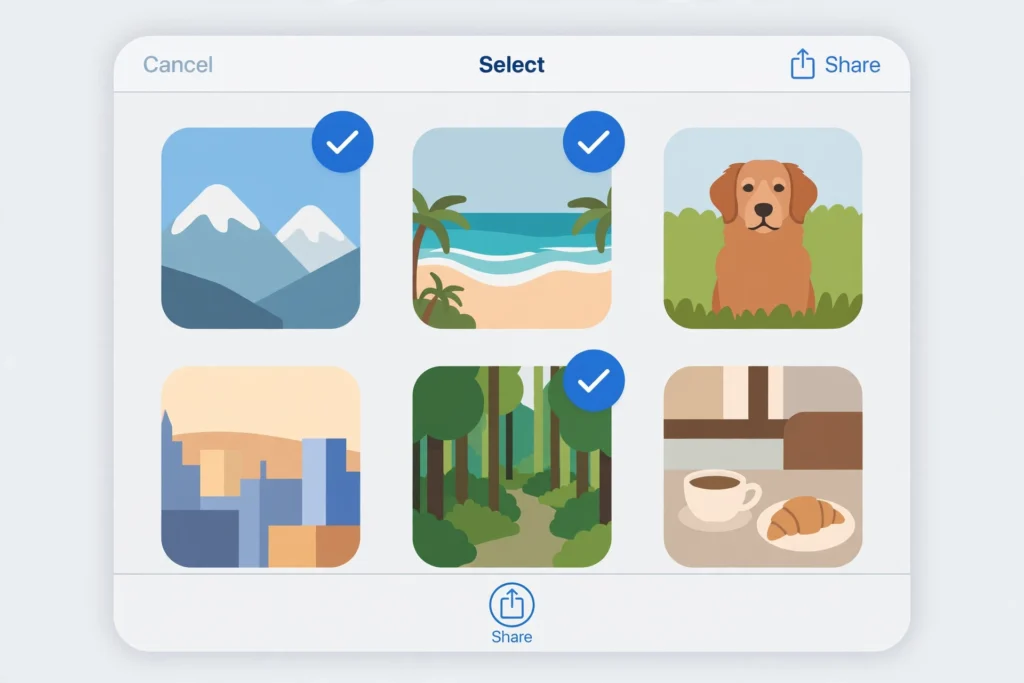
- Open the Photos app and find the photo you want. If you have several, select them all first.
- Tap Share, then choose Save to Files, and pick a folder you will remember.
- Open the Files app and go to that folder.
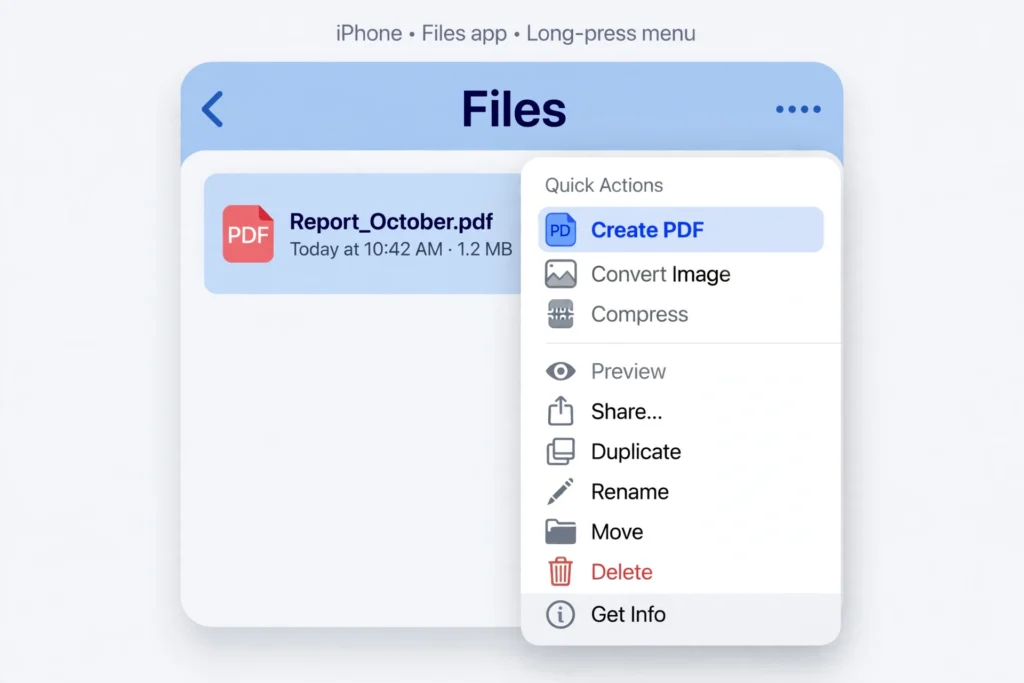
- Touch and hold the photo, tap Quick Actions, then choose Create PDF. A PDF appears right next to your photo.
- For several photos, tap Select in Files, pick them all, tap the More button (three dots), and choose Create PDF. Each photo becomes its own page.
That is the whole method. No account, no subscription, and nothing uploaded anywhere. The trade-off is control: you get very little say over page size or layout, and if the page order comes out wrong, you will need to start again rather than drag pages around. For a one-off receipt or a single form, that hardly matters. For a ten-page set of notes, it starts to grate.
Method 2: Use Print to PDF (best when you are already looking at the photo)
This one hides in plain sight. It is the method most iPhone owners never discover, because nobody thinks of “printing” something they never intend to put on paper.
- Open the photo in the Photos app. For several photos, select them first.
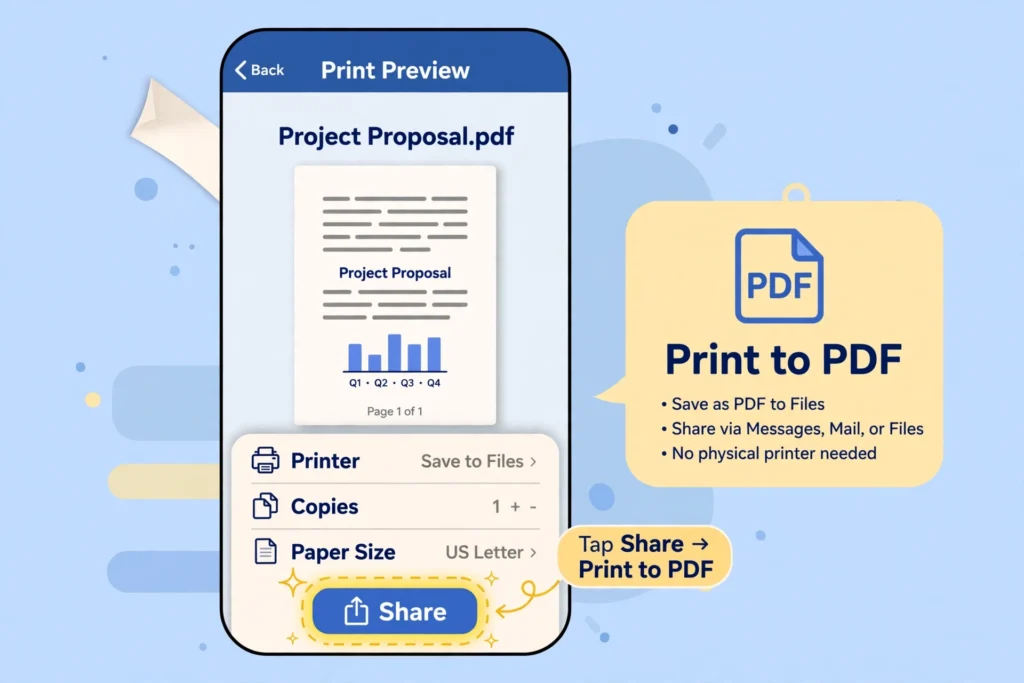
- Tap Share, then tap Print.
- On the print preview screen, tap the Share button at the top, then choose Save to Files.
- Pick a folder, save, and you have your PDF.
Print to PDF is fast, private, and already on your phone. Its limits are the same as the Files method: minimal layout control, and no easy way to reorder pages once you have started. Menu wording can also vary slightly between iOS versions, so if a button is named a little differently on your phone, look for the same option in the same place rather than hunting for an exact label.
Method 3: Use the SavyTools browser tool (best for several photos in one PDF)
When you have a set of photos that need to go into one tidy PDF, in a particular order, a browser tool earns its place. The SavyTools JPG to PDF tool (https://savytools.com/jpg-to-pdf/) runs in Safari, with no app to install and no sign-up.
- Open Safari on your iPhone and go to the JPG to PDF tool.
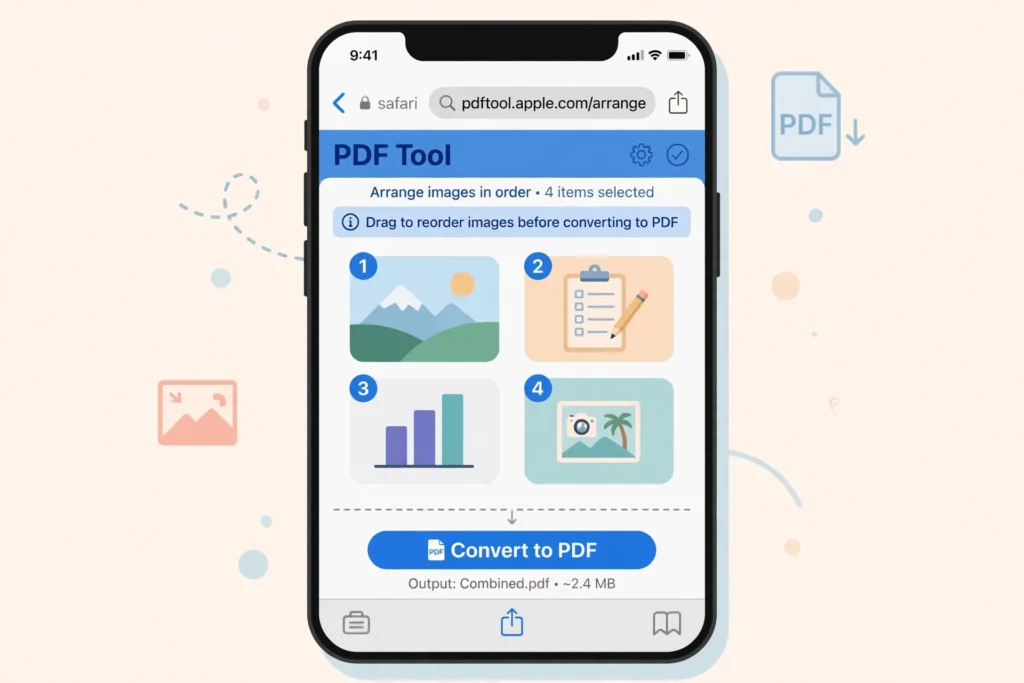
- Drop your images in, or choose them from your files. The tool takes JPG, PNG, WebP and more, and turns one or more images into a single PDF, one image per page, sized to fit the page.
- Arrange the images in the order you want them to appear. This is the step the built-in methods make awkward, and it matters most for receipts in date order, pages of a form, or a portfolio where a shuffled page looks careless.
- Convert, then download the PDF.
- Open the finished PDF once and check that every image is in the right place and nothing is upside down, before you send it anywhere.
Because the conversion happens in your browser, your images are never uploaded to a server or stored anywhere, and the finished PDF has no watermark. If you need an exact paper size rather than a fitted page, resize the image first and then convert — the tool itself fits each image to a full page so nothing gets cropped off.
Which method should you pick?
- One photo, right now, no fuss: use the Files app.
- You are already viewing the photo and want it saved fast: use Print to PDF.
- Several photos, and the order matters: use the SavyTools browser tool.
- A private document you would rather never upload: any of these three works, since the built-in methods stay on your phone and the browser tool processes images in your browser.
If you later need to join that PDF with another one — say, a cover letter and a resume — the same no-app approach carries over. Our guide to merging PDF files on iPhone (https://savytools.com/merge-pdf-files-on-iphone/) walks through combining PDFs in Safari, which pairs naturally with this one.
Troubleshooting: the problems that actually come up
My photos are in the wrong order. In the SavyTools tool, arrange them before you convert — the PDF keeps the order you set. In the Files app, the fix is less graceful: save the photos to one folder, select them in the order you want, and check the result before sending. A thirty-second check beats an awkward follow-up message every time.
My photo is HEIC, not JPG. This one needs an honest note: the SavyTools tool page lists JPG, PNG, WebP and more, but it does not explicitly confirm HEIC support, so do not assume a HEIC photo will work in the browser tool. For a HEIC photo, use one of the built-in iPhone methods instead, which start from your Photos library, or convert that photo to JPG first and then use the browser tool. If you are unsure what format a photo is, the built-in route is the safe first try.
The PDF is too big to email. A PDF made from full-size phone photos will be large — that is normal, since each page holds a full photo. For an email attachment, convert first, then run the finished PDF through a PDF compressor before sending. And for the future, start from the sharpest original photo you have: shrinking a large photo keeps it crisp, while enlarging a small, messaging-app-compressed copy is what makes text look soft.
The photo looks cropped or stretched. The SavyTools tool fits each image to a full page so nothing is cropped off. If a photo still looks wrong, the problem is usually the source image itself: a photo taken at an angle, or one that was already cropped elsewhere. Re-take it straight on, in good light, and convert again. For a photo that needs an exact shape before converting — for example, a square image for a post — resize it first. Our guide to resizing an image for Instagram (https://savytools.com/how-to-resize-an-image-for-instagram/) explains exact sizes and the aspect-ratio lock, and the same thinking applies here: decide the shape before you convert, not after.
I cannot find the PDF after converting. Open the Files app and check Downloads first, then the folder you chose when you saved it. In Safari, you can also tap the download arrow to open the file directly. Once you have it, tap Share to email it, message it, AirDrop it, or save it to iCloud Drive so it is waiting on your Mac or iPad too.
Frequently asked questions
Do I need to download an app to convert JPG to PDF on iPhone? No. The Files app and Print to PDF are already on your iPhone, and the SavyTools tool runs in Safari. No app, no account, and no subscription is required for any of the three methods in this guide.
Can I convert multiple JPGs into one PDF on iPhone? Yes. In the Files app, select several photos and create one PDF. In the SavyTools tool, add as many images as you need and they are combined into one PDF, with each image on its own page in the order you set.
Is converting JPG to PDF on iPhone free? Yes, with all three methods here. The SavyTools tool is free, with no sign-up and no watermark added to your PDF.
Will my photos be uploaded somewhere? Not with the built-in methods, which stay on your phone. The SavyTools tool also processes images in your browser, so they are never uploaded to a server or stored anywhere.
What if my photo is HEIC? The SavyTools tool page does not explicitly confirm HEIC support, so this is uncertain — do not rely on the browser tool for a HEIC photo. Use a built-in iPhone method for that photo, or convert it to JPG first.
Can I set an exact page size? The SavyTools tool fits each image to a full page so nothing is cropped. If you need an exact paper size, resize the image first, then convert.
Where do I find the PDF after converting? In the Files app, usually in Downloads or in the folder you chose. Open it once to check the page order before you share it.
The short version
Converting JPG to PDF on iPhone does not need an app, a subscription, or a sketchy upload. For one photo, use the Files app. For a fast save from the photo viewer, use Print to PDF. For several photos where order matters, use the SavyTools browser tool in Safari, check the finished PDF once, and then share it wherever it needs to go. That covers almost every JPG-to-PDF job you will run into on your phone.