
How to Split a PDF Into Separate Pages (Free, No Sign Up)
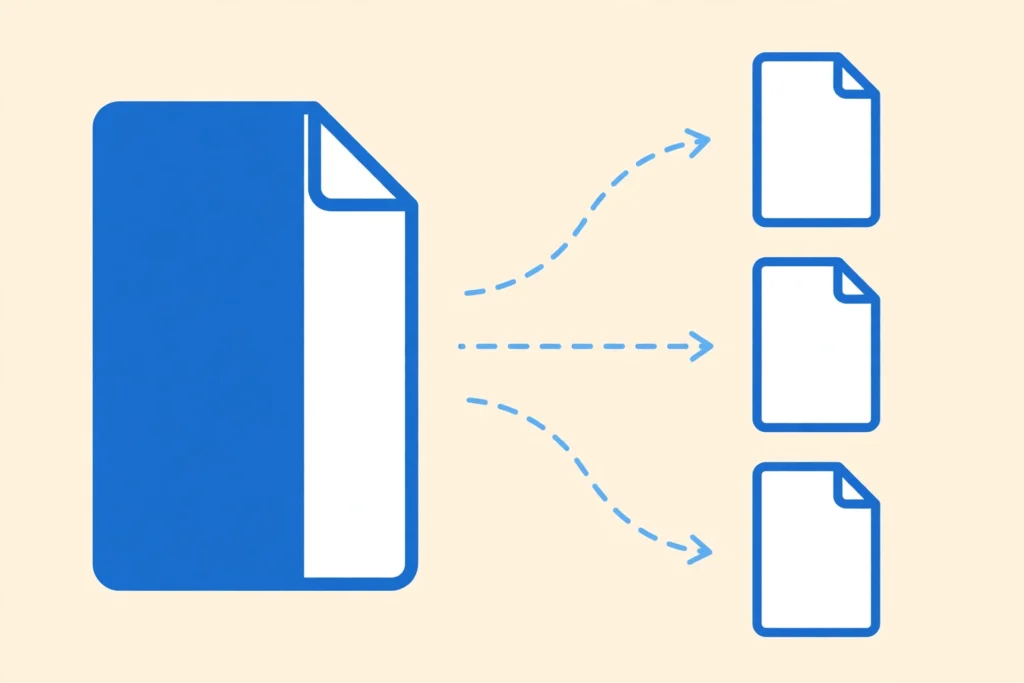
We’ve all been there. Someone emails you a 40-page PDF and all you actually need is page 7 — the invoice, the signed form, the one chapter for class. You don’t want to forward the whole thing, and you definitely don’t want to install a program you’ll use once and forget about.
Learning how to split a PDF is one of those small skills that saves you again and again. It takes about a minute, it costs nothing, and once you’ve done it once you’ll wonder why you ever forwarded entire documents. Here’s the whole thing, start to finish — plus the two mistakes that trip most people up.
Split vs. Extract: What’s the Difference?
People use these words interchangeably, and honestly, most of the time it doesn’t matter. But it helps to know what you’re actually asking for.
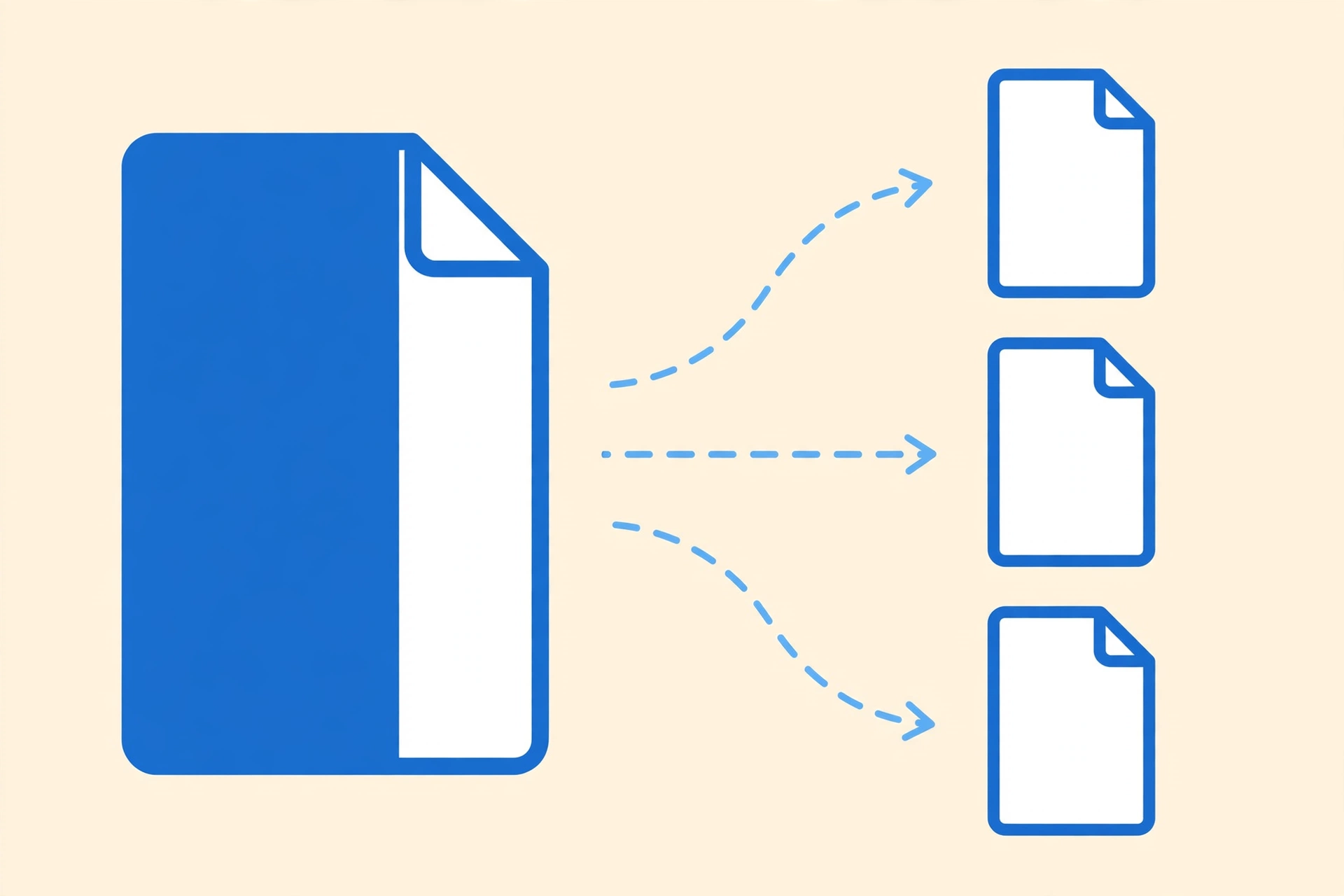
Splitting a PDF means breaking one file into two or more smaller files. A 20-page report becomes pages 1–10 and pages 11–20, or a separate file for every chapter. Extracting means pulling out just the pages you want — say, pages 4 and 5 — and saving them as a brand-new file, leaving the original untouched.
In practice, the tool you use does both. You pick the pages, and it hands you a new file with exactly those pages in it. The SavyTools Split PDF tool works this way: choose page ranges or individual pages, and it builds the new document right in your browser. Your original file stays exactly where it was.
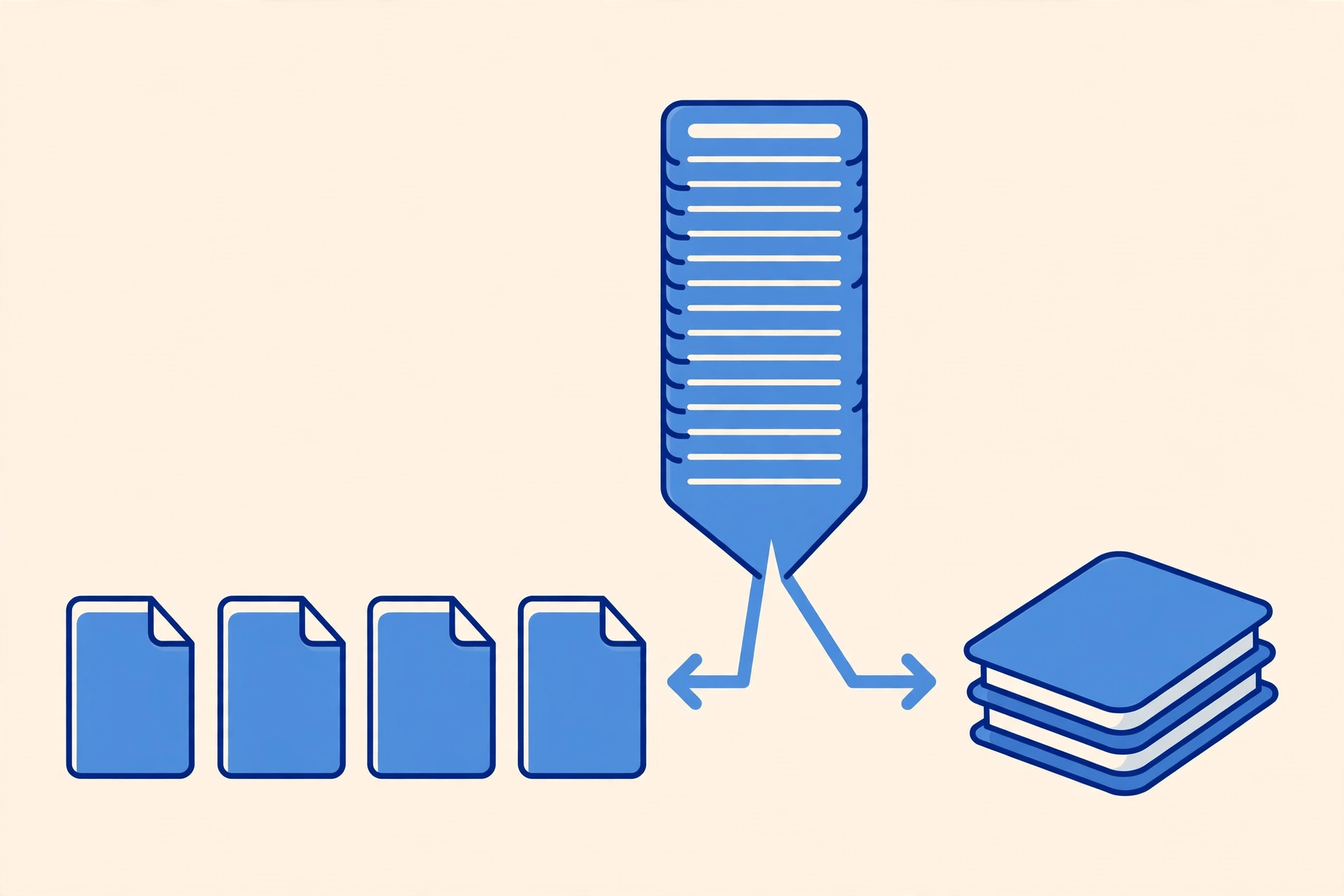
How to Split a PDF in Your Browser (Step by Step)
No downloads, no account, no email address handed over. This works on a laptop, a Chromebook, or a phone — anything with a browser.
- Open the Split PDF tool. Head to the SavyTools Split PDF page. There’s nothing to install; the tool loads in the page itself.
- Upload your PDF. Drop the file in or pick it from your device. The file never leaves your computer — the whole split happens in your browser, so nothing is uploaded to a server.
- Pick the pages you want. You can type a range like 1–3, or pick individual pages like 2, 5, and 9. If you’re splitting a document into chapters, work out your ranges first — it goes much faster when you’re not flipping back and forth.
- Split and download. Hit the split button and download the new file. Give it a clear name right away — “invoice-march.pdf” beats “split-output-2.pdf” every time you search for it later.
- Check it before you send it. Open the new file and flip through it. Make sure it has exactly the pages you wanted and nothing extra. If a range was wrong, just run it again from the original — which is why you should keep the original until you’ve checked.
That’s it. The whole job, start to finish, usually takes less than a minute — most of which is you deciding which pages you need.
How to Split a PDF on iPhone
If the PDF is sitting in your email or Files app on your iPhone, you don’t need to move it to a computer at all. Open Safari, go to the Split PDF tool, and upload the file straight from Files or your photo library’s documents. The steps are exactly the same as on a desktop — pick your pages, split, download.
One iPhone-specific tip: after downloading, the new file lands in your Downloads folder in the Files app. If you plan to attach it to an email, it’s easier to open the file in Files first and use the share button from there, rather than hunting for it inside the Mail app.
And if the file you end up with is still too big to email, that’s a different problem with a simple fix — our guide on how to compress a PDF for email walks through shrinking it down without making the text blurry.
How to Split a PDF Without Adobe
Adobe Acrobat can split PDFs, and if you already pay for it, it does the job fine. But for most people, it’s overkill. The full Acrobat subscription costs real money every month, and the free Reader app on your phone or laptop doesn’t include splitting at all.
That’s the honest reason browser tools exist for this kind of task. Splitting a PDF is a one-off, thirty-second job — it doesn’t justify installing software or starting a trial you’ll have to remember to cancel. A free browser tool that does the one thing you need, then gets out of your way, is the right tool for the job. If you split PDFs every single day for work, then yes, a desktop app starts to make sense. For everyone else, the browser is enough.
A Quick Word on Page Numbers
Here’s the mistake that catches people most often, and it’s worth a minute of your time before you split anything.
The page numbers shown in a PDF viewer are positions — page 1, page 2, page 3, counting from the front cover. But the numbers printed on the pages themselves are often different. A report might have a cover and two pages of contents before the “real” page 1 even starts, so the printed page 7 is actually the tenth page of the file.
So when someone says “send me pages 12 to 15,” figure out whether they mean the printed numbers or the file’s positions. The safest move: open the PDF, scroll to the pages you want, and note the position numbers your viewer shows. That’s what the split tool uses.
What to Do After You Split
A split PDF is usually the middle of a job, not the end of it. A few things people commonly do next:
Send just the pages someone asked for. This is the big one — a client, a teacher, or a government form that wants one specific page, not a 60-page packet. Splitting keeps the rest of your document private, which matters more than people think.
Merge the good pages back together. Sometimes you split a file to remove a few pages, then want the rest as one clean document. Split out the pages you want to keep, then use the Merge PDF tool to combine them into a single file. Our guide on how to merge PDF files online free covers that side of the job.
Trim a file that’s too big to send. Splitting helps here in two ways: sending fewer pages means a smaller file, and if it’s still too large, you can compress the PDF afterwards. Splitting first, then compressing, usually gives you the smallest result.
Frequently Asked Questions
Can I extract just one page from a PDF?
Yes. Select just that single page — say, page 7 — and the tool creates a new PDF containing only it. This is the most common use of all: pulling one invoice, one form, or one certificate out of a longer document.
Will splitting a PDF reduce its quality?
No. Splitting doesn’t re-compress anything; it copies the pages you chose into a new file exactly as they were. The text, images, and layout stay identical to the original. Quality only changes if you deliberately compress the file afterwards.
Is it safe to split a PDF online?
It depends on the tool. With SavyTools, the split happens entirely in your browser — your file is never uploaded to a server, never stored, and nothing remains after you close the page. That’s the key question to ask any PDF tool: does your file leave your device? If the answer is yes, think twice before uploading anything sensitive.
Splitting a PDF is a small job, but it’s one of those tasks that quietly eats your afternoon if you don’t know the shortcut. Now you do — pick your pages, split, check, send. And keep the original until you’ve confirmed the new file is right.
