How to Compress a PDF for Email (Free, No App Needed)
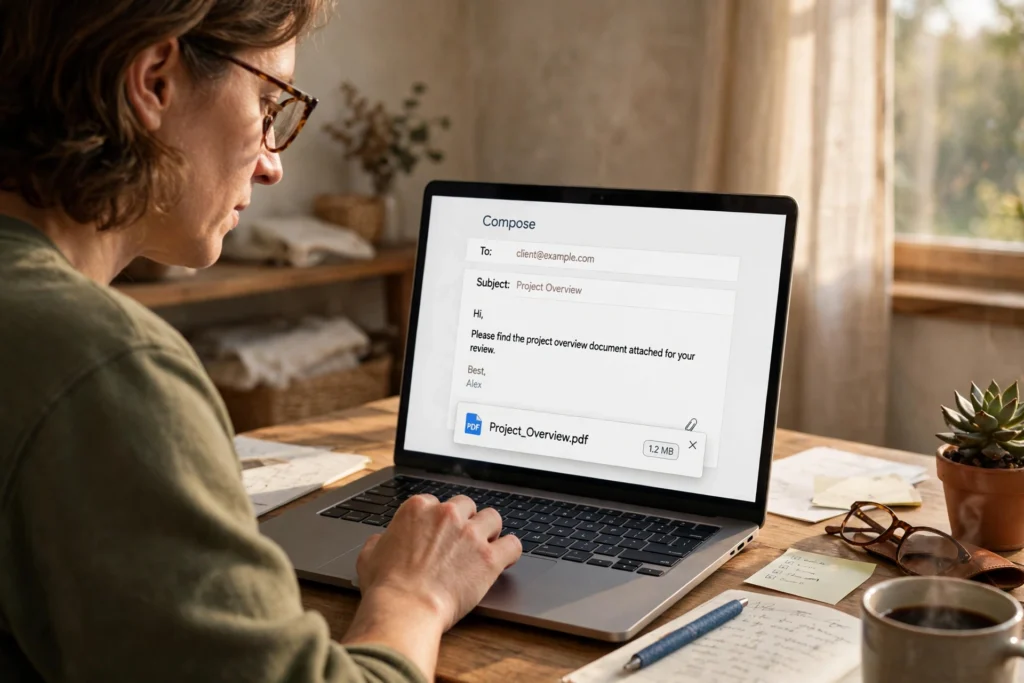
You know that moment. You hit send on an important email — a resume, a rental application, a scanned contract — and it bounces straight back. “Attachment too large.” Suddenly a simple email turns into a small crisis, and you’re staring at a 30 MB file wondering what to do next.
Learning how to compress a PDF for email fixes that in about a minute. You shrink the file, keep it perfectly readable, and send it on its way. No app to install, no account to create, and no need to pay for software you will use twice a year. Here is the whole process, plus what to do when the first try still is not small enough.
Why Is My PDF Too Large to Email?
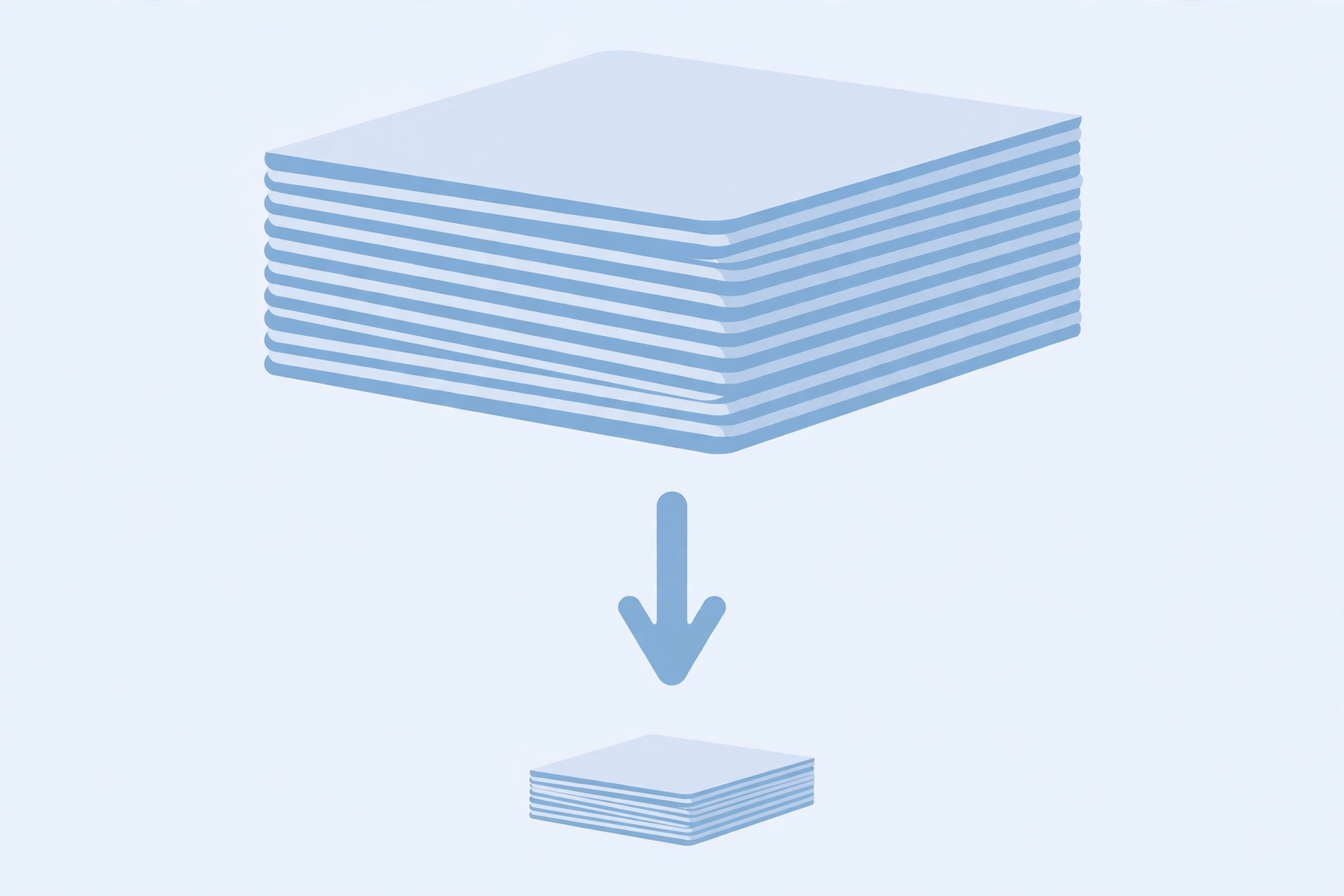
Most of the time, it is not the text making your file huge. It is the images inside it. A scanned document is basically a stack of photos, one per page, and phone cameras take big photos. Add a few pages of that and you can easily land at 20 or 40 MB before you even notice.
That matters because email providers cap attachments. Gmail, for example, allows attachments up to 25 MB in total. Go over that and the message either bounces or, worse, sits in your outbox while you assume it went through. Job applications, college forms, and landlord paperwork are exactly the files you do not want stuck like that.
The good news: a PDF built mostly from images usually has plenty of room to shrink. Compression works by re-saving those images at a sensible size instead of full camera resolution. The text stays sharp, the pages stay in order, and the file drops dramatically. A text-only PDF, on the other hand, is already small — if yours barely shrinks, that is why, and it is not a sign anything went wrong.
How to Compress a PDF for Email in 4 Steps
You can do this entirely in your browser with the free Compress PDF tool on SavyTools. Your file never leaves your device — it is processed right in your browser — so a sensitive document like a tax form or a signed lease is not uploaded to some server first. Here is how it goes:
- Open the Compress PDF tool and upload your file. Pick the PDF that keeps bouncing back. It does not matter whether it came from a scanner, your phone, or a work computer.
- Start with the gentle re-save mode. This keeps everything as it is and simply re-saves the file more efficiently. For a lot of files, this alone is enough, and it costs you nothing in quality.
- Check the before and after sizes. The tool shows both, so you can see exactly how much smaller the file became. If the new size is under your email provider’s limit, you are done.
- Download the compressed PDF and open it once before sending. Skim a page or two, especially any page with small print or a detailed photo. If it reads well, attach this version to your email and send it with confidence.
That is genuinely the whole workflow. I have used this exact routine for a scanned rental application that started at 28 MB and came back at just under 6 MB — same pages, same signatures, no more bounce-back.
How to Reduce PDF File Size Without Losing Quality
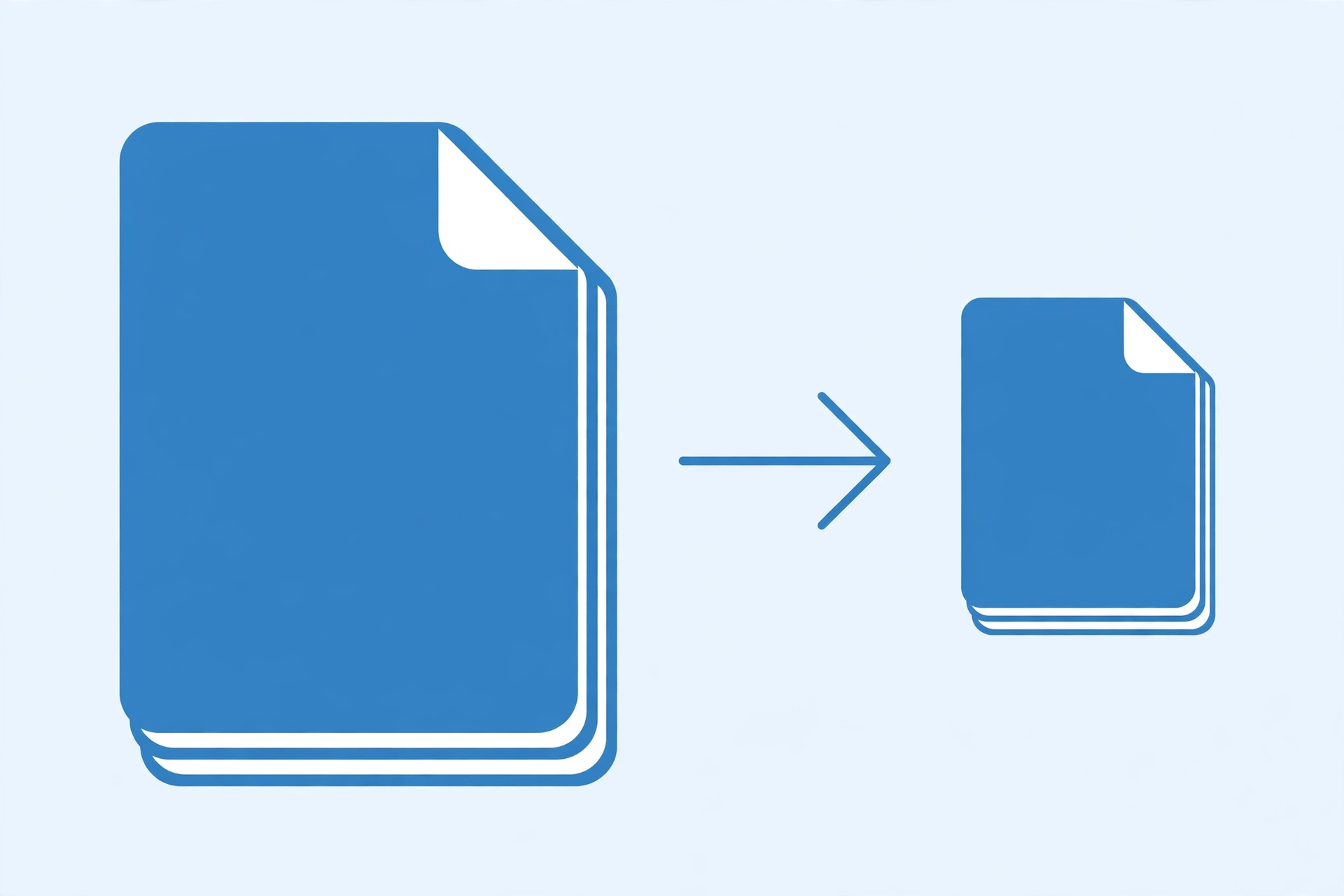
This is the part people worry about most, and fairly. Nobody wants to send a blurry resume to a hiring manager. The trick is to compress in stages instead of going straight for the smallest possible file.
Start gentle, as above, and only go stronger if you still need to. The stronger rebuild mode in the Compress PDF tool will push the size down further, but it can soften image quality to get there. That trade is fine for a form someone will print and file away. It is less fine for a design portfolio where sharp images are the whole point.
A few habits help too. Always keep your original PDF until you have checked the compressed copy — do not overwrite the only good version. If your file is a scan, check the pages with handwriting or stamps after compressing, since those are the first things to go fuzzy. And if the document is a mix of text pages and photo pages, remember that the photos are doing almost all the damage; compressing those is where the savings live.
What If Your PDF Is Still Too Big After Compressing?
Sometimes one pass is not enough, especially with a long scanned document. Do not panic, and do not start chopping pages out at random. Work through these in order:
First, run the stronger rebuild mode and compare the size again. Second, check whether the file actually needs every page — a 40-page scan with blank backs and cover sheets can often lose a few pages without losing anything important. If you need to split it first, SavyTools also has a Split PDF tool for exactly that. Third, if the file is still over the limit after all that, split it into two smaller PDFs and send them as two attachments, or as two emails, with a quick note saying “part 1 of 2.” It is not elegant, but it works, and it beats a bounced application deadline.
One thing I would avoid: zipping the PDF and hoping the recipient can unzip it. Some people can, some cannot, and on a phone it is an extra hassle. A compressed PDF that opens with one tap is simply a kinder file to send.
How to Compress a PDF on iPhone or Android
You do not need a computer for any of this. The Compress PDF tool runs in your phone’s browser, so the process is the same: open the tool in Safari or Chrome, upload the PDF from your Files app or Google Drive, pick a mode, and download the smaller version. Then attach it from your mail app like any other file.
This is handy in exactly the situation where people usually get stuck — standing in a parking lot, trying to email a signed form before an office closes. A couple of taps, a quick size check, and the file is on its way. If you regularly merge files on your phone too, our guide on how to merge PDF files on iPhone covers that side of things, and the best free PDF tools online roundup pulls all of these tools together in one place.
Frequently Asked Questions
How do I compress a PDF for email?
Open a browser-based tool like SavyTools’ Compress PDF, upload your PDF, start with the gentle re-save mode, and check the before and after sizes. Download the compressed file, open it once to confirm it still reads well, then attach that version to your email instead of the original.
How much can a PDF be compressed?
It depends on what is inside. PDFs full of large scanned images often shrink by half or more, while text-only PDFs are already small and shrink very little. The tool shows both sizes so you can judge the result yourself before sending.
Will compressing a PDF make it blurry?
Not if you start gentle. The gentle re-save mode keeps your content unchanged. The stronger rebuild mode can reduce image sharpness to reach a smaller size, so check the result before you send it if small text or detailed images matter in your document.
That is really all there is to it. A PDF that is too large to email is almost never a lost cause — it is usually just a file full of oversized images waiting to be slimmed down. Compress it, check it, send it, and get on with your day.