
How to Convert PDF to Word Free Without Losing Formatting (2026 Guide)
Quick answer: Use the free SavyTools PDF to Word Converter with no sign-up. It works best on PDFs that contain real text. Simple layouts usually convert cleanly. Scanned PDFs and complex layouts with columns, tables, or images will shift, so always open the Word file and check it before you send it.
You have a PDF you need to edit. Maybe it is a resume, a contract, a school form, or a report. The PDF looks perfect, but you cannot change a single word in it. That is the whole problem this guide solves, and it starts with one honest point. No free converter keeps every PDF looking exactly the same. What you can do is pick the right kind of PDF, convert it the right way, and fix the small shifts before anyone else sees the file.
Summary
- Best result: a PDF with real text and a simple layout.
- Good result: a PDF with headings, paragraphs, and a simple table.
- Weak result: a scanned PDF, or a PDF with columns, heavy tables, or unusual fonts.
- Always keep the original PDF. Always check the Word file before sending it.
- Do not upload a document with sensitive personal information to any connected conversion service.
1. Know what kind of PDF you have
Before you convert anything, check the PDF itself. This one step decides whether the result will be clean or messy.
| PDF type | What it is | Expected result |
|---|---|---|
| Text based, simple layout | A normal document made in Word or Google Docs, then saved as PDF | Text stays editable. Headings and paragraphs usually stay in place. |
| Text based, complex layout | A document with columns, nested tables, or images placed beside text | Text stays editable. Columns and tables may shift and need fixing. |
| Scanned PDF | A photo or scan of a printed page, saved as PDF | No real text to convert. Layout will not carry over. The SavyTools tool panel says this plainly. |
| Form or locked PDF | A PDF made to be filled in or protected, not edited | Results vary. Some fields and protections will not convert. |
Bullet summary
- Open the PDF and try to select a sentence with your mouse. If you can select it, the PDF has real text.
- If you cannot select any text, it is probably a scanned PDF. Do not expect formatting to survive.
- Simple is better. One column, normal fonts, and clear headings convert best.
2. Convert with the SavyTools PDF to Word Converter
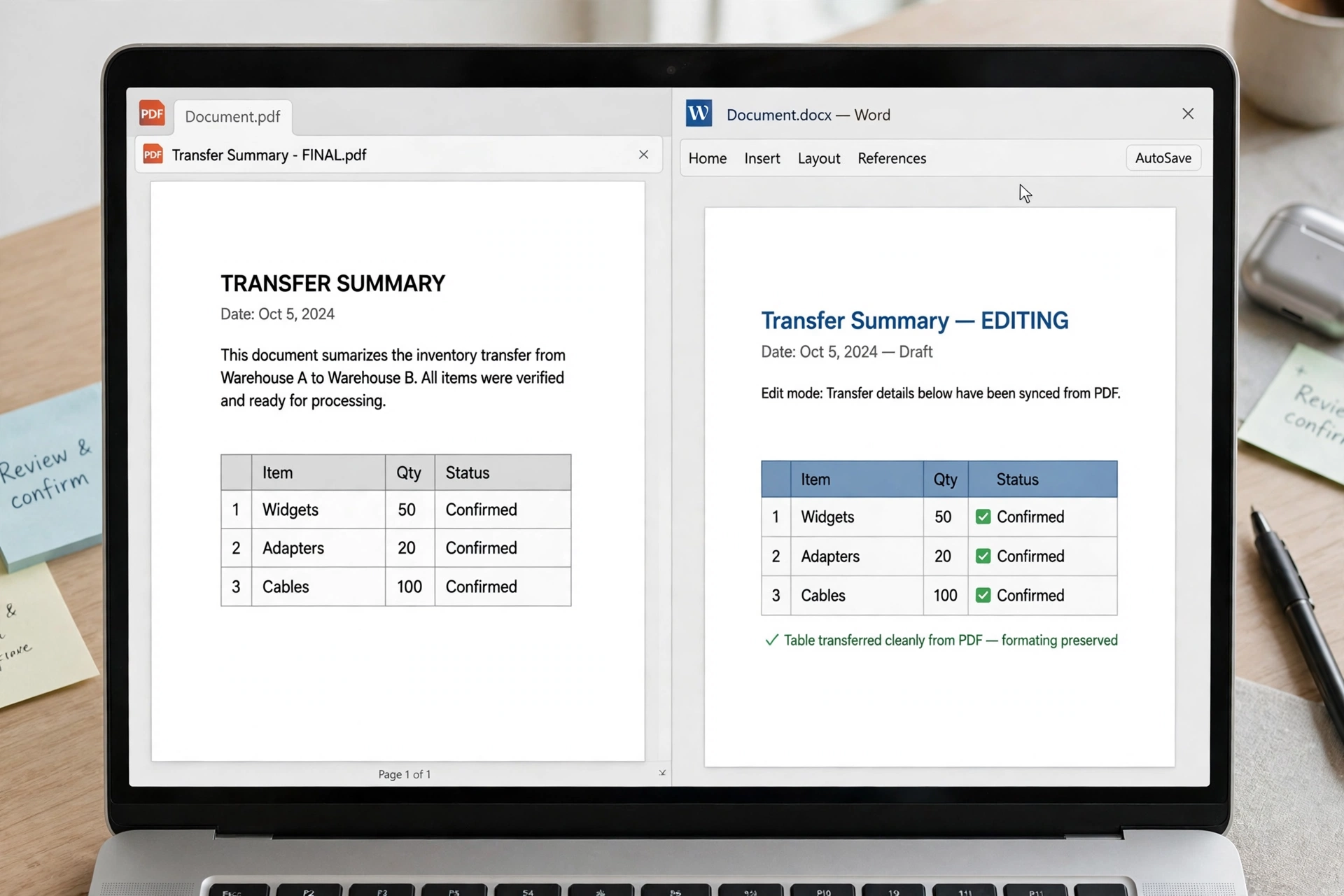
Use the free tool on the SavyTools PDF to Word page. There is no sign-up and no watermark added to your document.
- Open the PDF to Word Converter at https://savytools.com/pdf-to-word/.
- Drop your PDF in, or choose the file.
- Start the conversion and wait for the document to be processed.
- Download the converted Word file to your device.
- Open it in Word or Google Docs. Do not send it yet. The check in section 3 comes first.
Bullet summary
- Keep the original PDF. You may need it again.
- Convert one file at a time if the document is long or complex.
- If the tool panel shows a limit or a status message, follow what it says on the page. The live tool panel is the source of truth for limits.
3. Check the converted file before you send it
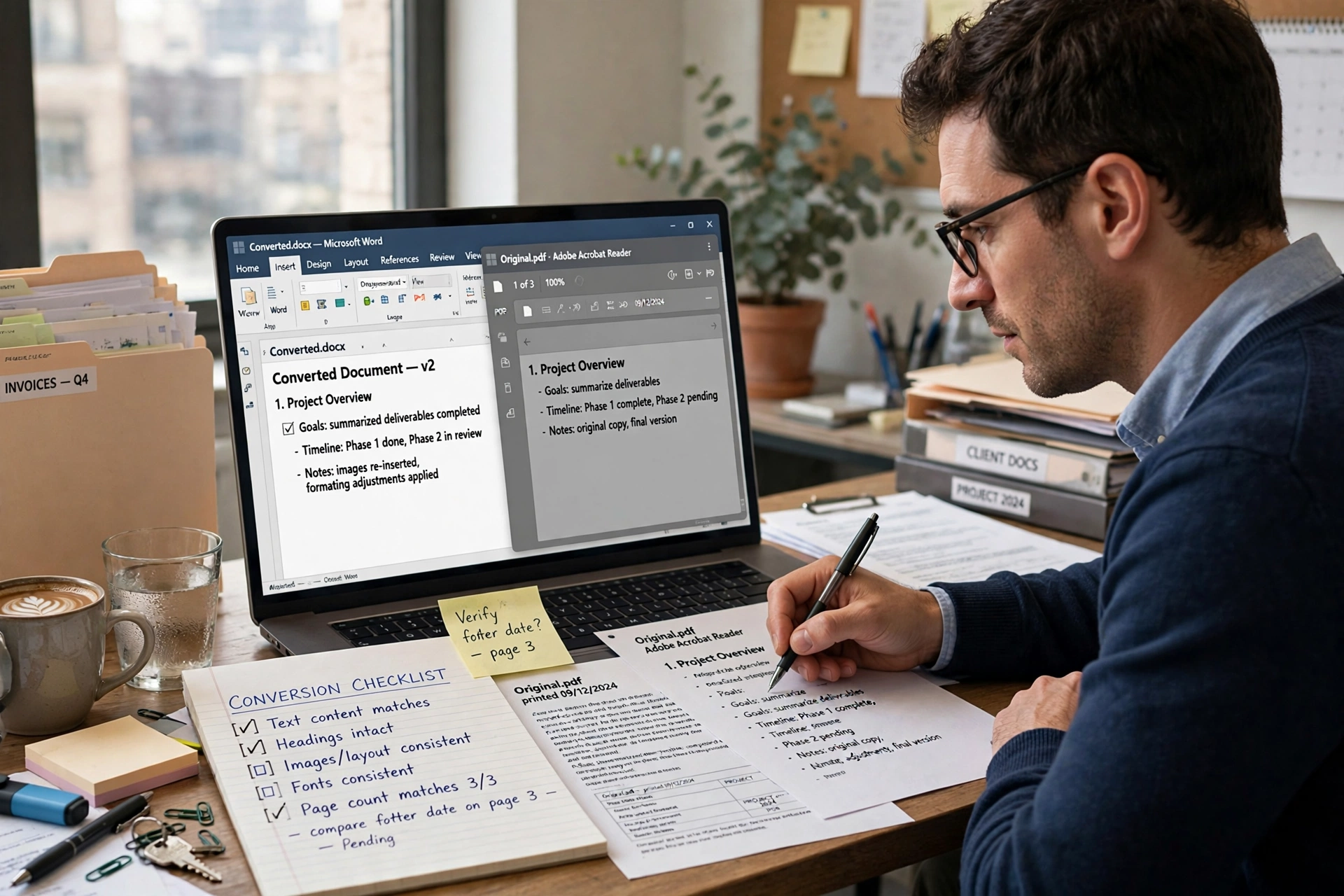
This is the step most guides skip, and it is the step that saves you from an embarrassing send. Work through the page in order, top to bottom.
| What to check | What to look for | Quick fix |
|---|---|---|
| Headings | Headings are still headings, not plain bold text | Reapply the heading style in Word. |
| Paragraphs | No text has merged into one long block | Split paragraphs where the breaks were lost. |
| Tables | Rows and columns line up | Adjust column widths. Split a merged cell if needed. |
| Images | Images are present and in roughly the right place | Move an image back beside its paragraph. |
| Fonts | The text is readable, even if the font changed | Pick a common font like Arial or Calibri for the whole document. |
| Page breaks | Pages break at sensible points | Insert a page break where a section should start. |
Bullet summary
- Check the first page, the last page, and every table. Those are where shifts show up first.
- Fix formatting in Word, not by converting again. A second conversion will usually give you the same shifts.
- Save the fixed file under a new name, so the converted original stays untouched.
4. Fix the three most common formatting shifts
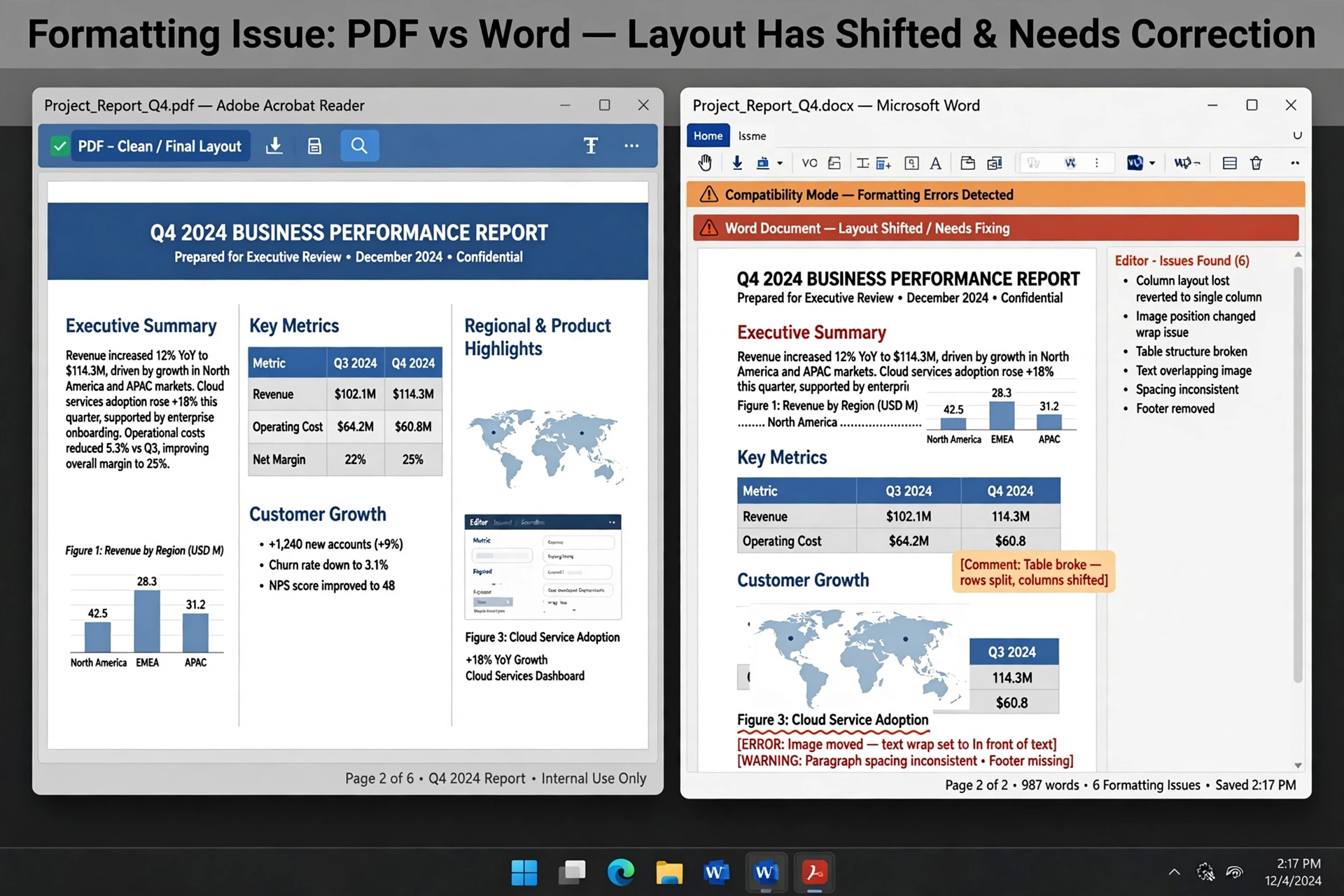
Tables that move
Tables are the most common problem. A table that looked tidy in the PDF can come out with uneven columns in Word. Select the table, set the column widths by hand, and check that no text is cut off at the edge of a cell. If a table is very complex, it is often faster to copy the text into a fresh table in Word than to fight the converted one.
Fonts that change
If the PDF used an unusual font, Word may substitute a different one. The text stays readable, but spacing and line breaks can change. Select all the text and apply one common font. Then check the page count. A font change can push text onto an extra page.
Columns that collapse
Multi column layouts often collapse into a single column after conversion. That is normal for a basic text conversion. If you need columns, rebuild them in Word after converting. Use the Columns option under Layout, and only after the text itself is clean.
Bullet summary
- Tables: fix widths first, then cell text.
- Fonts: one common font for the whole document.
- Columns: accept a single column result, then rebuild columns in Word if you need them.
5. When not to use a PDF to Word converter
Some jobs are better done another way. Saying this plainly saves you time.
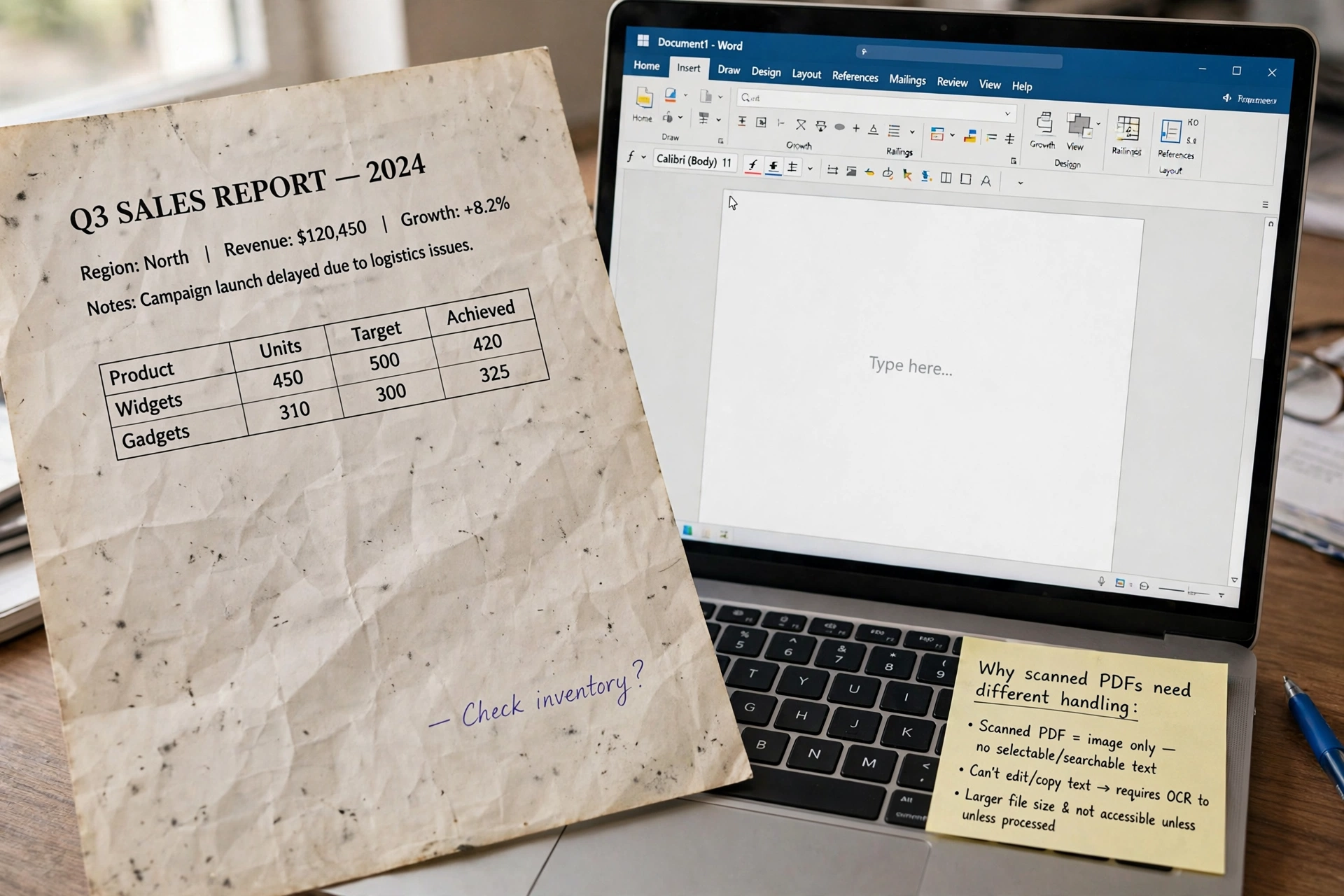
- A scanned PDF needs a different approach. A basic text conversion will not read the image as text.
- A signed contract should not be edited in Word and re-sent as if it were the original. Ask the sender for an editable copy instead.
- A document with sensitive personal information should not be uploaded to a connected conversion service. The SavyTools PDF to Word page says the file is sent to a connected service for conversion. It is not published anywhere, but you should still avoid sensitive documents.
- A PDF you only need to combine with another PDF does not need converting at all. Merge the PDFs instead. See our guide to merging PDF files on iPhone at https://savytools.com/merge-pdf-files-on-iphone/.
Frequently asked questions
Is converting PDF to Word really free?
Yes. The SavyTools tool is free to use, with no sign-up and no watermark added to your document.
Will my formatting stay exactly the same?
Not always. Simple layouts usually convert cleanly. Complex layouts with multiple columns, unusual fonts, or heavy tables may need small fixes after conversion. Always check the document before sending it on.
Is my file uploaded to a server?
Real PDF to Word conversion needs a document conversion service, so your file is sent to that connected service for the conversion itself. It is not published anywhere. Avoid uploading documents that contain sensitive personal information.
What if my PDF is scanned?
A scanned PDF has no real text inside it, just an image of a page. A basic text conversion will not carry the layout over. You will get text at best, and you should expect to rebuild the layout by hand.
Can I convert the Word file back to PDF when I am done?
Yes. When your edits are finished, use the Word to PDF tool at https://savytools.com/word-to-pdf/ to turn the finished document back into a PDF. Open that PDF once and check the layout before you send it.
What if only one page converts badly?
Fix that page in Word. Do not convert the whole file again and hope for a different result. The same input usually gives the same shifts.
The short version
Converting PDF to Word free works well when the PDF has real text and a simple layout. Use the SavyTools PDF to Word Converter, keep your original PDF, and check every page of the Word file before you send it. Fix tables, fonts, and columns in Word. That check is what turns a rough conversion into a document you can actually use.
Related PDF guides and tools
- PDF to Word Converter (pillar tool): https://savytools.com/pdf-to-word/
- How to Convert JPG to PDF on iPhone (Free, No App Needed)
- How to Merge PDF Files on iPhone (Free, No App Needed)
- Word to PDF Converter (for converting back after editing): https://savytools.com/word-to-pdf/
- How to Convert HEIC to JPG on iPhone (Free, No App Needed)
