
How to Convert PNG to JPG Free (No Sign Up)
Quick answer: Yes. Open the free SavyTools PNG to JPG Converter in your browser, choose up to 10 PNG files, set your JPG quality, and click Convert to JPG. The default quality is 92 percent, a good balance of quality and file size. Your files are converted right in your browser, so there is no upload to a server, and your files stay on your device. There is no sign-up and no watermark.
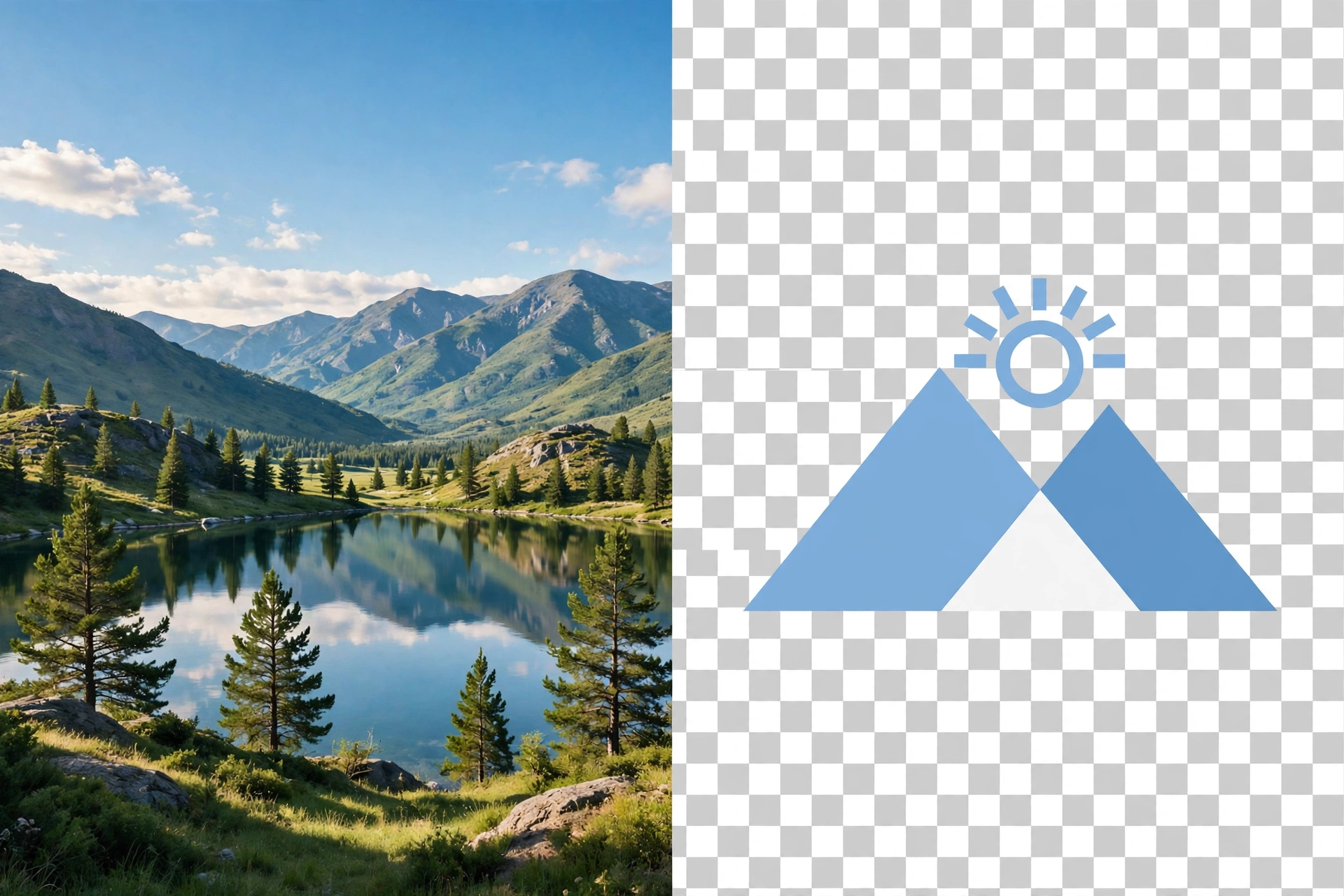
One warning first. JPG does not support transparency, so a transparent PNG background becomes white in the converted JPG. Check the result before you share it, and keep the original PNG if you need the transparent background later.
1. What converting PNG to JPG actually does
PNG and JPG are both image formats, but they store pictures in different ways. PNG keeps every pixel exactly, which makes it great for logos, icons and sharp text. JPG compresses the picture, which makes the file much smaller, and that is why it is the standard format for photos.
When you convert a PNG to a JPG, you trade a little image detail for a much smaller file. For a photograph, that trade is almost always worth it. The photo still looks the same on a phone screen or in a chat message, but it uploads faster, sends faster and takes up less storage.
| Feature | PNG | JPG |
|---|---|---|
| Best for | Logos, icons, screenshots, sharp text | Photos and pictures with many colours |
| Transparency | Yes, keeps transparent backgrounds | No, transparent areas become white |
| File size | Larger, exact pixels | Usually much smaller for photos |
| Quality | Lossless, no detail lost | Lossy, a little detail is dropped to save space |
| Where it fits | Design files, app graphics, web icons | Sharing, email, social media, photo albums |
Bullet summary
- PNG is exact and supports transparency, but its files are larger.
- JPG is compressed and much smaller, which makes it better for photos and sharing.
- Converting PNG to JPG is a file size decision, not a quality upgrade.
2. How to convert PNG to JPG free with SavyTools
The SavyTools PNG to JPG Converter is free, with no sign-up and no watermark. It runs entirely in your browser, so your files are never uploaded to a server. The steps below follow the live tool page.
| Step | What to do |
|---|---|
| 1 | Open the PNG to JPG Converter |
| 2 | Choose PNG files, up to 10 at a time |
| 3 | Set your preferred JPG quality. The default is 92 percent |
| 4 | Click Convert to JPG |
| 5 | Download each converted JPG file, or click Download all to save them together |
The tool page says “Download all” saves the converted files together. It does not describe a ZIP file, so do not expect one. The page gives no file size limit, so none is promised here.
Bullet summary
- Choose up to 10 PNG files at once, set the quality, convert, then download.
- Everything runs in your browser, with no upload, no sign-up and no watermark.
- Download files one by one, or use Download all to save them together.
3. What the 92 percent quality setting means
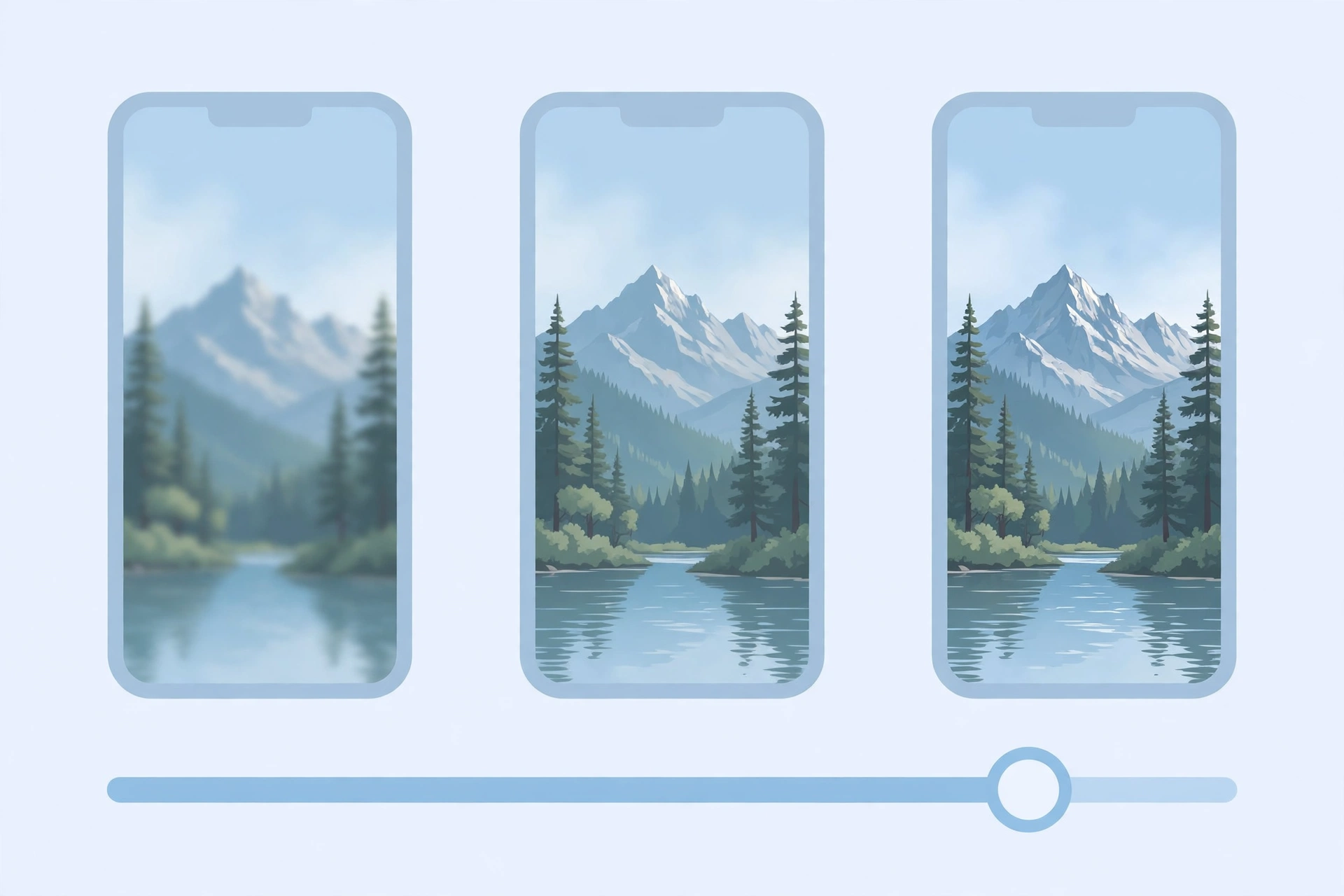
JPG quality is a slider between smaller files and sharper pictures. The SavyTools converter sets it to 92 percent by default, and the tool page calls that a good balance of quality and file size. That default suits most everyday uses, from sharing photos in a chat to attaching them to an email.
Raise the quality when the picture will be printed or shown large, because a higher setting keeps more detail. Lower it when the file only needs to be small, for example a quick photo in a message or a web upload with a size limit. The tool page gives the same advice: higher quality for print, lower quality for web and email.
| Quality setting | File size | Best for |
|---|---|---|
| Lower, around 70 to 80 percent | Smallest | Quick sharing, chat messages, web uploads |
| Default, 92 percent | Balanced | Everyday photos, email attachments, social posts |
| Higher, near 100 percent | Largest | Printing, large screens, keeping the most detail |
Bullet summary
- 92 percent is the default because it balances quality and file size for most photos.
- Go higher for print and large displays, lower for quick sharing and small uploads.
- The right setting depends on where the picture will be seen, not on the picture itself.
4. When JPG wins and when to keep PNG
Most guides treat the two formats as rivals, but they are tools for different jobs. The honest rule is simple. Use JPG when the picture is a photo and the file needs to be small. Keep PNG when the picture has sharp edges, text or transparency.
| Situation | Keep PNG or use JPG |
|---|---|
| A photo from your phone or camera | JPG, much smaller and looks the same |
| A logo or icon with a transparent background | Keep PNG, JPG turns transparency white |
| A screenshot with sharp text | Keep PNG, JPG can blur fine text |
| A picture to email or send in a chat | JPG, smaller files send faster |
| A picture for a website or blog post | JPG for photos, PNG for graphics and icons |
| A picture you plan to edit again later | Keep PNG, it loses no detail when saved again |
Bullet summary
- JPG wins for photos, sharing, email and anything where file size matters.
- PNG wins for logos, icons, screenshots and anything with transparency.
- When in doubt, keep the original PNG and convert a copy to JPG.
5. The transparency warning, read this before you convert
JPG has no transparency at all. That is the one thing about this conversion that catches people out. If your PNG has a transparent background, for example a logo cut out of a photo or an icon with no background, the converted JPG fills that area with white.
The SavyTools tool page states this plainly: “JPG does not support transparency, so transparent PNG backgrounds become white in the converted JPG.” There is no black fill option and no colour choice on this tool, so do not expect one. Some other converters offer that, but this tool does not.
Before you convert a transparent PNG, ask yourself one question. Will a white background ruin the picture? If the answer is yes, keep the PNG and do not convert it. If the picture is a photo with no transparency, the warning does not apply to you.
Bullet summary
- Transparent areas become white in JPG, always.
- Check the converted file before you share it anywhere.
- Keep the original PNG whenever transparency matters.
6. What to do with the JPGs after converting
A converted JPG is ready to use right away. The most common uses are the ones where a smaller file helps: attaching a photo to an email, sending it in a chat, uploading it to a form or a social post, and freeing up space on your phone.
If the file is still too large for an email attachment, convert it again at a lower quality setting, or run it through an image compressor first. SavyTools also has an Image Compressor and an Image Resizer among its 50+ free online tools, so a photo that is both converted and resized can shrink a lot further without another sign-up or upload.
Keep the original PNG files until you have checked the JPGs. Once you are happy with the converted files, the PNGs can stay as your backup copies, because a JPG can never get its transparency or its lost detail back.
Bullet summary
- Use JPGs for email, chat, uploads and social posts, where small files help.
- If a file is still too big, lower the quality or compress it further.
- Keep the original PNG as a backup until you have checked the JPG.
7. PNG to JPG vs other image conversions
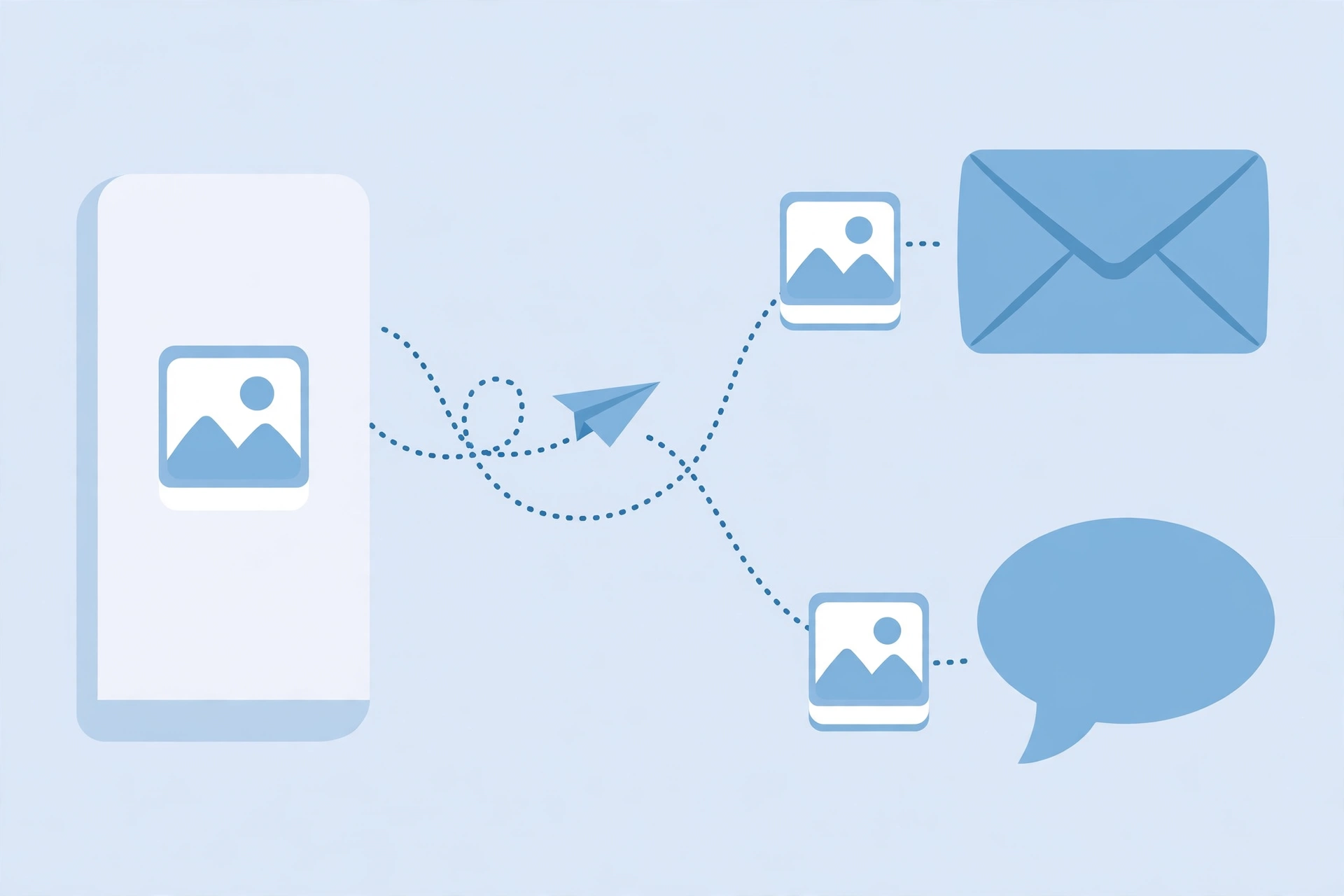
SavyTools has more than one image converter, and each one fits a different starting file. The PNG to JPG Converter is the right choice when your file is already a PNG. If your file is a HEIC photo from an iPhone, use the HEIC to JPG Converter instead, or read the guide How to Convert HEIC to JPG on iPhone (Free, No App Needed).
If you need to turn a whole PDF document into pictures, that is a different job again. The guide How to Convert PDF to JPG Free (No Sign Up) covers it, and the tool renders every page as its own JPG.
| Starting file | Which tool to use |
|---|---|
| PNG image | PNG to JPG Converter |
| HEIC photo from iPhone | HEIC to JPG Converter |
| PDF document | PDF to JPG tool, see the PDF to JPG guide |
| A JPG that is too large | Image Compressor, or convert again at lower quality |
Bullet summary
- PNG files go to the PNG to JPG Converter.
- HEIC photos from an iPhone go to the HEIC to JPG Converter.
- PDF documents go to the PDF to JPG tool, not an image converter.
Frequently asked questions
Is converting PNG to JPG free?
Yes. The SavyTools PNG to JPG Converter is free, with no sign-up and no watermark. Your files are converted in your browser, so there is no upload to a server.
How many PNG files can I convert at once?
Up to 10 PNG files at a time. Choose them together, convert them, then download each JPG file or use Download all to save them together.
What happens to a transparent PNG background when I convert it to JPG?
It becomes white. JPG does not support transparency, so any transparent area in the PNG is filled with white in the JPG. Keep the original PNG if you need the transparent background.
What quality should I choose?
The default is 92 percent, which the tool page calls a good balance of quality and file size. Use a higher setting for print and large displays, and a lower setting for quick sharing, chat messages and web uploads.
Will converting PNG to JPG make my photo smaller?
Usually yes, and often much smaller, especially for photographs. JPG compresses the picture, so it takes up less storage and sends faster by email or chat. Logos and screenshots with sharp text may not shrink as much.
Do I need to install an app or create an account?
No. The converter runs in your browser on any device, with no install and no sign-up. Your files stay on your device.
Related guides
