
How to Sign a PDF Online Free (No Sign Up)
Quick answer: Open the free Sign PDF tool (https://savytools.com/sign-pdf/) and upload your PDF. Draw your signature with a mouse or finger, type your name in a script style, or upload a signature image (PNG/JPG). Set the page number, signature width and position in points, press Sign PDF and download a new copy. The original file is not changed, and your file is never uploaded. Important: this adds a visible signature image only. It is NOT a certified digital signature, so it gives no cryptographic proof of identity and no tamper protection. If a certified or witnessed signature is required, check with the recipient first.
How to sign a PDF in 4 steps
Signing a PDF should take a minute, not a download and an account. Here is the whole method.
- Open the Sign PDF tool. Go to the Sign PDF tool (https://savytools.com/sign-pdf/) on SavyTools.
- Upload your PDF. Press Choose File and pick the PDF you want to sign. There is no file-size limit shown on the tool page.
- Make your signature. Draw it with your mouse or finger, type your name for a script style, or upload a signature image. Then set the page number, the signature width and the position in points.
- Press Sign PDF and download. The tool makes a new copy with your signature on it and downloads it. The original file on your device is not changed.
- No sign-up. You do not create an account and you do not give an email address.
- No upload. Everything runs in your browser with pdf-lib, so your file is never sent to a server.
- No app to install. The tool works in the browser on a computer, a tablet or a phone.
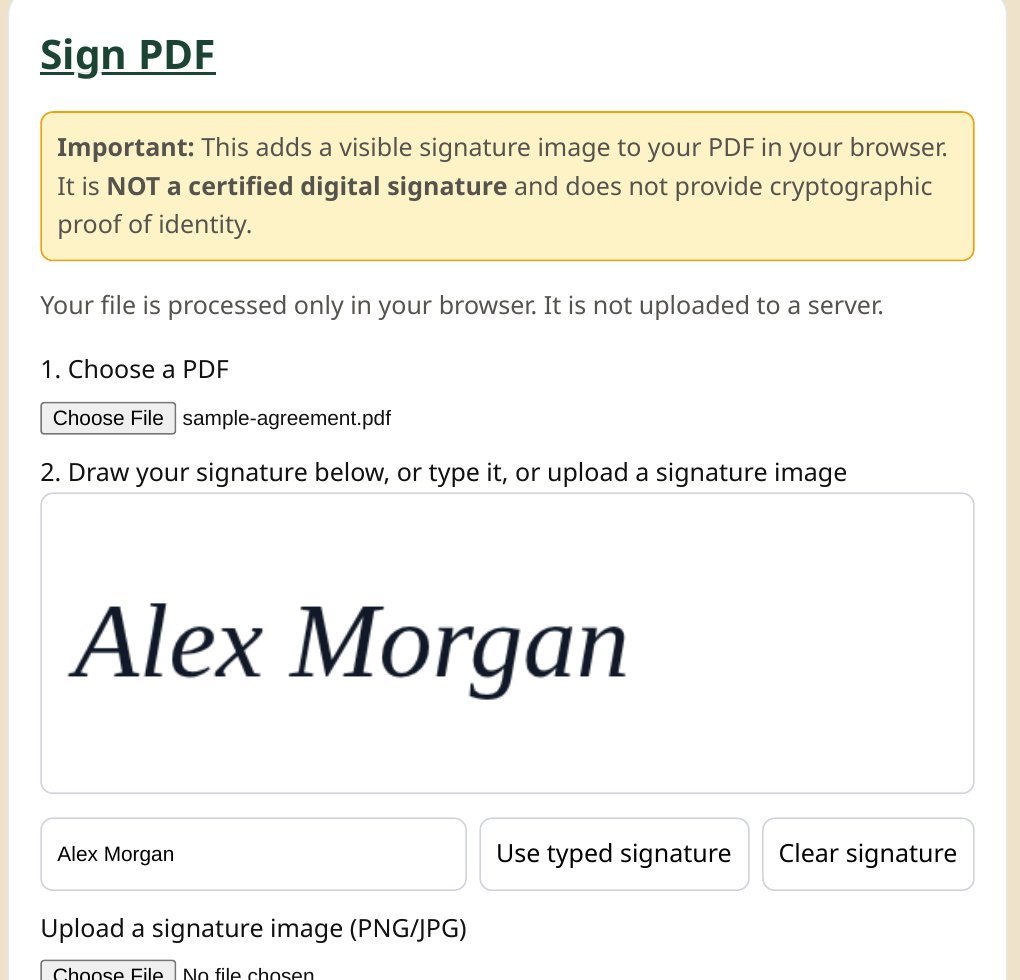
Draw, type or upload: which way to make your signature
The tool gives you three ways to make a signature. All three end up as the same thing, a visible signature image placed on your PDF. Pick the one that fits what you have.
| Method | How it works | Best when |
| Draw | Draw with your mouse or finger in the signature box | You want your own handwriting and you have a mouse or a touchscreen |
| Type | Type your name and the tool renders it in a script style | You want a clean signature fast and your handwriting on a mouse is messy |
| Upload | Upload a signature image (PNG/JPG) | You already have a scanned signature or a photo of your signature |
- Typing is the fastest. In the test below, typing “Alex Morgan” gave a clean script signature in seconds, with no drawing needed.
- Drawing is the most personal. If the recipient expects your real handwriting, draw it. Use a touchscreen or a stylus if you have one, because a mouse signature is hard to control.
- Uploading is the most consistent. If you sign the same way every time, save your signature as an image once and upload it for every document. Use a PNG with a clear background if you can, so no white box shows around the signature.
- You can clear and redo it. The Clear signature button wipes the box so you can start again before you sign the PDF.
Real test: where the signature lands
I tested the live tool with a real one-page PDF so the numbers below are real tool output, not guesses. The sample was a one-page “Sample Agreement” with a Signature line near the bottom of the page. The signature was typed as “Alex Morgan” in the script style.
| Setting | Value used | What it does |
| Page number | 1 | The page the signature appears on |
| Signature width | 180 points | How wide the signature image is |
| Position from left | 150 points | How far from the left edge the signature starts |
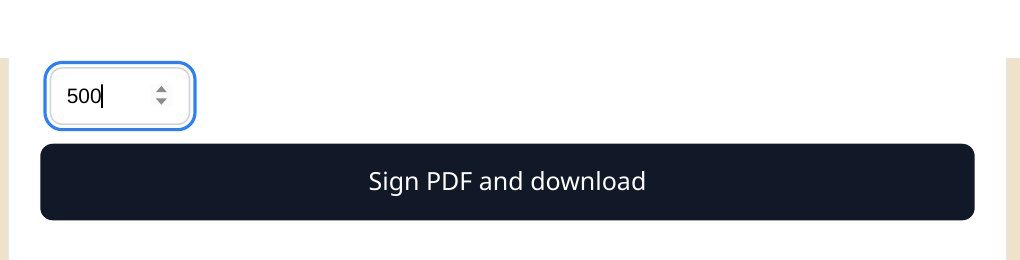
| Position from bottom | 500 points | How far from the bottom edge the signature sits |
Result: the downloaded copy had the signature sitting exactly on the Signature line, as shown in the image below. The tool showed the green confirmation “Signed PDF downloaded.” and the original file was unchanged.
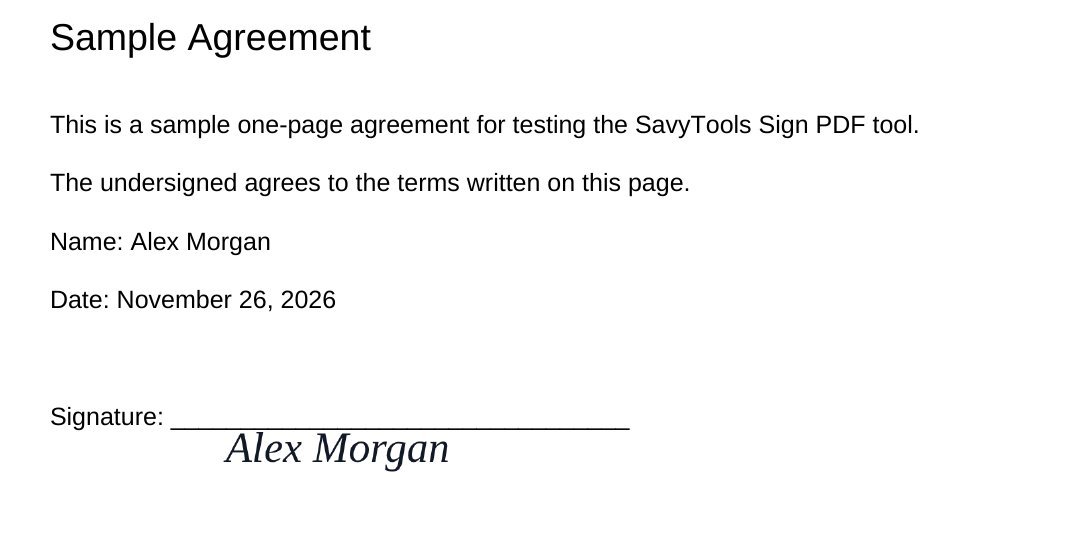
- Points are measured from the bottom of the page. This is the one thing people get wrong. A bigger bottom number moves the signature UP the page, not down.
- My first try proved it. I first used bottom 250, and the signature landed near the bottom of the page, far below the Signature line. Changing only the bottom value to 500 moved it up onto the line. If your signature lands too low, raise the bottom number. If it lands too high, lower it.
- Width and left work the same way. Width sets how wide the signature is in points. Left sets how far from the left edge it starts. A width of 180 points is about a quarter of a standard page width, which fits most signature lines.
- The tool shows no preview on the page. You set the numbers and the tool places the signature. That is why the worked example above matters. Start with the values in the table, open the download, and adjust by 50 points at a time until it sits where you want it.
What this tool does not do
The tool page states this limit in a yellow box, and the guide states it here too, because it decides whether this tool is right for your document.
| Question | Answer |
| Is it a certified digital signature? | No. It adds a visible signature image only. |
| Does it prove who signed? | No. It gives no cryptographic proof of identity. |
| Does it stop tampering? | No. It gives no tamper protection. Anyone with a PDF editor can change the file after signing. |
| Is my file uploaded? | No. Processing happens in your browser with pdf-lib. |
| Does it change my original file? | No. You download a new copy. The original stays as it was. |
- Use this tool for everyday signing. Permission slips, internal approvals, freelance agreements, rental applications and other informal documents where a visible signature is enough.
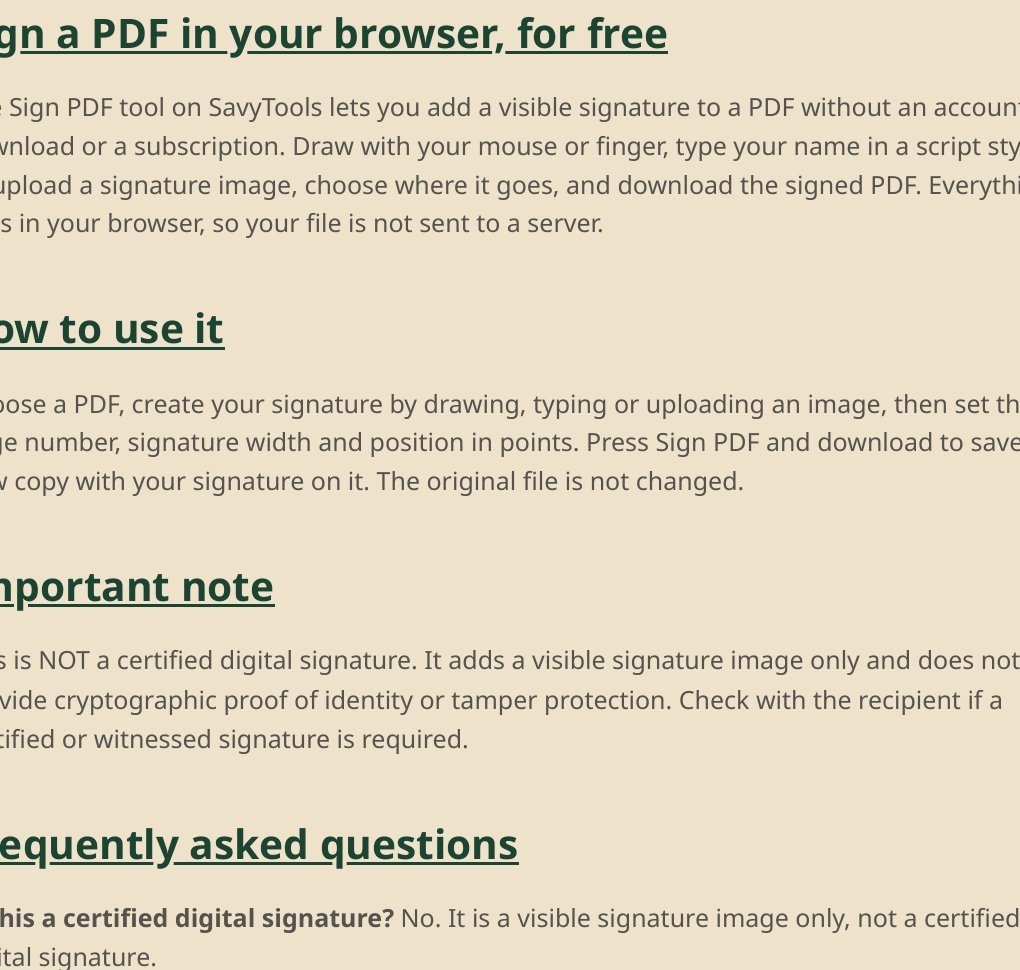
- Do NOT use it when proof matters. Contracts that may go to court, bank forms, government filings, witnessed signatures and anything where the recipient asks for a certified digital signature need a certified signing service, not a visible image. Check with the recipient first if you are unsure.
- When in doubt, ask the recipient. One short message, “Is a visible electronic signature acceptable, or do you need a certified digital signature?”, saves a rejected document.
After signing: check the download
Do not send the file without opening it once. The check takes ten seconds.
- Open the downloaded copy. Confirm the signature is on the right page and on the right line, and that it is not cut off at the edge.
- Check every page you signed. If the document needed a signature on more than one page, sign each page separately, because the tool places one signature per run.
- Keep the original. The tool never changes your original file, so keep it as your unsigned copy.
- If the signature is in the wrong place, re-run it. Change only one value at a time, usually the bottom number, and download again. Each run starts from your original file.
Frequently asked questions
Is signing a PDF with this tool legally binding?
A visible electronic signature is accepted for many everyday documents, but it depends on the document and the recipient. This tool adds a visible signature image only, with no cryptographic proof, so it is not a certified digital signature. For contracts, bank forms or government filings, check with the recipient first.
Is my PDF uploaded to a server?
No. The signing runs in your browser with pdf-lib, so your file is never sent to a server. The tool page states this plainly, and the test confirmed the file was processed locally.
Can I sign a specific page of a multi-page PDF?
Yes. Enter the page number in the page number field and the signature appears on that page only. For a signature on more than one page, sign each page separately.
How do I place the signature exactly on the line?
Use the points fields. Width sets how wide the signature is, left sets how far from the left edge it starts, and bottom sets how far from the bottom edge it sits. Points are measured from the bottom, so a bigger bottom number moves the signature up. In the worked test, page 1, width 180, left 150 and bottom 500 put the signature on the line.
What if my signature lands in the wrong place?
Download the copy, open it, and note which way it is off. Raise the bottom number to move it up or lower it to move it down, and change one value at a time. Re-run the tool from your original file until it sits where you want it.
Can I use my own handwritten signature instead of typing?
Yes. Draw it with your mouse or finger in the signature box, or upload a signature image in PNG or JPG format. Typing is fastest, drawing is the most personal, and uploading is the most consistent if you sign the same way every time.
More free PDF tools
If you work with PDFs often, these guides help too. Learn how to merge PDF files online free (https://savytools.com/how-to-merge-pdf-files-online-free/), how to convert PDF to Word free without losing formatting (https://savytools.com/how-to-convert-pdf-to-word-free-without-losing-formatting/), and how to split PDF pages free (https://savytools.com/how-to-split-pdf-pages-free/).
Bottom line
Signing a PDF takes a minute when the tool does the work. Open the Sign PDF tool (https://savytools.com/sign-pdf/), upload your PDF, make your signature by drawing, typing or uploading, set the page and the position in points, and download the signed copy. It is free, it works as you type, and it never uploads your file. Just remember what it is: a visible signature image, not a certified digital signature. If the document needs proof, use a certified service instead.
