
How to Make an Invoice Free: Create and Download a PDF in Minutes (2026 Guide)
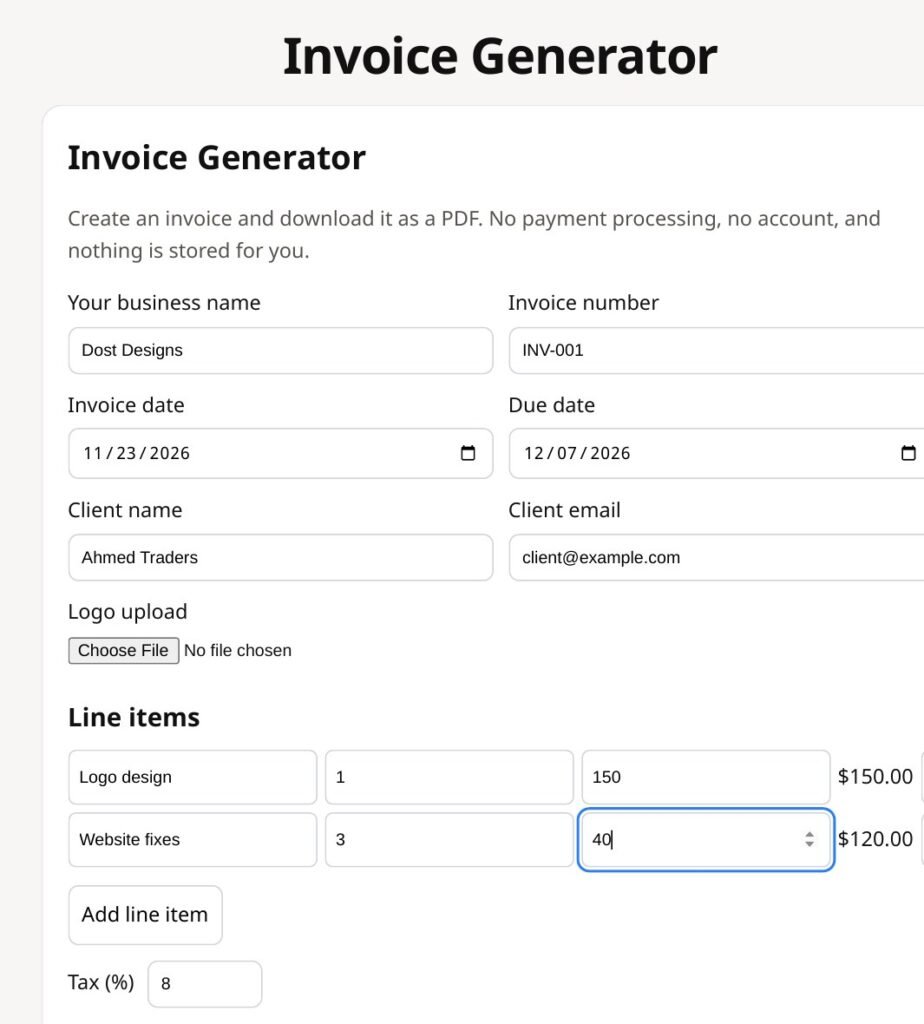
Quick answer: Fill in your business and client details, add your line items, set the tax rate, and press Download invoice PDF. The invoice is free, with no sign-up, no payment processing, no account, and nothing stored. The whole thing takes a few minutes in your browser.
An invoice is a request for payment, not a payment itself. It says who did the work, what was done, how much is owed, and when it is due. If those four things are clear, the person in accounts can approve it without emailing you back. This guide makes one with the free SavyTools Invoice Generator, in three steps, and shows you the pre-send check that catches the mistakes that delay payment.
What belongs on every invoice
Every invoice needs the same six things, whether it is for one logo or a month of work. Leave one out and payment slows down.
| Item | Why it matters |
|---|---|
| Unique invoice number | Lets both sides refer to this invoice and no other |
| Invoice date and due date | Sets when the clock starts and when payment is late |
| Your business details | Tells the client who to pay |
| Client name and email | Tells you who owes it and where to send it |
| One line per item, with a description | Lets accounts approve each charge without asking |
| Tax as a separate line | Shows the tax clearly instead of hiding it in the total |
The description line deserves care. Write what a stranger in accounts would need to approve it. “Logo design” is clear. “Work” is not. “Website fixes, 3 hours” is clear. “Fixes” is not.
How to make an invoice free in 3 steps
Open the Invoice Generator on SavyTools. Everything runs in your browser, and nothing is uploaded or stored.
Step 1. Add your business and client details. Type your business name, an invoice number, the invoice date and the due date. Add the client name and the client email. A clear invoice number and due date on every invoice is the simplest habit in this guide. Upload a logo if you have one. A PNG or JPG logo appears on the invoice.
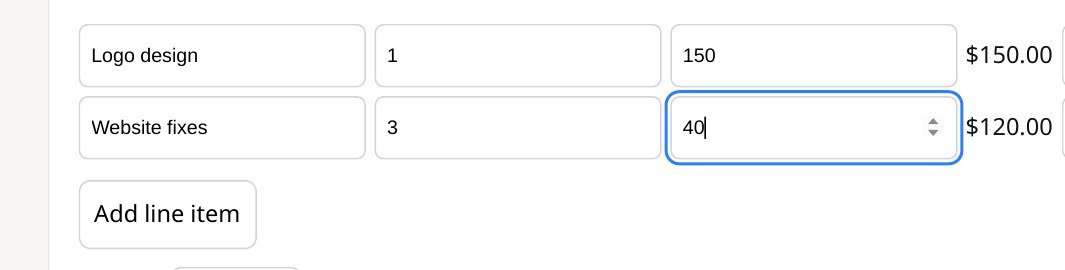
Step 2. Add your line items. The tool starts with one sample line, Consulting services at $250. Replace it with your own items. Use Add line item for each product or service, with a quantity and a price. The subtotal, tax and total update as you type, so you see the final number before you download anything. Add notes such as payment terms if you need them.
Step 3. Download the PDF. Press Download invoice PDF and open the file to check it. The tool makes a PDF only. It does not process payments, store your clients, or send the invoice for you. Send the PDF to the person who approves payment, by email.
Worked example: a freelance designer billing one client
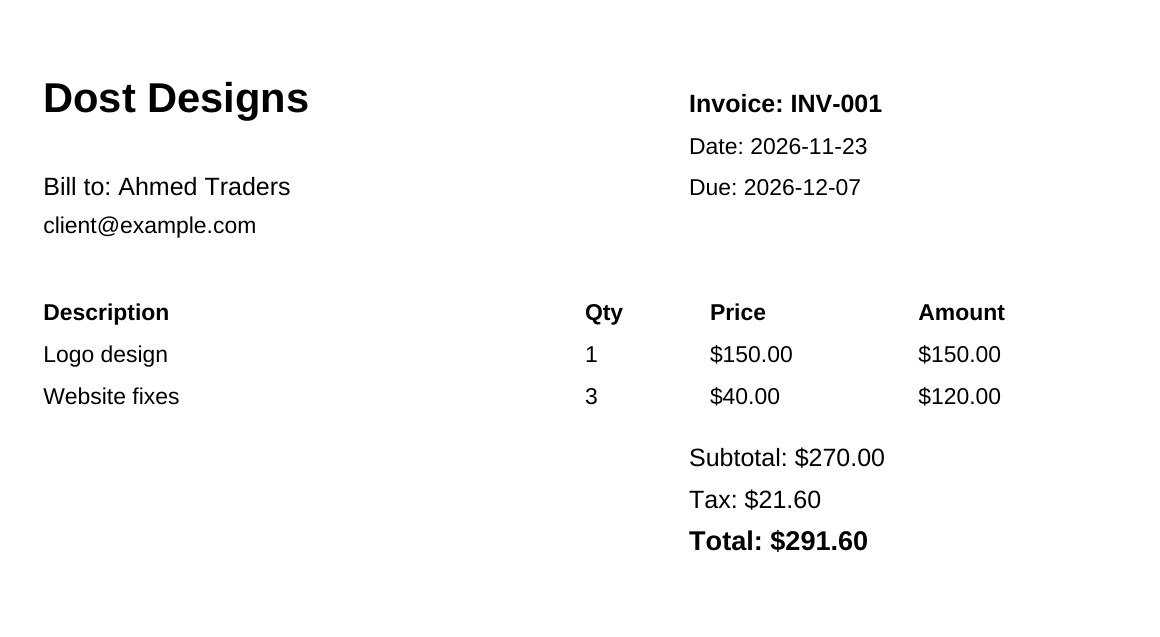
A freelance designer bills one client for two jobs, with 8 percent tax. Here is exactly what the tool shows.
| Line item | Quantity | Price | Amount |
|---|---|---|---|
| Logo design | 1 | $150 | $150 |
| Website fixes | 3 hours | $40 per hour | $120 |
| Subtotal | $270 | ||
| Tax, 8 percent | $21.60 | ||
| Total | $291.60 |
The subtotal is $150 plus $120, which is $270. The tax is 8 percent of $270, which is $21.60. The total is $270 plus $21.60, which is $291.60. The tool updates all three numbers as you type, so a change to any line updates the total at once.

Pre-send checklist
Run this check before you send any invoice. It takes one minute and catches the errors that delay payment.
| Check | Done |
|---|---|
| Invoice number is unique, not reused from an earlier invoice | |
| Due date is set and realistic | |
| Every line has a specific description | |
| Tax is shown as its own line | |
| The PDF opens cleanly and the numbers match your notes | |
| It goes to the person who approves payment, not a general inbox |
What the tool does not do
Say this plainly, because it decides whether this tool fits your workflow. The Invoice Generator builds a PDF and nothing else.
- It does not process payments. The client pays you by whatever method you agree, bank transfer or another route. The invoice only states the amount.
- It does not store your clients. Your details stay on the page until you leave it. There is no client list to return to.
- It does not track payments or remind clients. There is no paid or unpaid status, and no follow-up email.
- It has no currency picker, no Quote or Estimate mode, no auto-numbering, and no discount field.
The workflow that covers those gaps is simple. Send the PDF by email, save a copy for your records, and set your own calendar reminder for the due date. If a client is late, the reminder tells you when to follow up. The tool stays free exactly because it does none of the rest.
FAQ
Is it really free to make an invoice with SavyTools?
Yes. The Invoice Generator is free, with no sign-up, no account and no payment. You fill in the details and download a PDF.
Does the Invoice Generator process payments?
No. It generates an invoice PDF only. Your client pays by whatever method you agree separately, and the invoice states the amount and the due date.
Does it store my clients?
No. Nothing is saved for you. Your details stay on the page until you leave it, and there is no client list.
Can I add a logo to my invoice?
Yes. Upload a PNG or JPG logo and it appears on the invoice.
Can I add tax to my invoice?
Yes. Enter a tax percentage and it is applied to the subtotal, shown as its own line.
What if I need a quote first?
This tool builds invoices, not quotes. It has no Quote or Estimate mode. Make the quote another way, then build the invoice here once the work is agreed.
The free invoice is the easy part. The habit that gets you paid is the checklist before you send it, and the reminder on the due date. Our Time Zone Converter guide and our Image Format Converter guide cover two more everyday jobs the same way, free in your browser with nothing to install.
