
How to Convert Time Zones: Find a Meeting Time That Works for Everyone (2026 Guide)
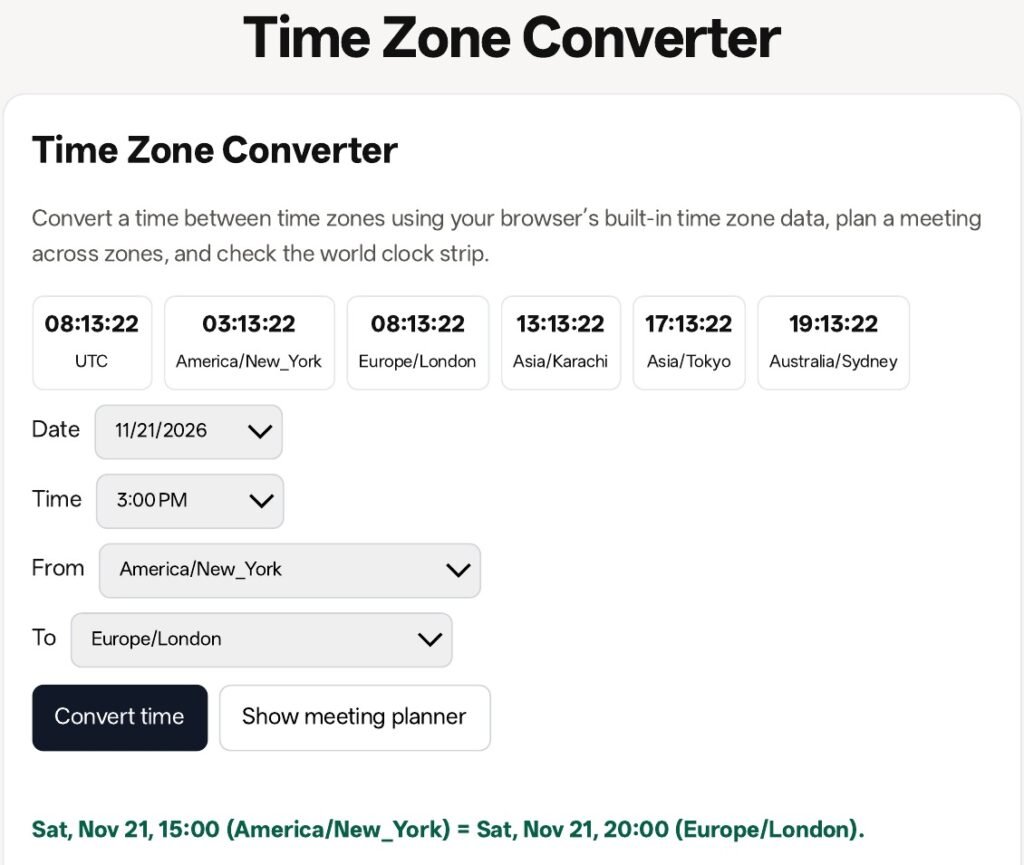
Quick answer: To convert a time zone, pick a date and time, name the From zone and the To zone, then press Convert time. The free SavyTools Time Zone Converter runs in your browser and uses your browser’s built-in time zone data, so it handles daylight saving without an external service. For a meeting, press Show meeting planner to see the same instant in nine zones at once. Green means inside working hours, 9:00 to 17:00 local. Red means outside those hours.
One instant, read on different clocks
A time zone conversion is not a calculation you do to a number. It is one instant, read on different clocks. When it is 15:00 on Saturday in New York, it is already 20:00 on Saturday in London and 01:00 on Sunday in Karachi. Only the clock reading changed.
That is why converting by hand goes wrong so often. People add or subtract a fixed number of hours, and they forget the date or the daylight saving shift. A converter that reads the offset in force on your date removes both mistakes at once.
The SavyTools Time Zone Converter does exactly that, free in your browser, with no sign-up and no upload. It uses the Intl time zone data built into your browser, so it needs no external service to know the offset. The rest of this guide shows the three steps, then the meeting planner, then the four traps that catch even careful people.
- A conversion answers one question: what time is this instant in that zone.
- The date can change even when the time looks close.
- The offset depends on the date. Daylight saving moves it.
How to convert time zones in 3 steps
You need three things before you press a button: a date, a time, and the two zone names. The converter cannot guess any of them, and guessing is where most errors start. Write the date first, because the date decides the offset.
Step 1: Pick the date and the time. Open the Time Zone Converter, choose the date, then the time. In our test we used Saturday 21 November 2026, 3:00 PM. Use the date of the actual event, not today. A meeting next month may sit on the other side of a daylight saving change.
Step 2: Pick the From zone and the To zone. Use the full zone names, such as America/New_York and Europe/London. Do not type an abbreviation such as EST or GMT and hope it means the same thing everywhere. The tool lists zones by their full names, and that is the point. The traps section below shows why abbreviations cause trouble.
Step 3: Press Convert time and read the date too. In our test the tool answered: Sat, Nov 21, 15:00 (America/New_York) equals Sat, Nov 21, 20:00 (Europe/London). Read the day as well as the hour. A result that only shows 20:00 hides the fact that the other side may already be on Sunday.
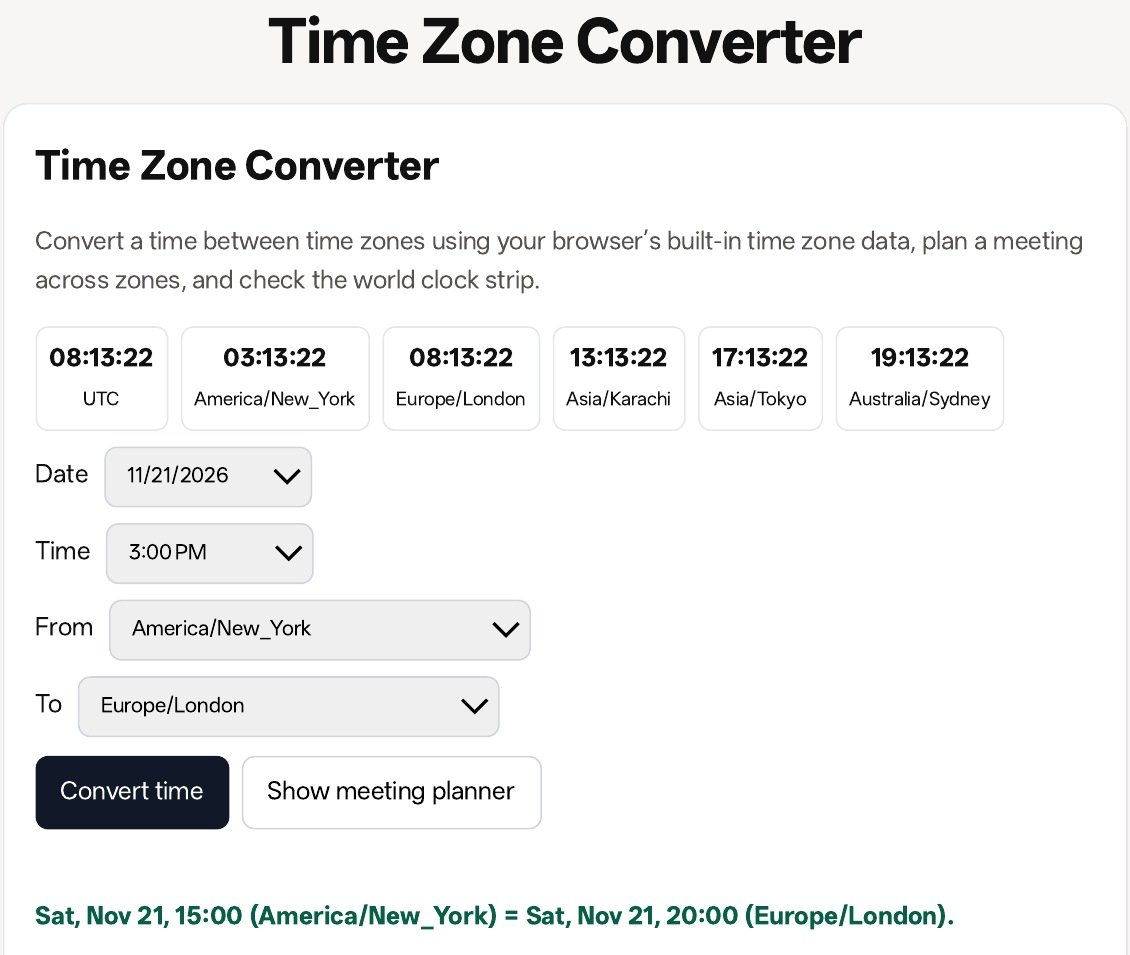

- Step 1: choose the real date of the event, then the time.
- Step 2: pick the zones by their full names, not by abbreviations.
- Step 3: read the date in the result, not only the hour.
The world clock strip: what time is it right now
Above the converter sits a world clock strip with six zones: UTC, America/New_York, Europe/London, Asia/Karachi, Asia/Tokyo and Australia/Sydney. It ticks every second, so you can see the current time in six zones at a glance.
Note what the strip does not do. It shows the live current time, not your converted meeting time. When we captured it, the strip showed 08:13:22 UTC, 03:13:22 in New York, 08:13:22 in London, 13:13:22 in Karachi, 17:13:22 in Tokyo and 19:13:22 in Sydney. Your conversion lives in the result line below the buttons, not in the strip. Use the strip to check what time it is now before you call someone. Use the converter to plan a time in the future.

- The strip shows the current time in six zones, ticking every second.
- It does not show your converted meeting time.
- Check the strip before you call. Plan with the converter.
The meeting planner: one meeting, nine zones
One conversion answers one pair of zones. A meeting has more people than that. The meeting planner shows the same instant in nine zones at once: New York, Los Angeles, London, Berlin, Karachi, Kolkata, Singapore, Tokyo and Sydney. Each row is green when the local time is inside working hours, 9:00 to 17:00, and red when it is outside those hours.
We tested it with a real meeting: Saturday 21 November 2026, 15:00 in New York.
| Zone | Local time | Working hours |
|---|---|---|
| America/New_York | Sat, Nov 21, 15:00 | Working hours |
| America/Los_Angeles | Sat, Nov 21, 12:00 | Working hours |
| Europe/London | Sat, Nov 21, 20:00 | Outside 9-17 |
| Europe/Berlin | Sat, Nov 21, 21:00 | Outside 9-17 |
| Asia/Karachi | Sun, Nov 22, 01:00 | Outside 9-17 |
| Asia/Kolkata | Sun, Nov 22, 01:30 | Outside 9-17 |
| Asia/Singapore | Sun, Nov 22, 04:00 | Outside 9-17 |
| Asia/Tokyo | Sun, Nov 22, 05:00 | Outside 9-17 |
| Australia/Sydney | Sun, Nov 22, 07:00 | Outside 9-17 |
Only two zones are green: New York, 15:00, and Los Angeles, 12:00. London at 20:00 and Berlin at 21:00 are already red, even though it is still Saturday evening there. The other five zones are on Sunday already. A 15:00 meeting in New York is 01:00 on Sunday in Karachi, 01:30 on Sunday in Kolkata, 04:00 on Sunday in Singapore, 05:00 on Sunday in Tokyo and 07:00 on Sunday in Sydney.


This is the honest result, and it is the reason the planner matters. A 15:00 New York start sounds reasonable to the person sending the invite. The planner shows it is not reasonable for seven of the nine zones. If you move the meeting to 09:00 in New York, London gets 14:00 and Berlin gets 15:00, both green, but Los Angeles gets 06:00 and Sydney gets 01:00 on Sunday, both red. No single hour fits all nine zones, because the spread from Los Angeles to Sydney is 19 hours and the working window is only 8 hours. Pick the hour that is green for the most people, and rotate the awkward slot between teams instead of making the same people join at 01:00 every time.
- The planner shows nine zones at once, green inside 9:00 to 17:00, red outside.
- A 15:00 New York meeting is green in only two zones: New York and Los Angeles.
- No hour is green for all nine. Rotate the awkward slot.
The four traps
Trap 1: Abbreviations that mean three things
IST can mean India, Irish or Israel Standard Time. CST can mean Central, China or Cuba Standard Time. BST can mean British Summer Time or Bangladesh Standard Time. One abbreviation, three different offsets, and a meeting booked on the wrong one is off by hours, not minutes.
| Abbreviation | It can mean | Offset |
|---|---|---|
| IST | India Standard Time | UTC+5:30 |
| IST | Irish Standard Time (summer) | UTC+1 |
| IST | Israel Standard Time | UTC+2 |
| CST | Central Standard Time (US) | UTC-6 |
| CST | China Standard Time | UTC+8 |
| CST | Cuba Standard Time | UTC-5 |
| BST | British Summer Time | UTC+1 |
| BST | Bangladesh Standard Time | UTC+6 |
The fix is simple. Never write IST, CST or BST in an invite. Write the full zone name, such as Asia/Kolkata or Europe/London, and add the UTC equivalent as well. The invite section below shows the exact line to use.
Trap 2: The date changes while the time looks fine
A meeting at 15:00 in New York is 01:00 the next day in Karachi. The time part looks like a small number, so the brain skips the date part. Going east from the Americas to Asia, the date moves forward, so people join a day late. Going west, the date moves back, so people join a day early.
Always confirm the date in the other zone, out loud, in the invite. Write “Saturday 21 November, 15:00 New York, which is Sunday 22 November, 01:00 Karachi” instead of “15:00 / 01:00” and hoping everyone works out the day. The converter result states both dates for this exact reason.
Trap 3: Daylight saving moves the offset in March and November
The offset between two zones is not fixed. It changes when either side starts or ends daylight saving, and the two sides rarely change on the same weekend. In 2026 the United States starts daylight saving on Sunday 8 March and ends it on Sunday 1 November, while Europe starts on Sunday 29 March and ends it on Sunday 25 October.
| Change in 2026 | United States | Europe |
|---|---|---|
| Daylight saving starts | Sunday 8 March | Sunday 29 March |
| Daylight saving ends | Sunday 1 November | Sunday 25 October |
That gap matters. From 8 March to 29 March 2026, New York is 4 hours behind London instead of the usual 5. From 25 October to 1 November 2026, the gap is 4 hours again. A meeting booked as “15:00 New York, 20:00 London” is right in November and wrong in that gap week, when 15:00 in New York is 19:00 in London. The converter handles this because it uses the offset in force on the date you pick. A fixed hours table in a document does not. Convert it again for the new date.
Trap 4: Recurring meetings go stale after a time change
A weekly meeting set in October can quietly move by an hour in November. The invite still says 15:00 New York, and it still is 15:00 in New York. But the London side moved from 20:00 to 19:00 when Europe ended daylight saving on 25 October, a week before the United States ended it on 1 November. Nobody changed the invite.
Check the planner again after every time change, in March and in late October and early November. It takes less than a minute, and it is the only way to catch a meeting that drifted by an hour without anyone touching it. If you run a recurring meeting across zones, set a reminder for the week after each change, and re-check the time in every zone.
- Abbreviations lie. IST, CST and BST each mean three different offsets.
- The date can change even when the time looks small. Confirm the day in every zone.
- Daylight saving moves the offset in March and November, and the two sides change on different weekends.
- Recurring meetings drift by an hour after a time change. Re-check them every March and November.
Put UTC in every invite
One habit prevents nearly all of these mistakes: put the UTC equivalent in every invite, next to the local time, and name the zone in full. UTC never moves for daylight saving, so it is the one reading everyone can agree on.
Write the invite line like this: “Saturday 21 November, 15:00 America/New_York (20:00 UTC)”. Anyone in any zone can convert 20:00 UTC to their own clock, and the full zone name removes the abbreviation trap. If a local conversion disagrees with the UTC line, the UTC line wins, and the disagreement tells you to check the date again.
The same habit helps with other conversions. If you are converting units for a recipe or a shipment, name the unit in full instead of trusting a short form. The SavyTools Unit Converter works the same way as the time tool, free in your browser, for length, weight, temperature and volume. And if the meeting itself needs a timer once it starts, the Countdown Timer + Stopwatch on SavyTools keeps the time in the same browser tab, with no sign-up.
- Put the UTC equivalent in every invite, next to the local time.
- Name the zone in full, such as America/New_York, never an abbreviation.
- If a local conversion disagrees with the UTC line, trust the UTC line and re-check.
Frequently asked questions
Does the Time Zone Converter need the internet?
No. It uses the Intl time zone data built into your browser. The conversion and the meeting planner run on your device, with no external service.
Does it handle daylight saving time?
Yes. Conversions use the offset in force on the date you choose. That is why the date matters as much as the time.
Why is the date different in another zone?
Because it is the same instant read on a different clock. When it is 15:00 on Saturday in New York, it is 01:00 on Sunday in Karachi. The clock in Karachi is 10 hours ahead, so it already shows Sunday.
What is the meeting planner?
It shows the same meeting instant in nine zones at once: New York, Los Angeles, London, Berlin, Karachi, Kolkata, Singapore, Tokyo and Sydney. Zones in green are inside working hours, 9:00 to 17:00 local time. Zones in red are outside those hours.
Can I add any city to the planner?
The meeting planner covers the nine zones listed on the tool page: New York, Los Angeles, London, Berlin, Karachi, Kolkata, Singapore, Tokyo and Sydney. The tool page does not promise adding a city to the planner. Use the main converter above the planner for a one-to-one check of any two zones.
The short version
Converting a time zone is a three step job: pick the date and time, name the From and To zones in full, and read the date in the result as well as the hour. The meeting planner then shows the same instant in nine zones, green inside working hours and red outside. Our test showed the honest result. A 15:00 meeting in New York is green in New York and Los Angeles only, and it is already Sunday in five zones. Check the date, watch March and November, and put UTC in every invite. The Time Zone Converter is one of 50+ free tools on SavyTools, free in your browser with no sign-up.
