
How to Split PDF Pages Free (No Sign Up)
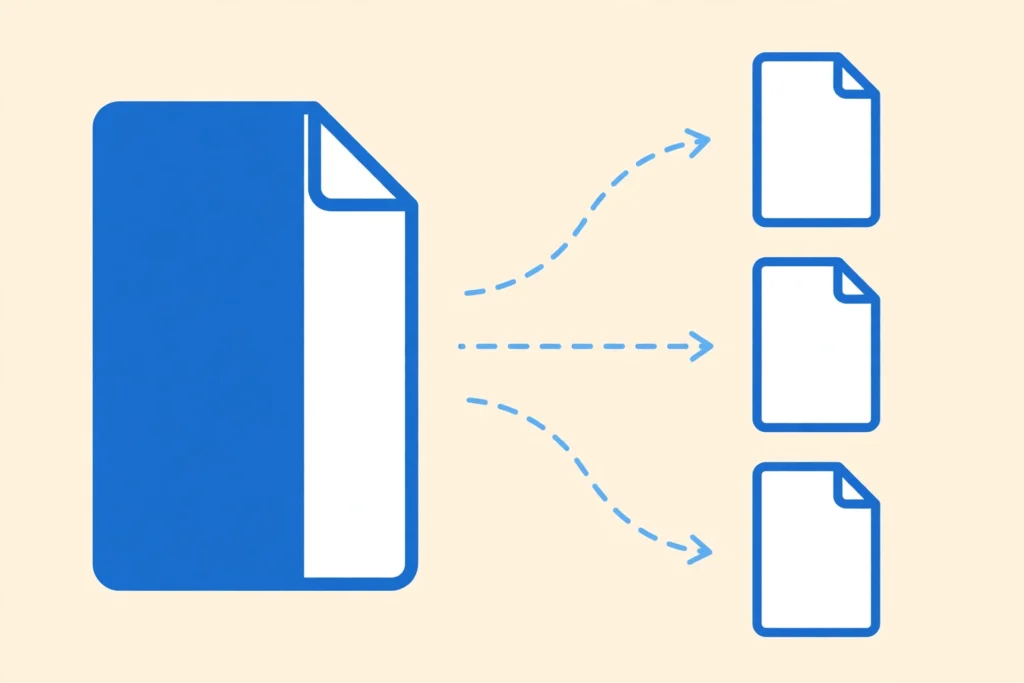
Quick answer: Yes, you can split PDF pages free with no sign-up. Open the free SavyTools Split PDF tool, drop in your PDF, pick the pages or the range you need, and download the new file. Everything runs in your browser, so your file never leaves your device.
1. What splitting a PDF actually means
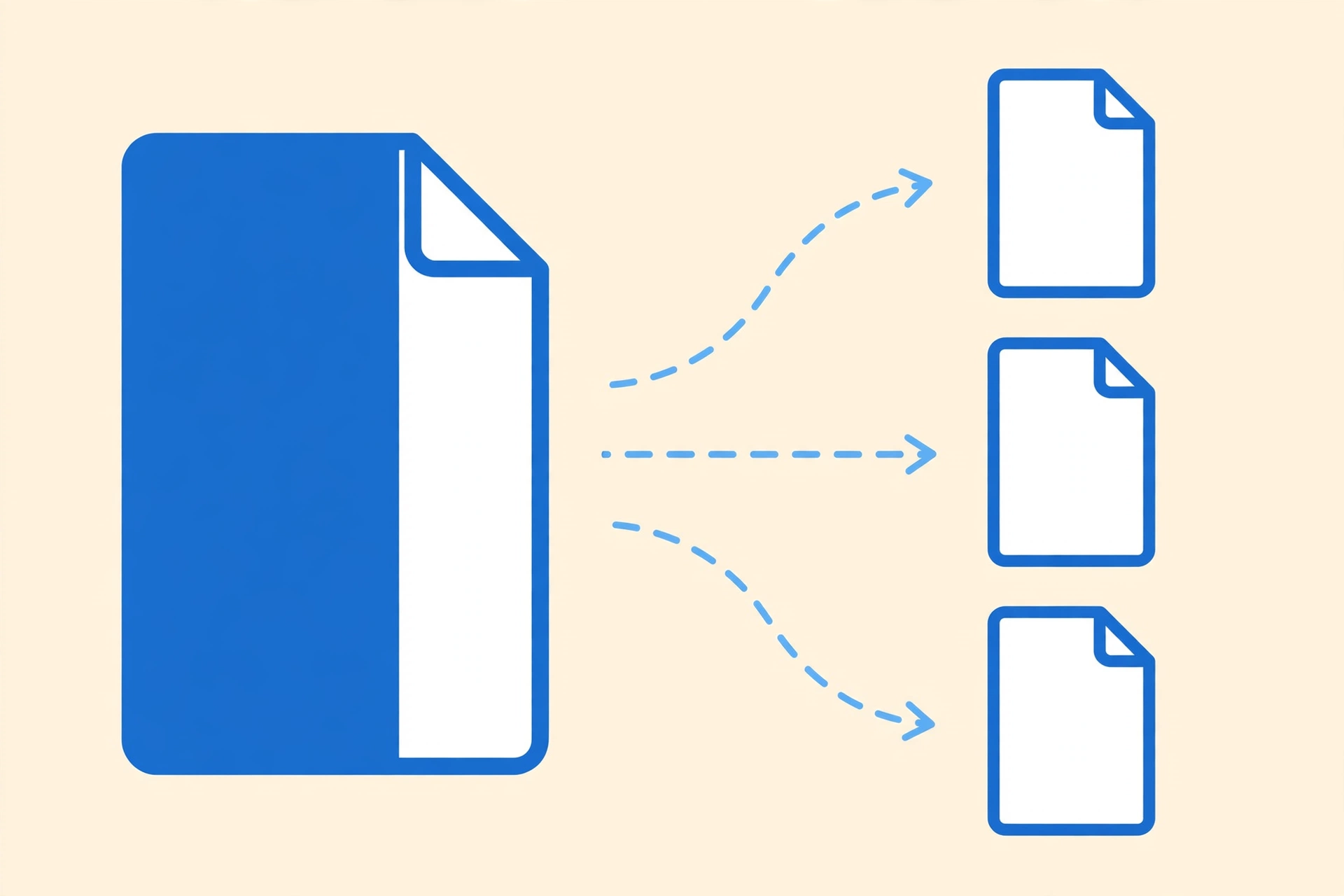
A long PDF often holds pages you do not need. Maybe it is a 40-page report and you only need 3 pages from the middle. Maybe it is a pack of forms and each form should go to a different person. Splitting a PDF means pulling the pages you need out of the file and saving them as a new file.
People use the word “split” for two different jobs, and the two jobs give you different results.
| Job | What you get | Pick it when |
| Extract a range | One new PDF with only the pages you chose | You need pages 1-3 from a 40-page report |
| Split every page | Each page as its own one-page PDF | You need every form or invoice on its own |
| Extract several ranges | One new PDF per range, run the tool once for each range | You need chapters saved as separate files |
Bullet summary
- The SavyTools Split PDF tool does both jobs. You can download every page as its own one-page PDF, or extract just the page range you need into a single new file.
- Decide which result you want before you start, because the two jobs give you different files.
- Your original PDF stays untouched. Splitting makes a new file and leaves the old one as it is.
2. How to split PDF pages free in 4 steps
The SavyTools Split PDF tool is free, asks for no sign-up, and runs in your browser. These are the steps the tool itself shows on its page.
| Step | What to do | Watch out for |
| 1. Upload the PDF | Drop the file into the tool, or choose it from your device | A locked PDF must be unlocked first |
| 2. Choose your pages | Pick a page range or individual pages | Count from the first page of the file, not the printed number |
| 3. Split the file | The tool builds the new document or documents you asked for | Wait for the split to finish before you download |
| 4. Download and check | Open the new file and count the pages | Keep the original until the check is done |
Bullet summary
- No account, no email, and no upload. The split happens on your own device.
- The tool lets you choose pages as ranges or as individual pages, so you can pull out pages 1-3, then 4-6, and so on.
- Always open the new file after you download it. A quick check takes seconds and saves you from sending the wrong pages.
Try it here: Split PDF tool
3. Page numbers are positions, not printed numbers
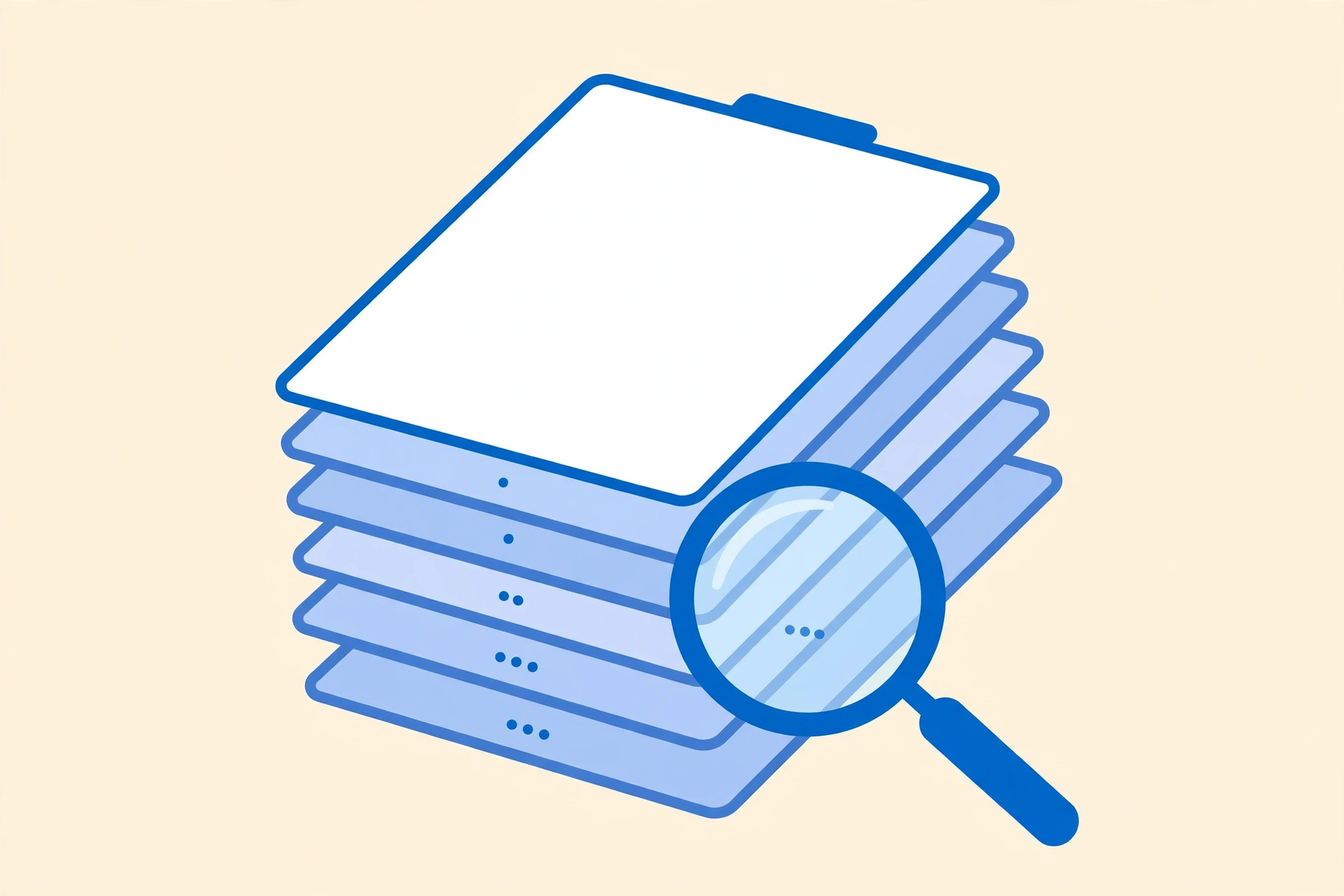
This is the mistake most people make, and most guides never warn about it. The page numbers you type into a splitter are positions in the file. They are not always the numbers printed on the pages.
A report with a cover sheet and 3 pages of roman-numeral front matter is a good example. The first page with a printed “1” on it is actually page 5 of the file. If you want printed pages 1-3, your range is file pages 5-7. Type 1-3 instead, and you will get the cover and the front matter.
| What the PDF shows | Where the page really sits |
| Cover sheet with no number | File page 1 |
| Front matter numbered i, ii, iii | File pages 2-4 |
| First page printed “1” | File page 5 |
| First page printed “2” | File page 6 |
Bullet summary
- Count from the first page of the file, including the cover and any unnumbered pages.
- Before you split, note down which pages you need, since page numbers shown in a viewer can differ from printed page numbers. The SavyTools tool page gives this same tip.
- If your first split gives you the wrong pages, check your count and split again from the original. The original is never changed.
4. Extract or split every page? Decide first
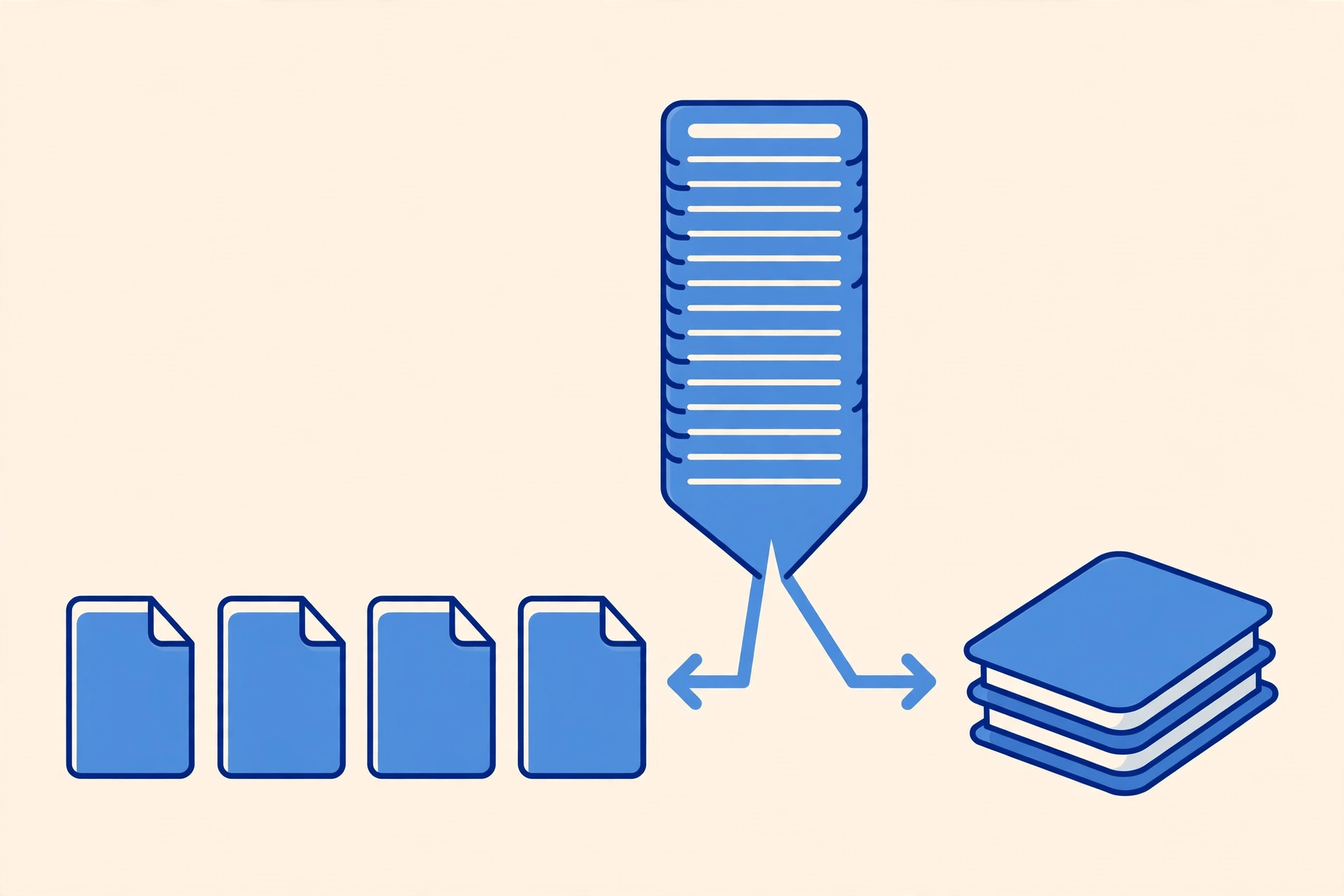
Extracting and splitting sound alike, but they answer different needs. A short pause before you start saves you a second split.
| You want | Choose |
| One chapter from a long book | Extract the range into one new PDF |
| One invoice from a monthly pack | Extract just that one page |
| Every form as its own file | Split every page into separate one-page PDFs |
| Each chapter as its own file | Extract one range per chapter, one run each |
Bullet summary
- Extract when you need one smaller file. Split when you need many files.
- If you only need a few pages, extracting a range is faster than splitting every page and deleting the extras.
- If you need every page on its own, splitting every page is faster than extracting one page at a time.
5. When to split instead of compress
A PDF can be too big for two different reasons, and each reason has its own fix. If the file is too big only because it holds pages nobody needs, splitting is the better fix. Compressing shrinks every page. Splitting removes the pages you do not need, and the pages you keep stay exactly as they were.
| Problem | Best fix |
| The file holds pages nobody needs | Split the pages out |
| Every page is needed but the file is heavy | Compress the file |
| A scan-heavy file must fit an email limit | Compress with the Strong mode |
| Only 3 pages of a 40-page report matter | Extract the range |
Bullet summary
- Split when the extra pages are the problem. Compress when the size of the pages is the problem.
- You can do both. Split out the pages you need first, then compress the smaller file if it is still too big.
- For the full compressing guide, see our Compress PDF guide.
6. Free split tools compared
Most popular splitters upload your file to a server and do the work there. SavyTools runs the split in your browser, so your file never leaves your device.
| Tool | Free use | Where your file goes |
| SavyTools Split PDF | Free, no sign-up | Stays in your browser |
| BrieflyGo | 2 free splits a day, then an account is asked for | Uploaded to its servers |
| Smallpdf | Free use has a daily limit | Uploaded to its servers |
Free plans change, so check a tool’s own page before you rely on a limit. The limits above were checked on 8 Nov 2026.
Bullet summary
- SavyTools is the only tool in this list that never uploads your file.
- BrieflyGo gives you 2 free splits a day, then asks for an account.
- Smallpdf gives you free use up to a daily limit.
- If your PDF holds private or work files, a browser tool is the safer choice.
7. Check the new file before you send it
A split takes seconds, and the check takes seconds too. Do the check every time, because a wrong range is easy to miss until someone else opens the file.
| Check | What can go wrong if you skip it |
| Open the new file | You send a file that never downloaded properly |
| Count the pages | You send 4 pages when you meant to send 3 |
| Check the first and last page | The range started or ended on the wrong page |
| Check the text is readable | A scanned page came out as a blank image |
| Rename the file clearly | You send the old file by mistake |
Bullet summary
- Open the new file, count the pages, and check the first and last page.
- Give the new file a clear name so you can find it again later.
- Keep the original PDF until you have checked the extracted pages, so you can redo the split if a range was wrong.
8. When splitting will not work
Splitting works on most PDFs, but a few files will stop you. Here is what to do in each case.
| Problem | What to do |
| Password-protected PDF | Unlock it first, then split the unlocked copy |
| Damaged or half-downloaded PDF | Download the file again and try once more |
| Scanned PDF | The pages split fine, but the text stays an image and is not searchable |
| A range that gives the wrong pages | Recount from the first page of the file and split again |
Bullet summary
- A locked PDF must be unlocked before any splitter can open it. Open the file with its password, save an unlocked copy, and split that copy instead.
- Splitting never makes a scanned page searchable. It only pulls the pages out.
- If a split fails, the file itself is usually the problem, not the tool. Try the original file again.
Frequently Asked Questions
Can I split PDF pages free without signing up?
Yes. The SavyTools Split PDF tool is free and asks for no sign-up. Open the tool, drop in your PDF, pick your pages, and download the new file.
Can I extract just one page from a PDF?
Yes. Select just that one page and the tool creates a new PDF containing only it.
What is the difference between splitting and extracting pages?
Extracting gives you one new PDF with only the pages you chose. Splitting into separate files gives you one PDF per page or per range, usually as a set of files. Pick the result you want before you start.
Do I need to upload my PDF to split it?
No. The SavyTools Split PDF tool runs in your browser, so your file never leaves your device and nothing is stored after you leave the page.
Can I split a password-protected PDF?
No, not until it is unlocked. Open the file with its password, save an unlocked copy, and split that copy instead.
Will splitting change my original PDF?
No. Splitting creates a new file and leaves your original untouched. Keep the original until you have checked the new file.
Related guides
- Merge PDF files into one document: How to Merge PDF Files Online Free
- Shrink a PDF without losing quality: How to Compress a PDF Without Losing Quality
- Turn a PDF into an editable Word file: How to Convert PDF to Word Free
- Split pages on the go: Split PDF tool
