
How to Compress a PDF Without Losing Quality (Free, No Sign Up)
Quick answer: Use the free SavyTools Compress PDF tool in your browser. Start with the gentle Re-save mode, which tidies the file structure without touching quality. Check the new size. If the file is still too big, use Strong mode, which rebuilds every page as an image at your chosen quality. Strong mode shrinks scan-heavy PDFs a lot, but the text becomes part of the image, so it can no longer be searched or copied. There is no sign-up, and your file never leaves your device.
Your PDF is 28 MB and the email limit is 25 MB. Or the upload form says 10 MB and your scanned application is 14 MB. The file is fine. It is just too big to send. Compressing it sounds simple, but one wrong choice can turn a clean document into a blurry picture of a document. This guide shows how to shrink a PDF without losing quality, how to pick between the two modes, and when you should not compress at all.
Summary
- Best result: Re-save mode shrinks the file a little, with zero quality loss and text still searchable.
- Good result: Strong mode shrinks a scan-heavy file a lot, with a small visible quality loss you accept on purpose.
- Weak result: a file compressed so hard that small text turns blurry, or text that can no longer be searched.
- Always keep the original PDF until you have checked the compressed copy.
- Never upload a sensitive document to a tool that sends your files to a server. Use a browser tool instead.
1. Compress a PDF without losing quality with the SavyTools tool
This is the method the rest of the guide uses. It runs in any modern browser, on a computer or a phone, with nothing to install.
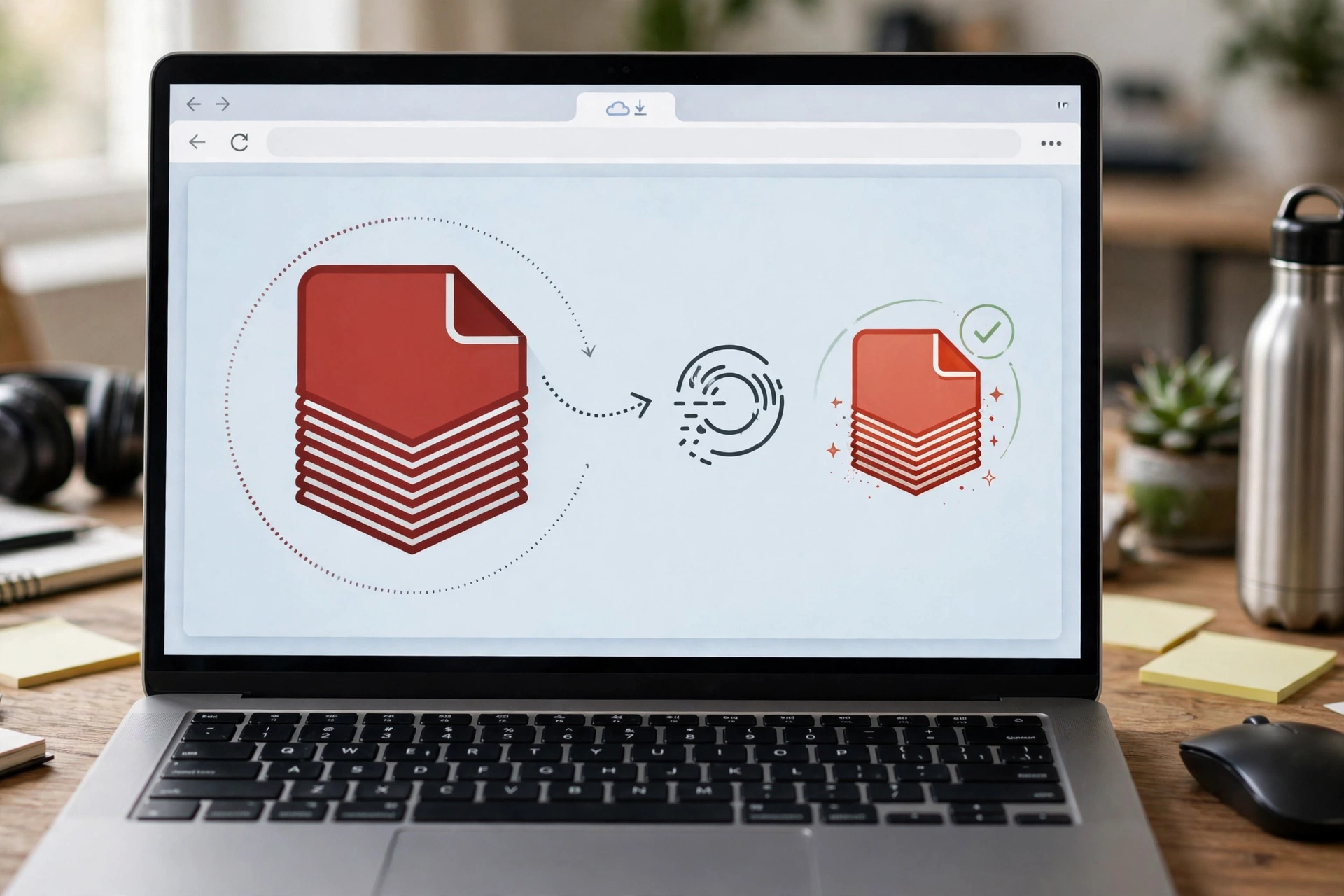
Open the Compress PDF tool at https://savytools.com/compress-pdf/.
Drop your PDF into the upload area, or choose it from your files.
Pick Re-save mode first. It is the gentle option, and it is enough for many files.
Run the compression and compare the before and after file sizes shown by the tool.
Download the compressed PDF to your device.
Open it once and check that it still reads well before you send it anywhere. Zoom in on the smallest text.
| Step | What to do | Why it matters |
|---|---|---|
| Add file | Drop one PDF into the tool | One file at a time keeps the check simple. |
| Pick Re-save | Choose the gentle mode first | Zero quality loss. It is enough for many files. |
| Compress | Run it and read both sizes | The before and after sizes tell you if the job is done. |
| Download | Save the compressed PDF | This is the file you will send. |
| Check | Open it and zoom in on small text | A thirty-second check catches blur before anyone else sees it. |
Bullet summary
- No sign-up, and no watermark is added to the compressed file.
- Your file is processed entirely in your browser. Nothing is uploaded to a server, and nothing is stored after you close the page.
- The tool shows the before and after sizes, so you can see exactly how much smaller your file became.
- Keep your original PDF until you have checked the compressed copy, so you can start again if the result is not good enough.
2. Re-save vs Strong: pick the right mode
This is the one choice that decides whether your file stays a real document or becomes a picture of a document. Both modes are on the same tool page, and they do very different things.
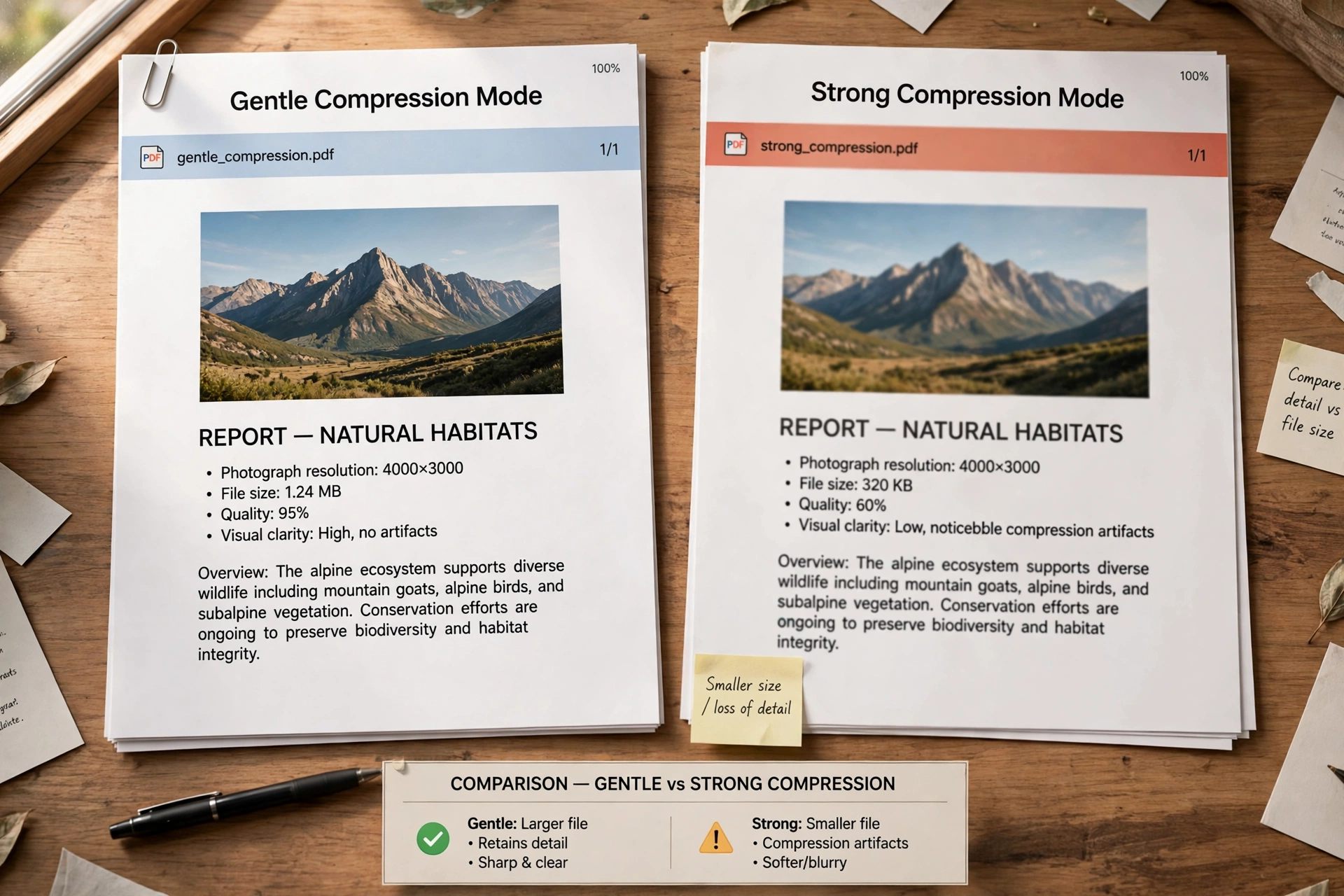
Re-save tidies the file structure without touching quality. It removes wasted space inside the PDF, the kind that builds up when a file is saved and re-saved by different programs. Your text stays real text. It can still be searched, copied, and read by a screen reader. Your images stay as they are. The saving is usually small, because nothing is actually thrown away.
Strong rebuilds every page as an image at your chosen quality. That is why it can shrink a scan-heavy PDF so much. A scanned page is already an image, so rebuilding it at a lower quality makes a real difference. But the tradeoff is real too. Once a page is an image, the text on it is no longer text. It cannot be searched, copied, or read by a screen reader. Small text can turn soft or blurry if the quality is set too low.
| Re-save | Strong | |
|---|---|---|
| What it does | Tidies the file structure | Rebuilds every page as an image |
| Quality | Unchanged, zero loss | Lower, by your chosen quality |
| Text stays searchable | Yes, text stays real text | No, text becomes part of the image |
| Text stays copyable | Yes | No |
| Best for | Text PDFs, forms, resumes, contracts | Scan-heavy PDFs, photos of pages |
| Size saving | Small, often only a little | Large, much smaller for scans |
Bullet summary
- Start with Re-save. If the new size is under your limit, stop there. You have lost nothing.
- Use Strong only when Re-save is not enough, and only when the file does not need searchable text.
- If a file must stay searchable, Strong is the wrong mode, no matter how small it makes the file.
- Check the result after Strong mode. Zoom in on the smallest text on the page before you send it.
3. Why your PDF is so big in the first place
A PDF is only as big as what is inside it. Knowing what is inside tells you which mode will work.
A text-only PDF is usually small already. The words themselves take almost no space. If a text PDF is large, the size usually comes from embedded fonts, or from images tucked inside it. Re-save is the right tool for this kind of file, because the file is already close to its smallest honest size.
A scanned PDF is big because every page is a photo. A single scanned page can be larger than a whole text document. Strong mode is the right tool here, because rebuilding those page images at a lower quality is exactly what shrinks the file.
A PDF with photos, charts, or screenshots sits in between. The images are the heavy part. Re-save will not touch them, so it will not save much. Strong mode will shrink them, and the question becomes whether the images still look good enough at the lower quality.
| What is inside | Why the file is big | Which mode helps |
|---|---|---|
| Real text only | Embedded fonts, a little waste | Re-save, small saving |
| Scanned pages | Every page is a photo | Strong, large saving |
| Photos and charts | High resolution images | Strong, medium saving |
| Mixed text and scans | Scanned pages dominate the size | Strong, large saving |
Bullet summary
- Text-only PDFs are already small and shrink less. That is normal, not a failure of the tool.
- PDFs full of large images usually shrink a lot. That is where compression earns its keep.
- If you do not know what is inside, try Re-save first and read the before and after sizes. The numbers will tell you.
4. Check the compressed file before you send it
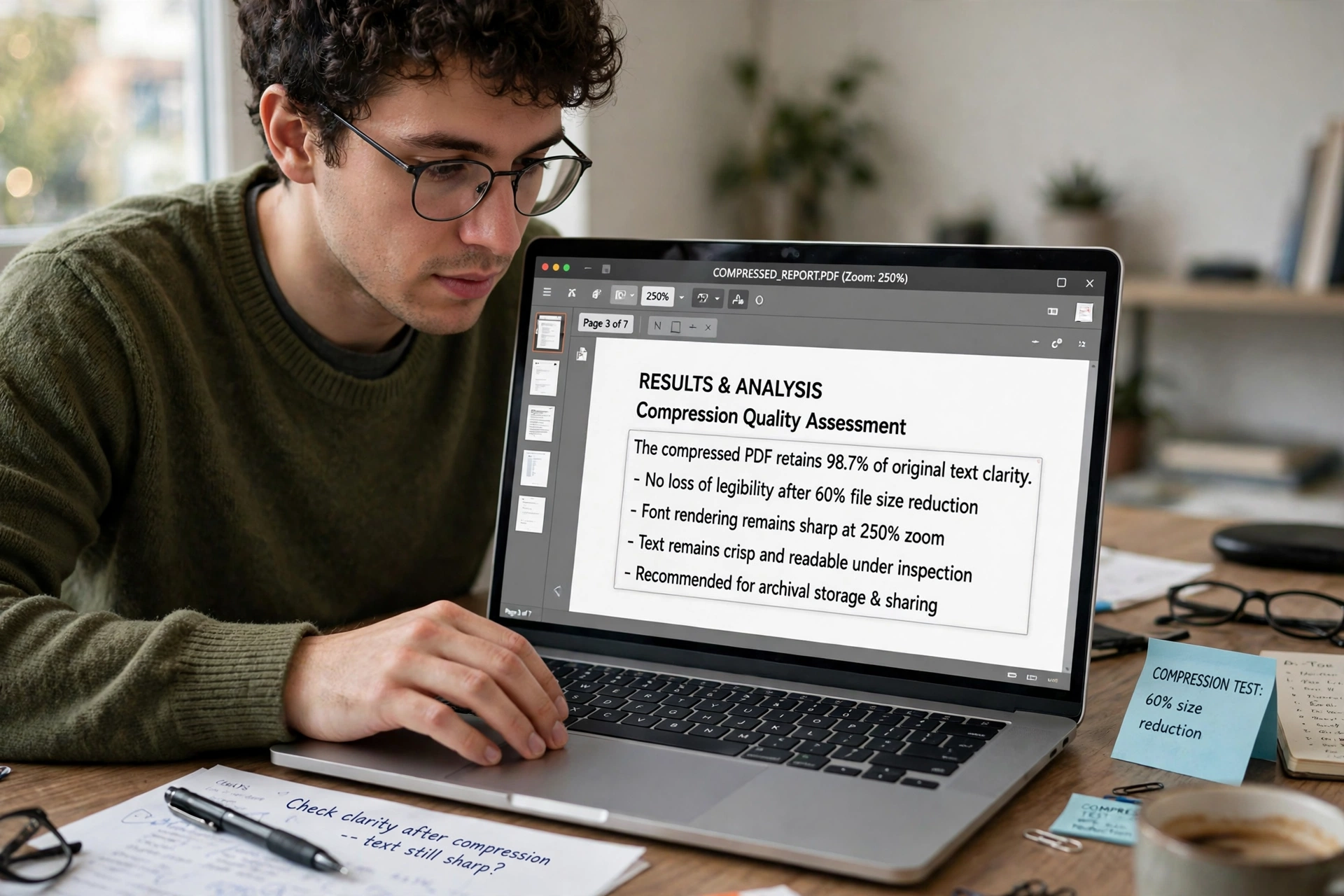
This is the step most guides skip, and it is the step that saves you from an embarrassing send. Open the compressed PDF once, top to bottom, and check four things.
| What to check | What to look for | Quick fix |
|---|---|---|
| Smallest text | Still sharp when you zoom in | Re-run with a higher quality, or use Re-save instead. |
| Images and charts | Still clear, not blocky | Re-run with a higher quality. |
| Page count | Every page is still there | Re-run from the original file. |
| File size | Under your email or upload limit | Run Strong mode if you only used Re-save. |
Bullet summary
- Check the smallest text first. That is where quality loss shows up fastest.
- Keep your original PDF until the check is done. Compressing again takes seconds when the original is still there.
- Never send a compressed file you have not opened. Thirty seconds of checking beats an apology email every time.
- If the compressed file is still too big after Strong mode, the file may need splitting instead. See section 6.
5. When the compressed file is still too big to email
Sometimes one round of compression is not enough. The file is smaller, but still over the limit. Do not just run Strong mode again at a lower quality. Each round throws away more detail, and the file gets worse every time.
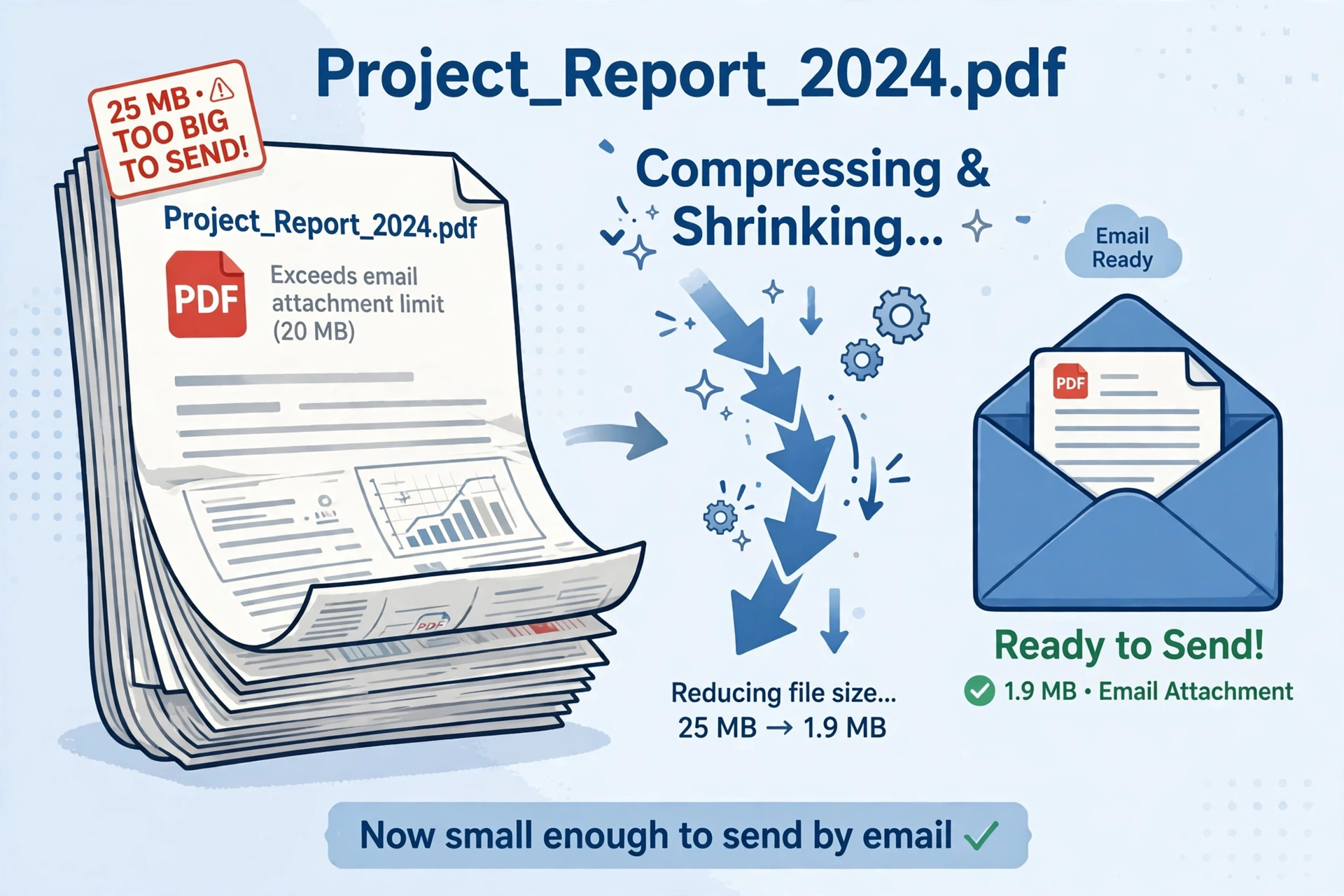
First, check whether the file really needs to be one file. A 60-page report with 10 pages of appendices can be split, and only the pages that matter need to be sent. Our Split PDF tool at https://savytools.com/split-pdf/ pulls out exactly the pages you need, in your browser.
Second, check whether the file was merged from several files. A merged file is roughly the size of the original files added together. Compress after merging, not before, so you only check one finished file. Our guide to merging PDF files online free at https://savytools.com/how-to-merge-pdf-files-online-free/ walks through that order.
| Compressed file size | What to do | Why |
|---|---|---|
| Under 10 MB | Send it as it is | Most email services accept this. |
| 10 to 25 MB | Compress once more, at a slightly lower quality, then check | Many inboxes reject larger attachments. |
| Over 25 MB | Split it, or share a link instead | Email is the wrong tool for a file this size. |
Bullet summary
- Do not compress the same file over and over. Each round loses more quality.
- If the file is mostly scanned pages, the problem is the scans. Scanned pages are images, and images are heavy.
- For a file that must stay at full quality, send it as a shared link instead of an email attachment.
6. When not to compress a PDF
Compressing is a simple job, but a few cases need a different approach. Saying this plainly saves you time.
- A resume that must be found by an applicant tracking system should never go through Strong mode. The system reads the text, and Strong mode turns the text into an image. Use Re-save only, or send the original.
- A contract or a signed document should not be compressed with Strong mode either. The signature and the text must stay exactly as they are. Re-save is safe, because it does not touch the content.
- A form that will be searched, filled in, or read by a screen reader needs its text to stay real text. Strong mode breaks all three. Use Re-save, or send the original.
- A document with sensitive personal information should not go to an upload tool. If the tool sends your files to a server, your data leaves your device. Use a browser tool like SavyTools Compress PDF, where the files never leave your device, or compress offline instead.
- A PDF you only need to make smaller by removing pages does not need compressing at all. Use the Split PDF tool at https://savytools.com/split-pdf/ to pull out the pages you need.
Bullet summary
- Searchable text: use Re-save only. Never use Strong mode.
- Signed contract: use Re-save only, or send the original.
- Sensitive document: use a browser tool, or compress offline.
- Wrong job: if you need fewer pages, split the PDF instead of compressing it.
Frequently asked questions
Can I compress a PDF without losing quality?
Yes, with the gentle Re-save mode. It tidies the file structure without touching quality, so your text and images stay exactly as they are. The saving is usually small, because nothing is thrown away. If you need a much smaller file, Strong mode will shrink it further, but it rebuilds every page as an image, so some quality is lost.
Will my text still be searchable after compression?
It depends on the mode. With Re-save, yes. Your text stays real text, so it can still be searched, copied, and read by a screen reader. With Strong mode, no. Every page becomes an image, so the text can no longer be searched or copied. If your file must stay searchable, use Re-save only.
How much smaller will my PDF get?
It depends on what is inside the file. PDFs full of large images usually shrink a lot, while text-only PDFs are already small and shrink less. The tool shows the before and after sizes, so you can judge the result yourself. No percentage saving is promised, because it varies from file to file.
Is compressing a PDF online free?
Yes. The SavyTools Compress PDF tool is free to use, with no sign-up and no watermark added to your document. Other free tools have limits, like a daily task cap or a file size cap, so check their pages before you pick one.
Are my files safe when I compress a PDF online?
It depends on the tool. With browser tools like SavyTools Compress PDF, your files are processed on your own device and never uploaded to a server, which is the safest setup. With upload tools, your files travel to a server and are deleted after a set time, usually one or two hours. Avoid upload tools for sensitive documents.
Can I compress a PDF on my phone without an app?
Yes. Open the SavyTools Compress PDF tool in Safari on iPhone or Chrome on Android, add your PDF, pick a mode, compress, and download the result. No app, no account, and no subscription is required.
The short version
Compressing a PDF without losing quality is a two-step job: start with the gentle Re-save mode, which costs you nothing in quality, and only use Strong mode when the file is still too big. Strong mode shrinks scan-heavy files a lot, but it turns every page into an image, so the text can no longer be searched or copied. Check the compressed file before you send it, keep your original until the check is done, and use a browser tool for sensitive documents, so your files never leave your device.
Related PDF guides and tools
- Compress PDF (pillar tool): https://savytools.com/compress-pdf/
- How to Merge PDF Files Online Free: https://savytools.com/how-to-merge-pdf-files-online-free/
- How to Convert PDF to Word Free Without Losing Formatting: https://savytools.com/how-to-convert-pdf-to-word-free-without-losing-formatting/
- Split PDF tool (for a file that needs fewer pages, not a smaller file): https://savytools.com/split-pdf/
- Merge PDF tool (combine several PDFs first, then compress once): https://savytools.com/merge-pdf/
