
How to Resize an Image for Instagram (Free, No App)
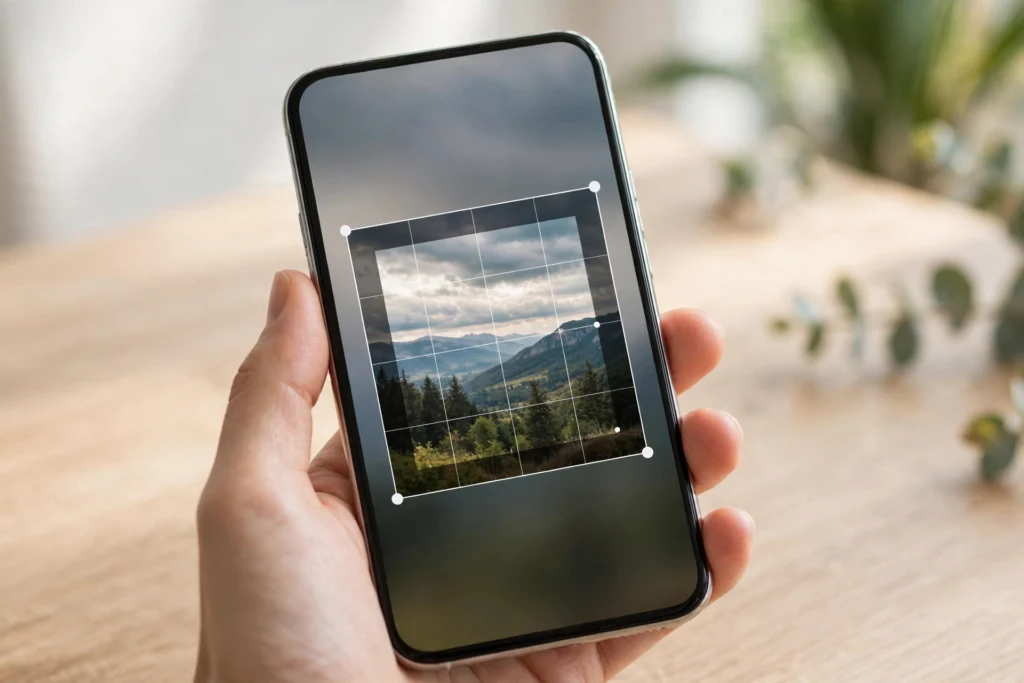
Learning how to resize an image for Instagram is the difference between a photo that fills the screen beautifully and one that Instagram crops in exactly the wrong place. The good news is you do not need Photoshop, a paid app, or any design skill. A free browser tool can resize your photo to Instagram’s exact dimensions in under a minute, on your phone or your computer.
In this guide, you will learn the right size for every kind of Instagram post, how to resize an image for Instagram without cropping out the important part, and the step-by-step method using SavyTools’ free Image Resizer.
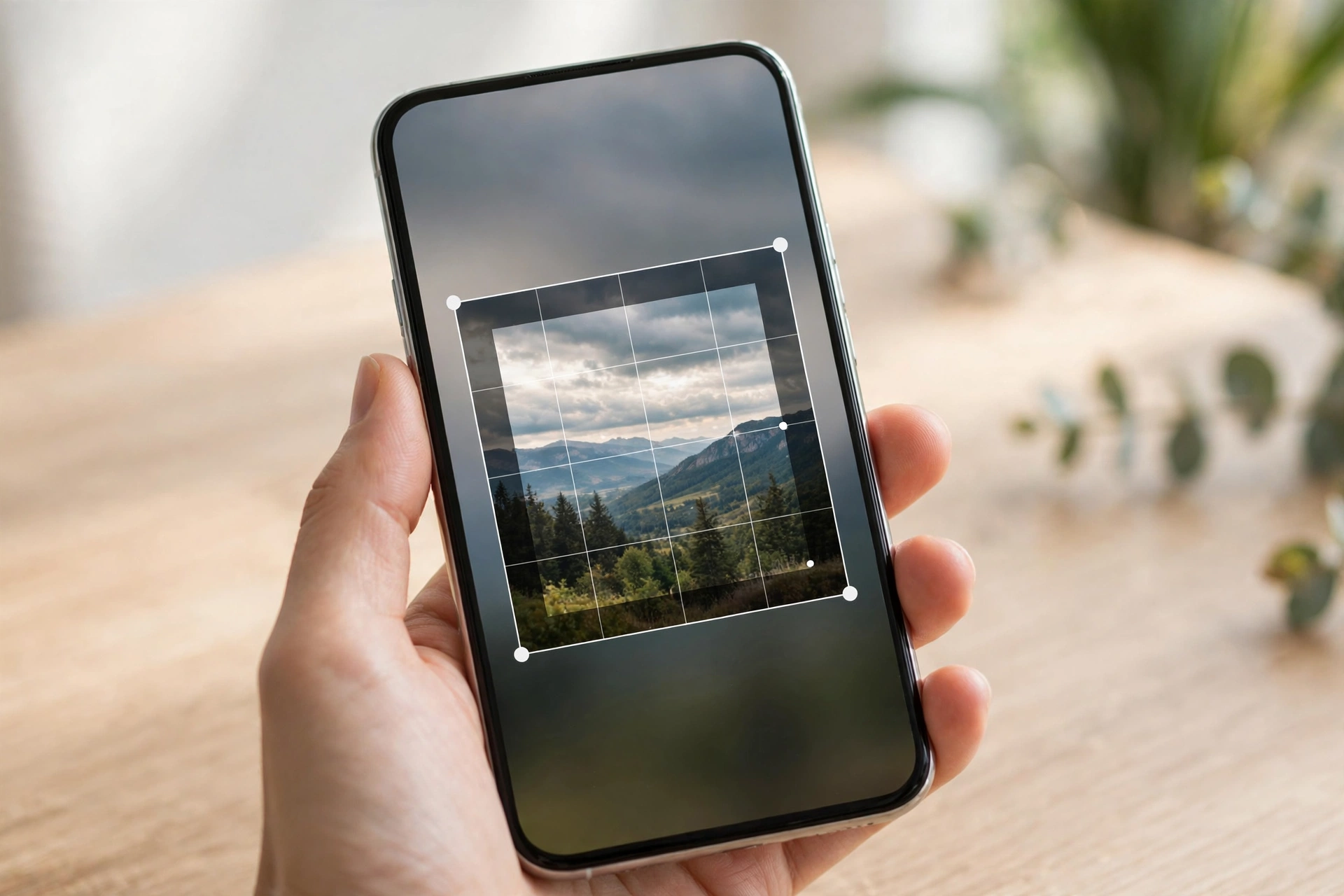
What size should an image be for Instagram?
Instagram accepts several shapes, and each one has a recommended pixel size. Using the right size matters because Instagram compresses anything you upload; starting from a correctly sized, sharp image gives that compression much less damage to do. Here are the sizes most creators use:
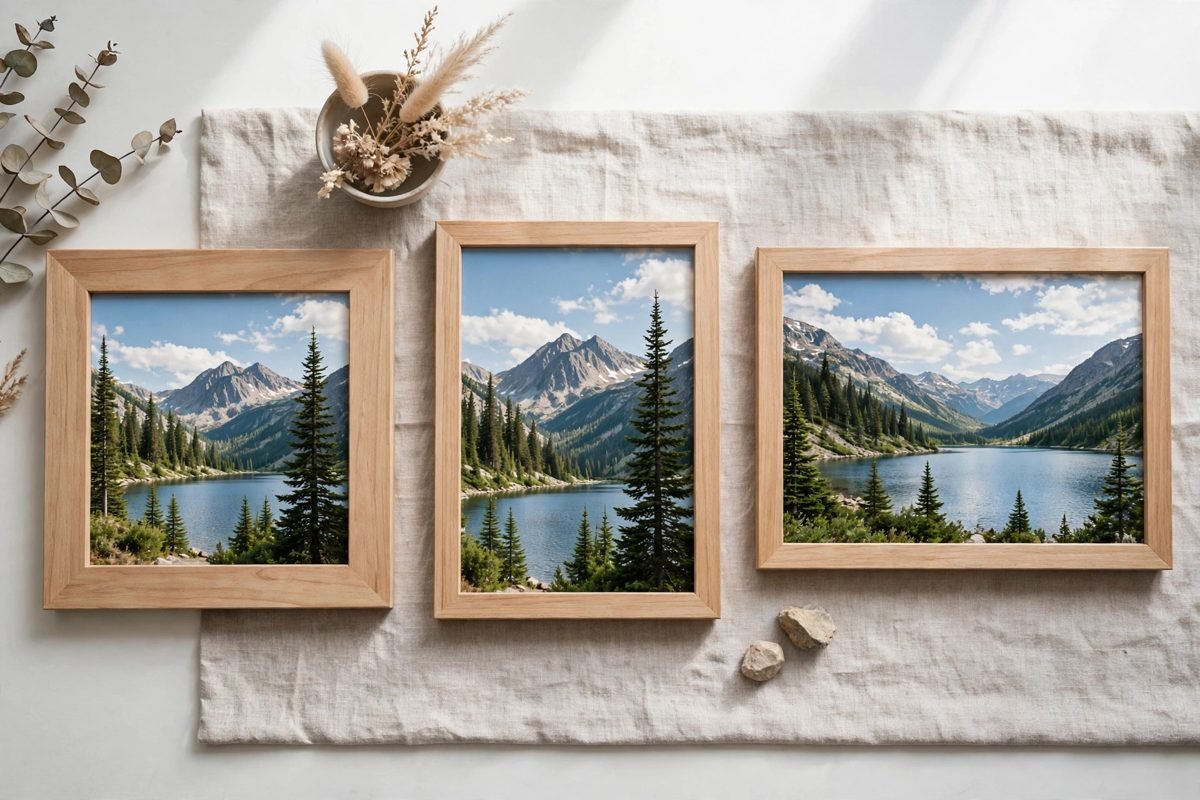
- Square feed post: 1080 x 1080 pixels (1:1). This is the classic Instagram look, and it still works perfectly in the grid.
- Portrait feed post: 1080 x 1350 pixels (4:5). Portrait takes up more space in the feed, so it grabs more attention while people scroll.
- Landscape feed post: 1080 x 566 pixels (1.91:1). Wide shots work here, but they appear smaller in the feed than portrait posts.
- Story or Reel cover: 1080 x 1920 pixels (9:16). This is the full vertical phone screen, and it is also the size to use for Reel covers.
- Profile picture: 320 x 320 pixels. Instagram displays it as a circle, so keep faces and logos away from the corners.
If you remember just one rule, make it this: for a regular feed post, 1080 pixels wide is the sweet spot. Anything much larger gets compressed anyway, and anything much smaller looks soft.
How to resize an image for Instagram step by step
Here is the fastest way to resize a photo for Instagram, with no app to install and no account to create:
- Open the SavyTools Image Resizer in your browser, on your phone or computer.
- Drop your image into the tool, or choose it from your files. JPG, PNG and WebP photos all work.
- Pick the size you need. For a square post, enter 1080 as the width and 1080 as the height. For a portrait post, enter 1080 by 1350. For a Story, enter 1080 by 1920.
- Keep the aspect ratio lock on if you only want to shrink the photo without changing its shape. This stops the image from stretching or squashing.
- If Instagram needs an exact shape and your photo is a different shape, unlock the ratio and force both dimensions — but check the preview first, because forcing a square onto a wide photo will distort faces.
- Export the result as JPG for a normal photograph, or PNG if the image has text, a logo, or sharp lines. Then download it and post it straight to Instagram.
The whole process takes less than a minute, and because resizing happens in your browser, your photo is never uploaded to a server or stored anywhere.
How to resize an image for Instagram without cropping it?
This is the question that frustrates people most. You have a great wide photo, Instagram wants a square, and something important always gets cut off. There are two honest answers, and which one you pick depends on the photo.
The first option is to resize without changing the shape at all: keep the aspect ratio lock on and shrink the photo to 1080 pixels wide. Instagram will then show it in its original shape, with no cropping, as long as the shape is within Instagram’s allowed range. A slightly wide or slightly tall photo usually posts fine this way.
The second option is for photos that are far from Instagram’s shape, like a very wide panorama. Here you have to choose: crop deliberately, or pad the image. Cropping deliberately means you pick what stays and what goes, rather than letting Instagram’s automatic crop decide. If you would rather keep the whole photo, add a plain background border around it to make it square — many free phone editors can do this, and then you can resize the bordered image with the Image Resizer. The photo stays complete, with a clean frame around it.
What you should not do is force a square onto a wide photo with the ratio unlocked and hope for the best. Faces stretch, buildings lean, and the result looks wrong even to people who cannot say why.
What is the best image size for Instagram posts?
For most people, the best image size for Instagram posts is 1080 x 1350 pixels, the portrait size. It is not just about quality — it is about screen space. A portrait post fills more of the phone screen than a square or landscape post, so it holds attention a fraction longer while someone scrolls. That small advantage adds up across hundreds of viewers.
Square at 1080 x 1080 is still the safest choice when your photo is naturally square, or when you care about how the grid looks, since every post lines up evenly. Landscape at 1080 x 566 suits wide scenery and group photos, but expect it to look smaller in the feed. There is no single “best” size for every photo — the best size is the one that matches your photo’s shape and your goal for the post.
One more practical tip: always start from the largest, sharpest version of your photo. Shrinking a big image keeps it crisp, while enlarging a small one makes it blurry. If the only copy you have is a small one sent through a messaging app, ask for the original before resizing — messaging apps compress photos heavily, and no resizer can restore detail that is already gone.
How to resize a photo for Instagram on iPhone?
On an iPhone, the process is exactly the same as on a computer, because the tool runs in the browser. Open Safari, go to the Image Resizer, and choose your photo from the Photos app or the Files app. Enter 1080 x 1080 for a square post or 1080 x 1350 for a portrait post, export as JPG, and save the result back to Photos. From there, open Instagram and post it as usual.
You do not need to download a resizing app, and you do not need to pay for one. iPhone users often search for an app for this job, but a browser tool does the same thing without taking up storage or asking for a subscription. The same method works on Android in Chrome, and on a Mac or Windows computer in any browser.
What if the resized image is still too big to upload?
Resizing fixes dimensions, but it does not always fix file size. A detailed 1080 x 1350 JPG can still be several megabytes, which matters if you are on slow mobile data or uploading many photos at once. In that case, run the resized image through the Image Compressor afterwards. Lower the quality slider a little — 80 percent usually looks identical to the original on a phone screen — and the file shrinks dramatically with no visible loss.
The two-step workflow, resize first and compress second, covers almost every image problem you will meet on Instagram. You can find more free browser tools for everyday jobs on the SavyTools homepage, all working the same way: no sign-up, no install, and nothing uploaded to a server.
Frequently asked questions
How do I resize an image for Instagram without losing quality?
Start from the largest original photo you have, resize down to 1080 pixels wide, and export as JPG for photos or PNG for images with text. Shrinking a large image keeps it sharp; enlarging a small one is what causes blur.
What size is an Instagram post in 2026?
The standard feed sizes are 1080 x 1080 for square, 1080 x 1350 for portrait, and 1080 x 566 for landscape. Stories and Reels use 1080 x 1920, the full vertical phone screen.
Can I resize an image for Instagram for free?
Yes. SavyTools Image Resizer is free, works in your browser on any device, and needs no account or app download. Your image is resized on your own device and never uploaded anywhere.
Conclusion
Resizing an image for Instagram comes down to three decisions: pick the right size for the post type, keep the aspect ratio locked unless you have a reason not to, and start from the sharpest original you have. Square posts at 1080 x 1080 are the safe default, portrait posts at 1080 x 1350 grab the most feed space, and Stories need the tall 1080 x 1920 frame. Do that with a free browser tool, compress afterwards if the file is still large, and your photos will look exactly the way you intended them to — no surprise crops, no stretched faces, and no app required.