How to Merge PDF Files on iPhone (Free, No App Needed)
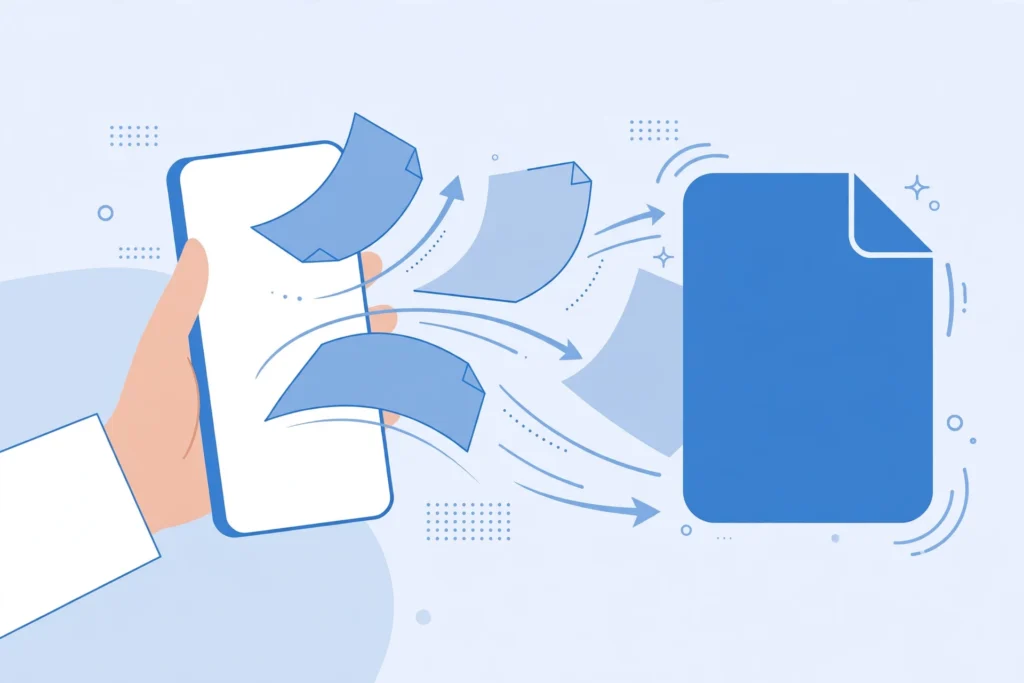
Yes — you can merge PDF files on iPhone free, without downloading any app. All you need is Safari and a browser-based tool: open the page, add your PDFs, arrange them in order, and download one combined file. The whole thing takes under a minute, and it works on any iPhone, old or new.
In this guide, you will learn exactly how to merge PDF files on iPhone step by step, how to pull PDFs from the Files app and iCloud Drive, and what to do if your merged file turns out too big to email.
How to merge PDF files on iPhone step by step
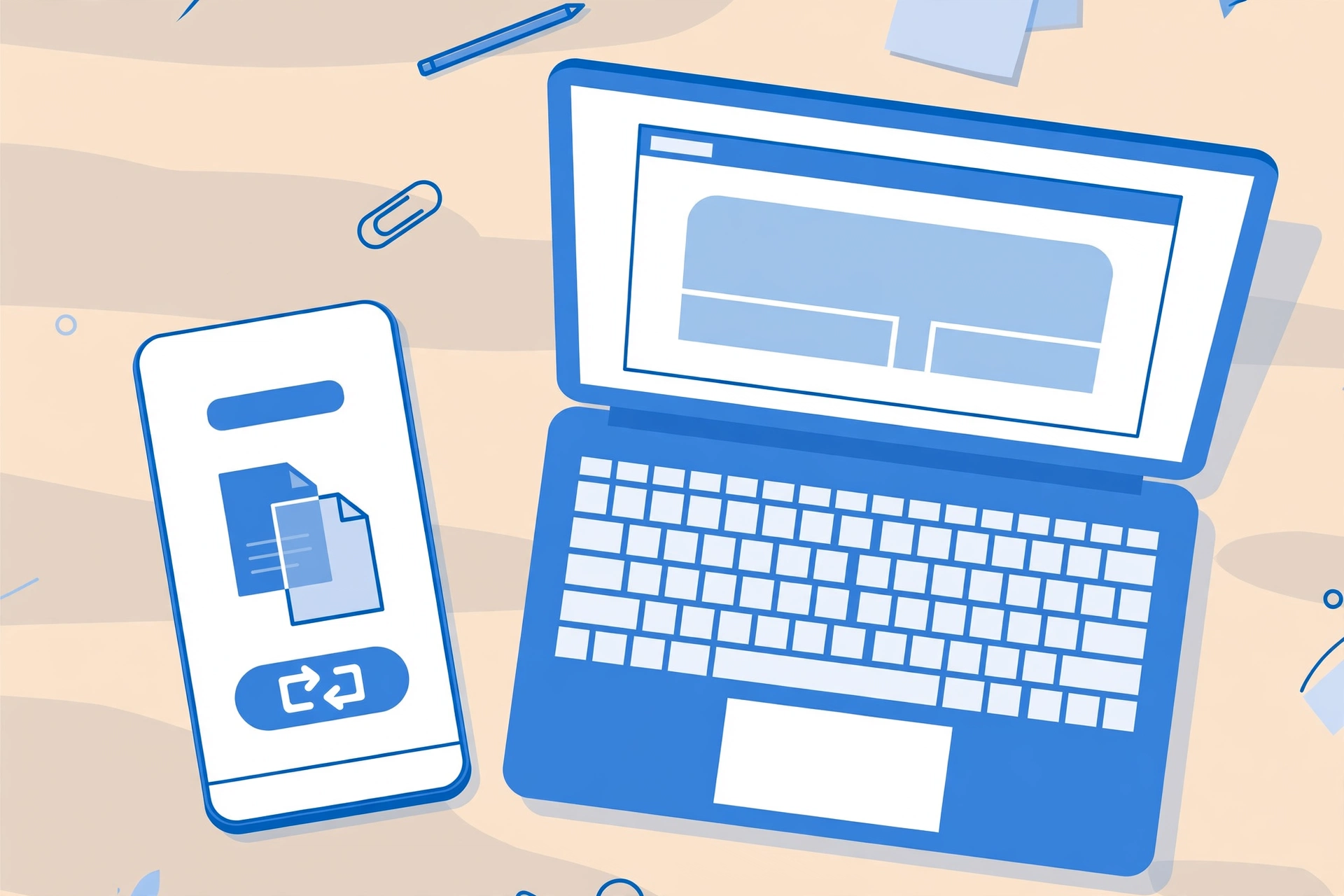
Here is the fastest way to combine PDFs on iPhone, no app required:
- Open Safari on your iPhone and go to SavyTools Merge PDF.
- Tap Add Files and choose Browse. This opens the file picker, where you can select PDFs from the Files app, iCloud Drive, or Google Drive.
- Select the PDFs you want to combine. You can add two files or ten — the order you select them is the order they will appear in the merged file.
- If the order is wrong, drag the files into the right order before merging. This matters most when you are combining a resume and a cover letter, or chapters of a report.
- Tap Merge and wait a few seconds while the tool joins the pages.
- Tap Download to save the combined PDF, or use the Share button to send it straight to Mail, Messages, or back to the Files app.
That is it. No account, no subscription, and no app eating up storage on your phone.
Can you merge PDFs on iPhone without an app?
Yes. This is the question almost everyone asks first, because the iPhone does not have a built-in “merge PDFs” button. The Files app can view PDFs, rename them, and move them around, but it cannot join two PDFs into one. Apple never added that feature.
You have three real options. The first is a paid PDF app from the App Store, which works but costs money and takes up space for a job you might do twice a year. The second is a Shortcuts automation, which is free but fiddly to set up and easy to break. The third — and the simplest — is a free browser tool like SavyTools Merge PDF, which does the job in Safari with nothing to install.
For most people, the browser route wins because it is instant. You do not need to learn anything new, and the same tool works on your iPad and Mac too, since it is just a web page.
How to merge PDFs from the Files app on iPhone
Most PDFs on an iPhone live in the Files app — downloads, email attachments you saved, scans from the Notes app, or documents in iCloud Drive. Getting them into the merge tool is simple:
- In Safari, open the Merge PDF tool and tap Add Files, then Browse.
- In the file picker, tap Browse at the bottom, then navigate to On My iPhone, iCloud Drive, or Downloads — wherever your PDFs are stored.
- Tap each PDF to select it. If your files are in different folders, add them one at a time; the tool keeps them all in one list.
- Scanned a document with the Notes app? Open the note, tap Share, and choose Save to Files as a PDF first — then it will appear in the file picker like any other PDF.
One tip that saves frustration: if a PDF is actually a photo of a document, convert it first with the JPG to PDF tool, then merge the resulting PDFs. Mixing photos and PDFs in one merge never looks as clean.

Will the merged PDF keep its quality?
Yes. Merging does not re-compress or rewrite your pages — it joins them in order, so the text stays sharp and the layout stays exactly as it was. The merged file is roughly the size of the original files added together, which is worth knowing before you email it.
If the result is too large for an email attachment, run it through the Compress PDF tool afterwards. That is the standard two-step workflow: merge first, compress second. Our guide to the best free PDF tools online covers the full set of jobs, including splitting a PDF when you only need a few pages of it.
How to merge PDF files on Android
The same method works on Android. Open Chrome, go to the same Merge PDF page, and add your files from Google Drive or your phone’s storage. There is nothing Apple-specific about the process, which is handy if your household or office mixes iPhones and Android phones — everyone uses the same free tool.
Frequently asked questions
Do I need to download an app to merge PDFs on iPhone?
No. You can merge PDFs on iPhone free in Safari with a browser tool. No app, no account, and no subscription is required.
Is merging PDFs on iPhone free?
Yes, with SavyTools Merge PDF it is completely free, and the merged file has no watermark added to it.
Are my files safe when I merge PDFs online?
With browser-based tools like SavyTools, your files are processed on your own device and never uploaded to a server, which is the safest setup. Avoid tools that force you to upload sensitive documents to an unknown server.
How to share the merged PDF from iPhone
Once your merged PDF is downloaded, sharing it takes seconds. Tap the Share button in Safari and choose Mail to email it, Messages to text it, or AirDrop to send it to a nearby Mac or iPad. If you want to keep it, choose Save to Files and pick a folder in iCloud Drive — that way the combined document is waiting for you on every device, not just your phone.
For job applications and school submissions, always open the merged file once before sending it. A quick scroll through the pages confirms the order is right and nothing is upside down, which is the one mistake that makes an otherwise perfect application look careless.
Conclusion
Merging PDFs on iPhone is a one-minute job once you know the trick: skip the App Store, open Safari, and use a free browser tool. Combine your files, check the page order, download the result, and share it wherever it needs to go. And if the file ever comes out too big, compress it before sending — the two tools together cover almost every PDF problem you will run into on your phone.